

You are viewing an old version of this page. View the current version.
Compare with Current View Page History
« Previous Version 61 Next »
https://help.myob.com/wiki/x/aI-MAQ
How satisfied are you with our online help?*
Just these help pages, not phone support or the product itself
Why did you give this rating?
Anything else you want to tell us about the help?
MYOB Invoices is a mobile app that lets you invoice on the go. You can manage your accounts and contacts, see who owes you money, and record payments too. And everything you do is immediately synced with your AccountRight company file.
Create, edit and view invoices
Create an invoice
- Tap Invoices on the dashboard.
- Tap +. Your customer list appears.
- Select the customer and then fill out the invoice details. You can add as many lines as you need.
- Tap Save to record the sale.
Tap Email if you want to also send an invoice to your customer.
The default invoice form will be used in the sale. You can set a default form to use for each customer (which is assigned in the card file). You can only create invoices using the Item or Service layout.
Edit an invoice
Invoices with a green amount (unpaid invoices) can be edited. Simply open the invoice and tap the line you want to change. Tap Save when finished and the changes will also be synced with your MYOB Essentials business.
View your invoices
Tap Invoices on the dashboard to see a list of all invoices, or if you want to view invoices for a particular customer, tap Contacts, select the customer and then tap the Invoices tab.
Create, edit and view quotes
Create a quote
- Tap Quotes on the dashboard.
- Tap +
- Select the customer and then fill out the quote details. Note you can only add one line item to a quote.
- Tap Save to record the quote.
Edit a quote
Quotes with a green amount (unexpired quotes) can be edited. Simply open the quote and tap anywhere on the quote details to edit. Tap Save when finished and the changes will also be synced with your MYOB Essentials business.
Currently only quote details (e.g., quote number, date of issue and expiry date) can be edited. The ability to edit line items is coming soon.
View your quotes
Tap Quotes on the dashboard to see a list of all quotes.
Take a payment
This feature is currently unavailable.
Manage your contacts
MYOB Invoices syncs with your AccountRight card file, so you can view your customer and supplier details, and see what’s owed, whenever you want.
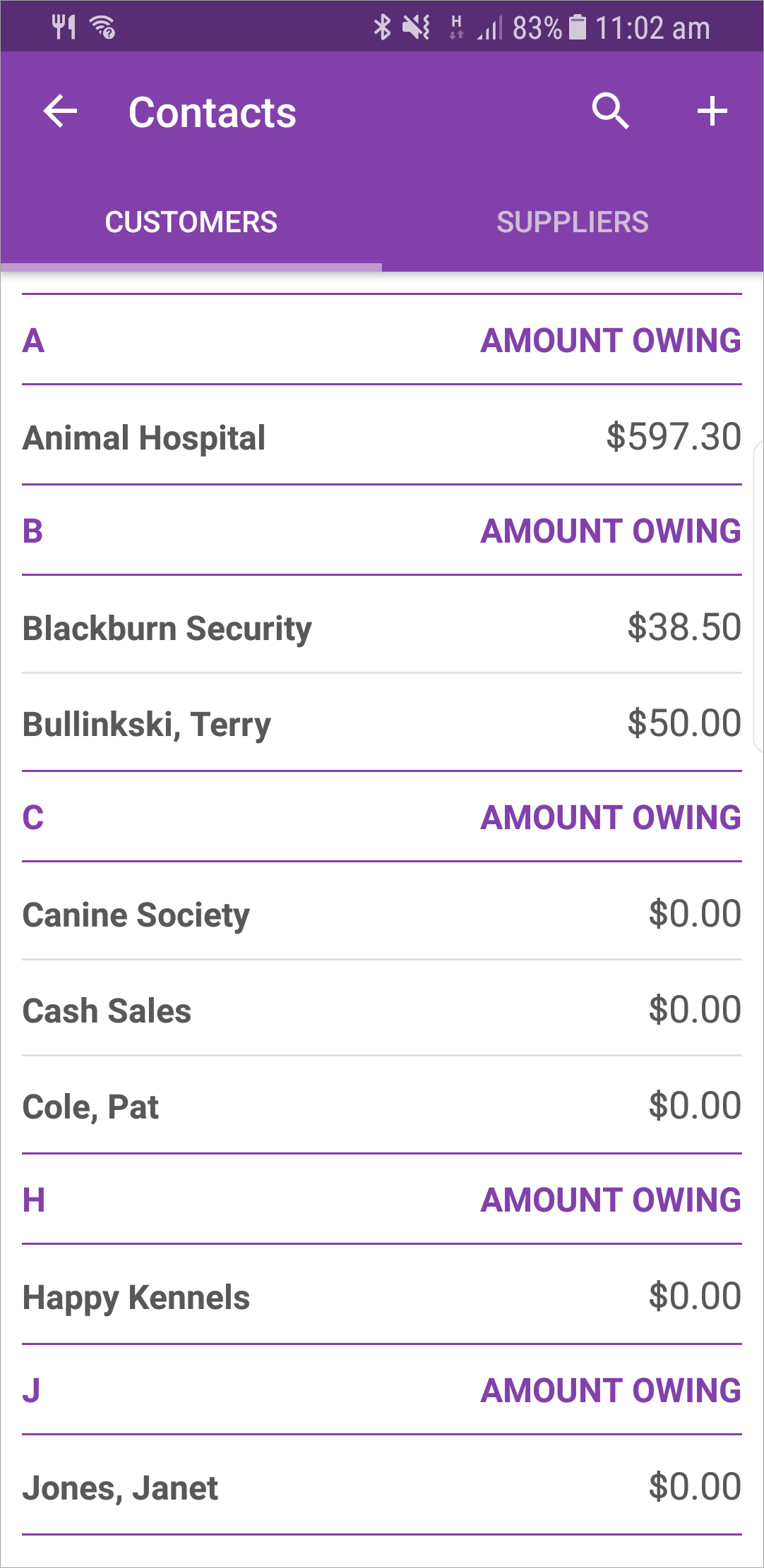
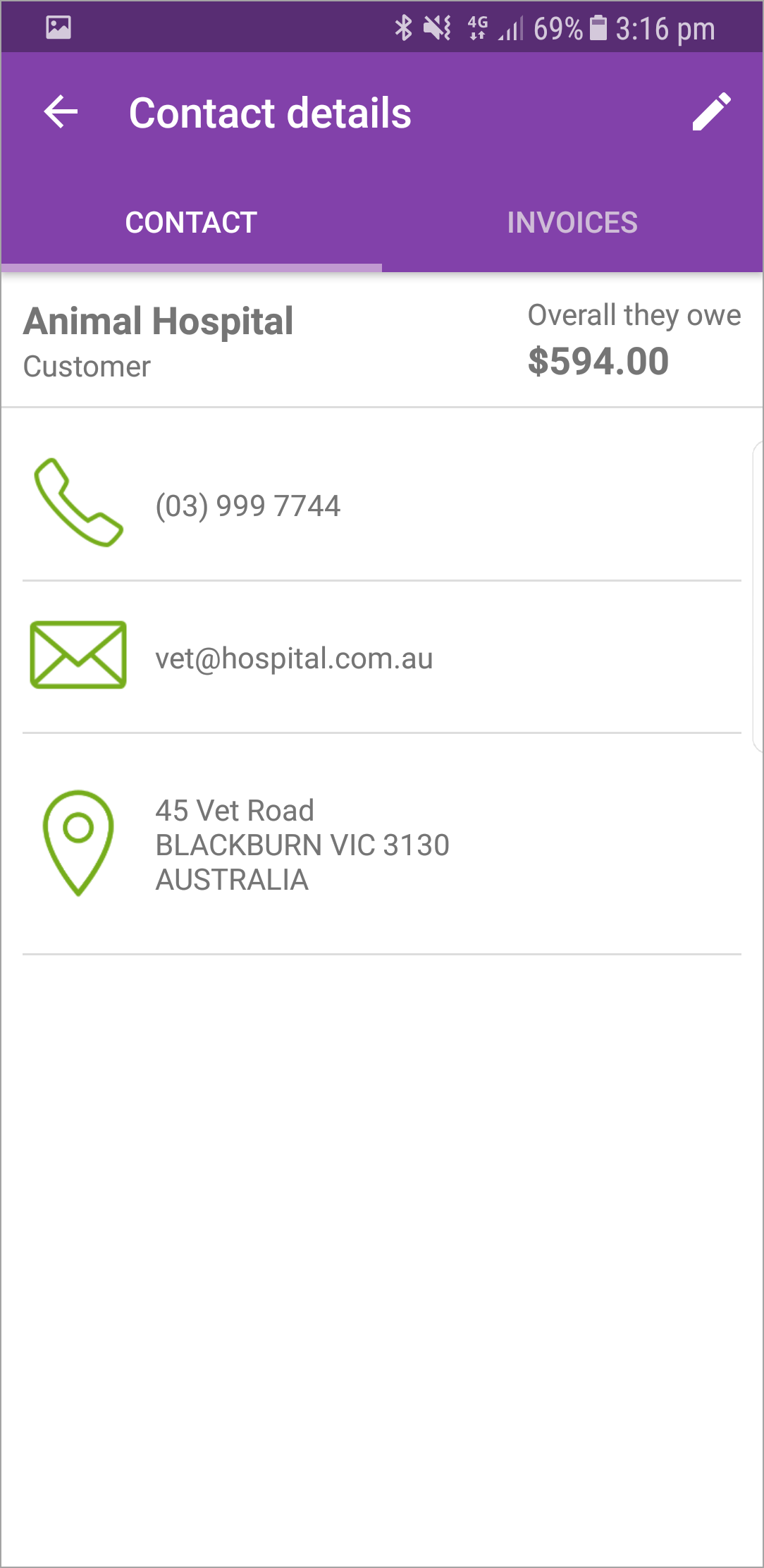
Create a contact
- Tap Contacts on the dashboard.
- Tap either Customers or Suppliers, depending on the type of contact you want to create.
- Tap +.
- Enter the contact’s details and then tap Save (
 ). The contact’s details will automatically sync with your AccountRight card file.
Edit a contact
To edit a contact, display the customer or supplier’s details, and then tap Edit ( ). Tap Save () when finished and the changes will also be synced with your AccountRight card file.
Find a contact
Tap Contacts on the dashboard, and then tap Customers or Suppliers to view your contacts by type. You can also search for a contact by typing in the search field.
Navigate to a contact's address
To view a map showing a contact’s address, or to get driving directions from your current location, display the contact’s details and then tap on the address field. Your device’s mapping app will launch so you can easily navigate to the address.
FAQs
Can I select a different invoice form to use in MYOB Invoices?
The default invoice form will be used in MYOB Invoices when you record a sale. In AccountRight, you can set a default form to use for each customer (which is assigned in the card file).
You can choose a different form by editing the customer in MYOB Invoices. Display the customer’s details then tap Edit () and choose the sale layout and the form you'd like to use.
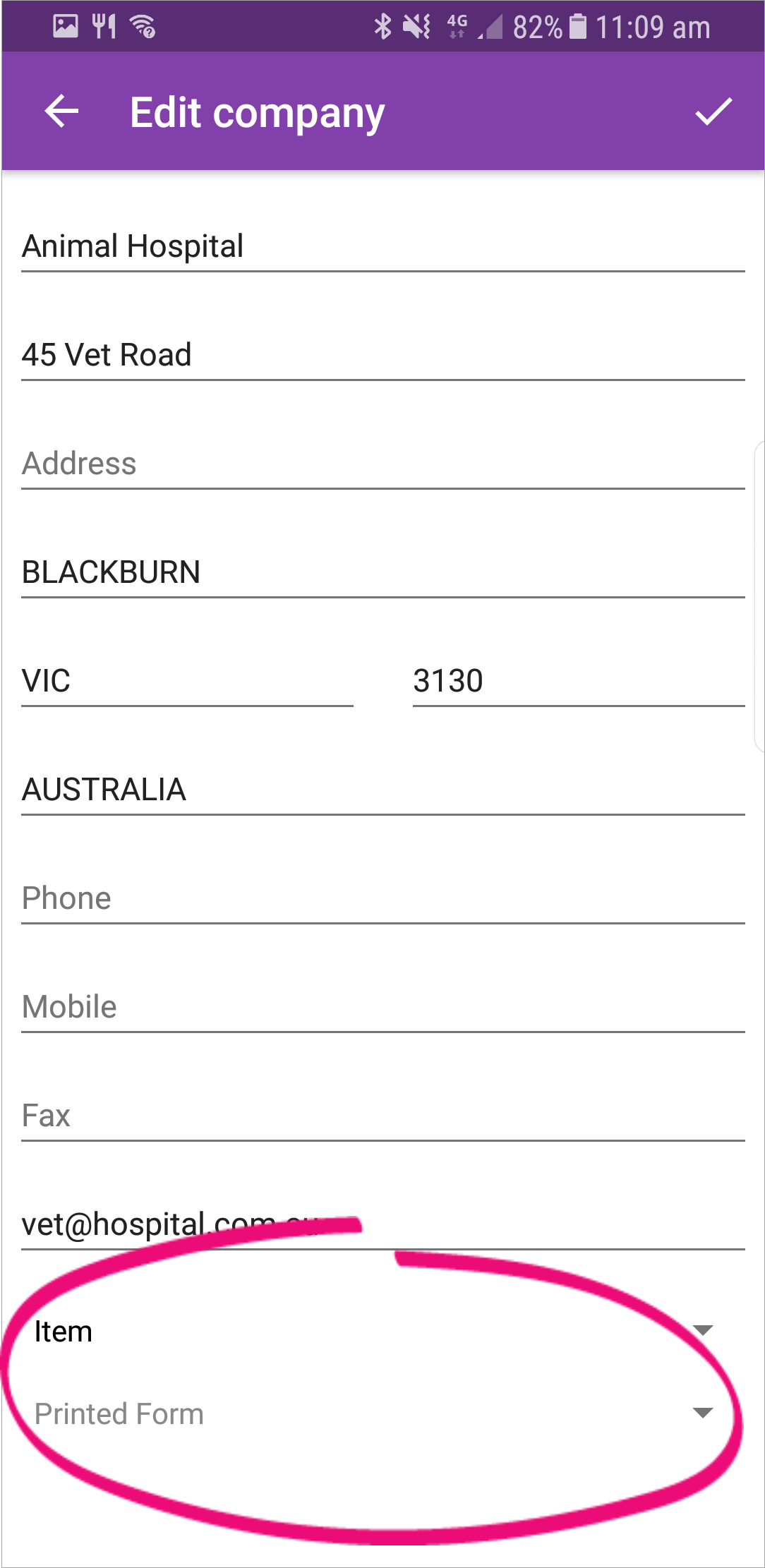
When you're done, tap Save (). The contact’s details will automatically sync and update the customer's card in AccountRight.