

You are viewing an old version of this page. View the current version.
Compare with Current View Page History
« Previous Version 29 Next »
https://help.myob.com/wiki/x/-h-nAQ
How satisfied are you with our online help?*
Just these help pages, not phone support or the product itself
Why did you give this rating?
Anything else you want to tell us about the help?
Release Notes MYOB AE/AO – Beta Release Date: 10 September 2018
This is the latest version of MYOB Practice Solutions for:
Australia:
Accountants Enterprise (AE) – MYOB AE 2018.1 (including Tax 6.46 SP2 and Tax 8.30 SP2)
Accountants Office (AO) – MYOB AO 2018.1
New Zealand:
Accountants Enterprise (AE) – MYOB AE 2018.2
Accountants Office (AO) – MYOB AO 2018.2
If you use Australian Tax
Once you upgrade to this new version of MYOB AE/AO, ELS will no longer be available for Activity Statements. PLS will be the new lodgment method.
What should I do?
We recommend that you lodge existing activity statements via ELS before upgrading.
What if I don't lodge my ELS activity statements before installing?
>You will need to pre-fill using a new method and lodge via PLS.
Refer to Getting Started with PLS Activity Statements in our online help for further information.
Compatibility
(AE) Most MYOB AE products have been tested for SQL 2017 compatibility and have passed certification testing.
(AE) SQL Server 2017 is a 64-bit only application. Microsoft hasn’t released an SQL 32-bit version from SQL 2016 onwards.
If you’re running a 32-bit edition of SQL, you can’t upgrade to SQL 2017. However, MYOB offers an SQL Instance Migration service to update a 32-bit version of SQL to a new instance of SQL 2017 – contact your client manager for more information.
(AE) You’ll need a Windows 64-bit operating system if you want to install SQL 2017. You can’t install SQL 2017 on a Windows 32-bit operating system (Windows 10 32-bit, and Windows 8 or 8.1 32-bit).
(AO) MYOB AO products are not compatible with SQL 2017.
>Since MYOB AO version 2017.2 was released in January 2018, MYOB AO is now supported on SQL Express 2014 32-bit.- (NZ) For New Zealand sites using AE Tax Manager integrated with MYOB AO Classic, SQL Express 2014 32-bit is the latest currently supported SQL technology. If you’d like to join a pilot program to use SQL 2016 or SQL 2017, send an email to betasupport@myob.com .
For important information about supported versions and known issues, refer to KB 39102.
Activity Statement ELS reports have been replaced by the Activity Statement Lodgment Report (ASLR) and pre-fill service. The Activity Statement Lodgment Report lists outstanding activity statement obligations for agents.
The new ASLR homepage enables you to schedule the report for each agent. Once scheduled, pre-fill data is downloaded automatically. From this homepage, you can create and pre-lodge Activity Statements for PLS.
In PLS, activity statements have a new mandatory field called Form Type – the pre-fill service automatically populates Form Type.
Activity statements are now lodged from the Lodgment Manager homepage.
Refer to Getting Started with PLS Activity Statements in our online help or press [F1].
We've created a new print attribute Exclude pre-fill labels. When selected, it won't print the pre-fill description for data pre-filled from the ATO.
To prevent pre-fill labels from printing:
- Follow the menu path Utilities > Practice default options > Print options.
The Print tax form options window displays. - Select the relevant print job and click Properties.
The Print Options window displays. - Select the Attributes tab.
- Select Exclude pre-fill labels.
Click OK. - Repeat steps 2–4 for the required print jobs.
We are continuing to develop PLS reports. We're fixing some known issues, and will be delivering further improvements including:
- Adding Update status, PLS Reports, and Print PDF to the ASLR tasks bar
- Add Manager, Employee, Office, Department Family Group, and Company fields to the ASLR field chooser
- Add Form type to PDF printing
- TFN displays in the ASLR homepage when Show sensitive data task permission is enabled
- Income tax client report implementation
- Exclude pre-fill label to be applied to the Cost of Managing Tax Affairs (cmt) worksheet in 2018.
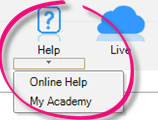
Select Help > My Academy at the top of the AE/AO screen to access our Accountants Enterprise/Office learning centre. Browse our extensive catalogue of free MYOB courses, to help you get the most out of your software.
What is it?
Your assets register just got smarter!
We've introduced:
- Easy to use and efficient workflows in a new browser-based interface
- Tight integration with your MYOB integrated Practice Ledger so that adding new assets is more automated than ever before
- A new global search feature to find assets faster, and viewing or editing details is a simple click away.
Can I use it?
- This feature is available if you have signed up for our beta test program.
If you would like to trial this new feature as part of our beta test program, email us at betasupport@myob.com. - You must have an integrated Practice Ledger.
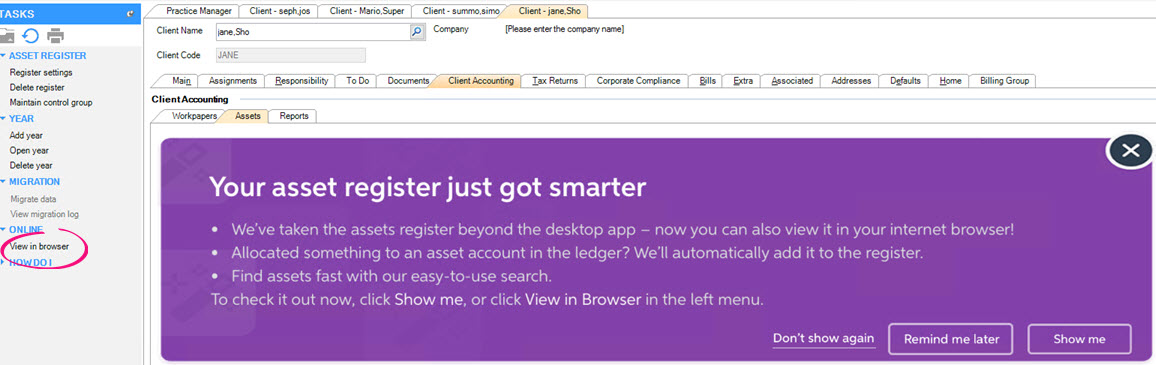
- If you are a Superuser or an Administrator you will automatically see the banner below.
How do I start using it?
- If you have access to this feature, a Banner is displayed in the Assets tab. The options are:
- Cross – closes the banner for the current session. The banner will re-appear if the same client is re-opened
- Don’t show again – the banner will close and never be displayed again for this client.
- Remind me later – closes the banner for the current session. The banner will re-appear if the same client is re-opened
- Show me – closes the banner and launches your asset register in your default browser.
- Alternatively, click the new View in browser link in the Tasks bar to launch Assets online in your default browser.
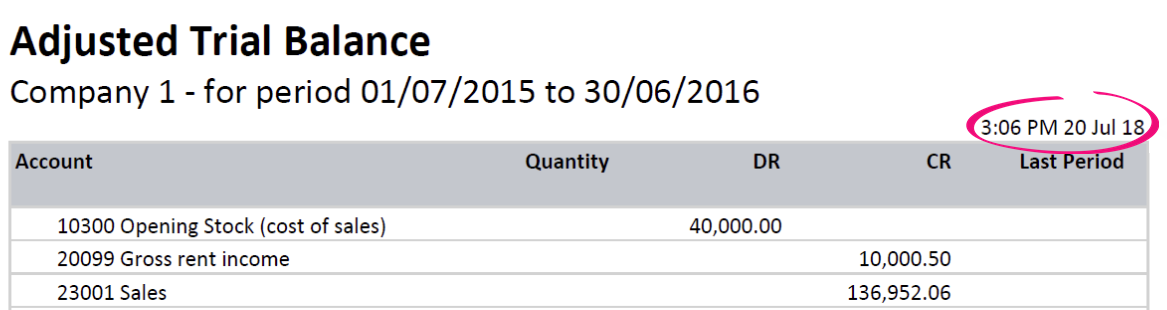
- We've added the current date and time to the Adjusted Trial Balance report:
- In Practice Report Settings > Non-Transaction Data Preferences, we've fixed the Shareholders field. We've changed it from 'is Director of/has Director' to 'is Shareholder of/has Shareholder'.
- In the Manage Account window, when you tab through creating a new account, the cursor will move to the account code field, ready to add another account.
- You can now resize the Manage Client File Imports > Mappings window using the resize handles in the corner of the screen.
If you open a second Mappings window, it will open to the default size, and won't remember any resizing you have done. - The opening balance review will now check account codes first rather than account description so that accounts with the same codes will now match.
- We've corrected spelling mistakes in the New Zealand MAS MYOB Standard charts for MYOB Ledger.
- In View Transactions, the account description will now be displayed alongside the account code.
New Zealand only
- We've added tax account groups on the workpaper/trial balance period Tasks bar(for MYOB Ledger, AccountRight Live Ledger and Essentials Accounting Ledger).
- We've created a new task permission to control access to the tax account groups which can be found under MYOB Client Accounting (Client > Client Accounting > Tax Account Groups).
- Australia only
- A new account group structure has been created to be used to map the account codes into the tax integration workpapers.
The new tax account group structure can be found on the Tasks bar in the Client Accounting tab, in the workpaper period/trial balance period and in the Practice report settings. - We've updated the 4 tax integration workpapers to pull figures from the new tax account group structure:
- Income tax integration - Company
- Income tax integration - Partnership
- Income tax integration - Trust
- Income tax integration - Individual.
- We've created a new task permission to control access to the tax account groups which can be found under MYOB Client Accounting (Client > Client Accounting > Tax Account Groups).
This change has been made for Client Accounting standard and Plus users.
- A new account group structure has been created to be used to map the account codes into the tax integration workpapers.
- We've added some How do I? links into the Tasks bar:
- *Coming soon*
- We've removed redundant account groups from the Statutory Reporter mapping:
- Trade and other receivables and Inventories from the Non-current assets section
- Trade and other payables and Tax provision from the Non-current liabilities section.
- Accounts that have been allocated to Other Financial Accounts will not trigger a duplicate mapped account code message when previewing the reports
- We've updated the default account group mapping for the standard MAS chart, to take account of Deferred Income / Expenditure and Losses brought forward for the Tax note.
- The Business Directory alignment of name and address has been improved.
- We've corrected Minutes of a trust by removing extra total lines below Distribution of income.
- The cover page has changed from 3 paragraphs to 4:
- Cover page - Custom paragraph for logo
- Cover Page
- Cover Page 02
- Cover page 03.
- Create your own style set If you want to change the cover page headings to a different case. For example:
- Cover Page 02 = Performance Report / Financial Statements (title case)
- Cover Page 03 = For the year ended (sentence case).
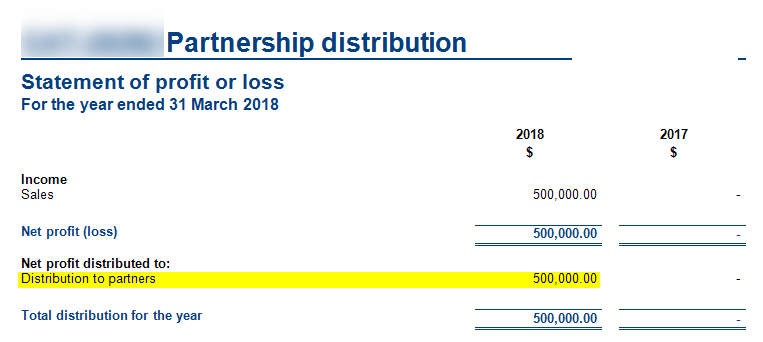
- In the profit and loss statement, you can now choose to summarise profit distribution. To achieve this, create a custom group of beneficiaries in the account group mapping.
- The Solvency Certificate report will now print correctly (including the report header) even if the Dividends Paid account group is zero.
- We've removed commas from the address field on the compilation report.
- In all reports, when displaying client name it now uses Mailing name by default. If Mailing Name doesn't exist, it will use:
- First Name Last Name for individuals
- Pre Name Main Name for organisations.
If you're an existing user, click the refresh button next to Client Name in Non-Transaction Data if you want to start using Mailing Name.

- We have added the Active checkbox under the Directors tab in Non-Transaction Data. Reports will now display the correct singular or plural wording for directors depending on whether the Active checkbox is selected.
- For reports, a director, partner, or trustee will only be listed as a signatory if you have selected the Director/Trustee/Partner is signatory checkbox in Non-Transaction Data . This rule does not apply to a sole trader or society as they only have one signatory.
- The consistency of non-transaction data being populated in reports has been improved.
When you deselect the Property, Plant and Equipment note on the reports list, the detail from that note will now be displayed in the balance sheet.
- We have added the Active checkbox under the Directors tab in Non-Transaction Data. Reports will now display the correct singular or plural wording for directors depending on whether the Active checkbox is selected.
The word “Accountants” has been removed from each of the footer paragraphs in practice reports.
We've updated the address field on the compilation report, so that suburb, state and postcode are on a single line.
We're now showing closing balance instead of movement amount in the Appropriation section of the Income Statement for all AccountRight files.
In all reports, when displaying client name it now uses Mailing name by default. If Mailing Name doesn't exist, it will use:
- First Name Last Name for individuals
- Pre Name Main Name for organisations.
If you're an existing user, click the refresh button next to Client Name in Non-Transaction Data if you want to start using Mailing Name .
The Minutes of Meeting - Trust report now prints the Held at address all on one line.
- For minutes and resolutions, a director, partner, or trustee will only be printed if you have selected the Included checkbox in Non-Transaction Data > Note (there are no minutes for partnerships or individuals).
We've made general formatting improvements to:
Liability for accrued benefits note for SMSF.
Directors Declaration.
- The OK button is now enabled for approved workpapers.
- On the Add Journal screen, use the tab key to move through the fields Account, Dr Amount, Cr Amount, GST Type/Code and Description. Tabbing now skips GST rate to improve efficiency.
- We've improved support for pdfDocs so that when you open a pdf with a bookmark, it will open to that bookmark.
AML (New Zealand)
- We've added a new AML tab to Clients > Contacts to cater for the new AML legislation taking effect on 1 October 2018.
For each client, select the checkbox and select the level of due diligence completed (including Politcally Exposed Persons). Any changes are recorded in the audit trail.
This information is available in the:- Clients > Contact search screens by adding these columns using the field chooser
- Associations tab. For example, to determine if each trust beneficiary has had due diligence performed, they can be associated as beneficiaries to the Trust and the 'AML Completed' and 'AML Status' columns viewed on the Trust's Associations tab.
- Client and Contact reports. To see which clients have had AML completed, you can filter on the search screens, or, run a report including the AML fields.
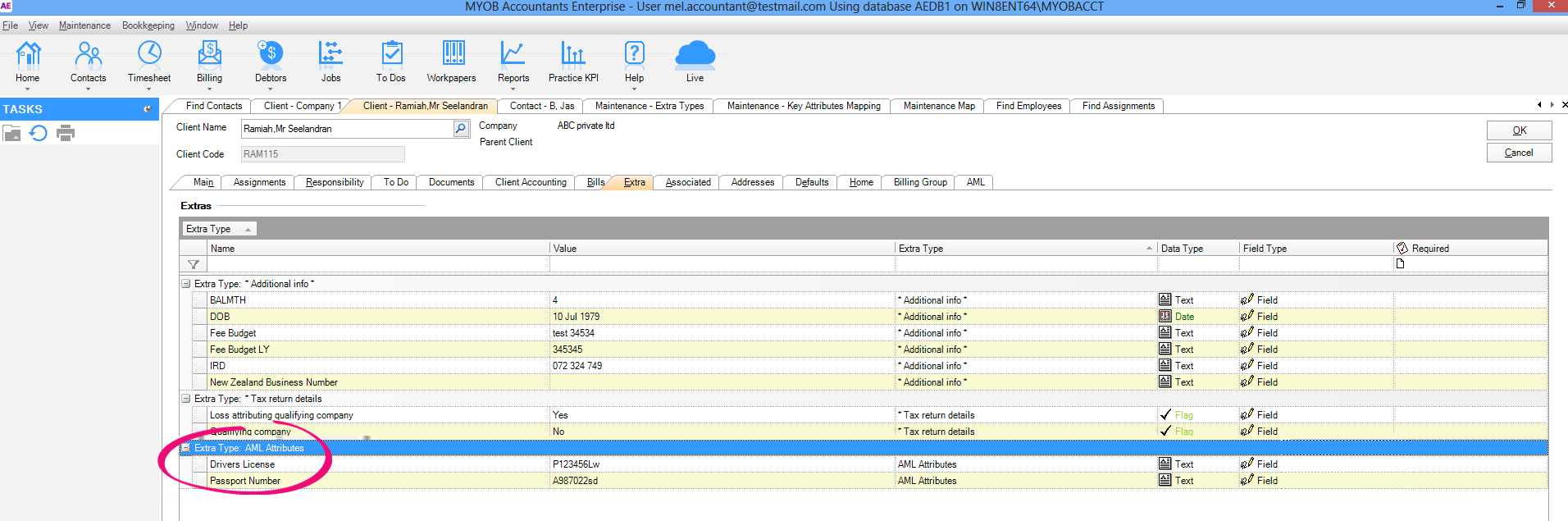
- We've added Drivers License and Passport Number to the Extra tab. These will store information used to verify the client's identity for AML.
- In MYOB AO, you can now tab to the Finish or Cancel button in the Create client wizard.
- (NZ) NZBN (New Zealand Business Number) has been added to the field chooser on the Find Clients tab.
- (NZ) Tax email has been added to the field chooser on the Find Clients tab.
Improvements
- In terminal server environments, if you're having trouble sending multiple statements at the same time, your template may contain non-optimised (large) images. Reduce the size of the images attached to the template, then try again.
- We've added the bulk check-in feature to the Documents > Administration homepage. The Document Manager administrator must have access to the location of the files requiring check-in.
- If you send an email from a secondary email account and save it to Document Manager, it will now save correctly. Previously, it showed as checked-out , and didn't have a Sent date.
MYOB Practice Solutions product version numbers:
Product | Version number |
|---|---|
(AU) MYOB AE/AO | 2018.1 |
(NZ) MYOB AE/AO | 2018.2 |
Client Accounting | 5.4.29.105 |
Corporate Compliance | 3.2 |
Document Manager | 5.4.29.105 |
Practice Manager | 5.4.29.105 |
Statutory Reporter Formats | (AU) 32 (NZ) 16 |
(AU) Tax Homepages | 7.0.6.30 |
How do I find out what version I have?
Open MYOB AE/AO.
Select Help > About from the menu bar.
Click the Plugins button to access the version number of individual products.
How do I find out my version of Statutory Reporter Formats?
Open MYOB AE/AO.
Select Maintenance > Maintenance Menu > Client Accounting > Practice Report Settings on the main menu.
The Practice Report Settings page opens.Click About on the Tasks bar.
 Yes
Yes
 No
No
 Thanks for your feedback.