Page tree

You are viewing an old version of this page. View the current version.

Compare with Current View Page History

« Previous Version 20 Next »


Close

How satisfied are you with our online help?*

Just these help pages, not phone support or the product itself

0
1
2
3
4
5
Very dissatisfied
Very satisfied

Why did you give this rating?

Anything else you want to tell us about the help?

The In Tray is designed to store a digital copy of your documents for you. Upload your invoices and receipts to make it easier to create bills, pay bills and track payments. Plus, you'll always have your proof of purchase documents on hand when you need them.

Adding documents to your In Tray

You can add documents up to 10MB in size, in these formats: PDFJPGJPEGTIFF, TIF, and PNG.

You can add documents in a few ways:

  • Click Upload documents and choose documents stored on your computer
  • Email documents to the address that appears in your In Tray. You can share this address with your suppliers so they can email documents straight to your In Tray. Tell me more about emailing documents to my In Tray.

Working with In Tray documents

Once a document is in your In Tray, you can link (attach) it to a bill you've entered into MYOB or use the document to create a new bill or spend money transaction.

You can also download or delete In Tray documents.

Let's take a closer look:

To link documents from the In Tray

Here's how to link a document from your In Tray to a bill or spend money transaction in MYOB.

  1. Click In Tray on the menu.
  2. Click the ellipsis button for the document you want to link and choose Link to existing bill.
  3. Select the transaction.
  4. Click Link. The document is linked to the selected bill and disappears from your In Tray.
To create a new bill or spend money from an In Tray document
  1. Click In Tray on the menu.
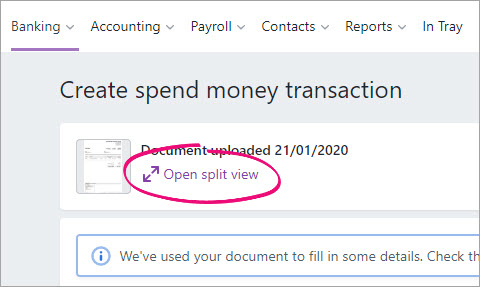
  2. Click the ellipsis button for the document and choose Create bill or Create spend money transaction. A new transaction is created and MYOB will fill in as much information as possible from the document. All you need to do is check these details and enter any additional details that are needed.

    Click Open split view to see the document and the new transaction side-by-side.

  3. When you're done, click Record. The transaction is recorded with the document linked to it.

Learn more about Attaching documents to spend money transactions and Attaching documents to bills.

To view or download documents from the In Tray
  1. Click In Tray on the menu.
  2. Click a document to see a preview.
  3. Click the ellipsis button for the document and choose Download.
  4. You can then choose to open or save the document. If you save it, give the file a name (it will be a PDF file, even if you uploaded it as an image file).

Once downloaded, you can view or print documents using any PDF viewer or attach them to emails.

To delete documents from the In Tray

When you delete a document from the In tray, it's permanently removed and can't be recovered. If you'd like to keep a copy of a document you're going to delete, download it first (see above).

  1. Click In Tray on the menu.
  2. Click the ellipsis button for the document and choose Delete.
  3. Click Delete on the confirmation message. The document is deleted from the In tray.