

You are viewing an old version of this page. View the current version.
Compare with Current View Page History
« Previous Version 28 Next »
https://help.myob.com/wiki/x/WRiyB
How satisfied are you with our online help?*
Just these help pages, not phone support or the product itself
Why did you give this rating?
Anything else you want to tell us about the help?
This page explains how to set up and manage leave without pay (LWOP) in MYOB Advanced Payroll.
LWOP is a type of unpaid leave where an employee takes time off work when they would otherwise be working. Although employees can request LWOP at any time, they are not entitled to it. Approving LWOP depends on the employee's contract – if it's not outlined in their contract, it's up to your discretion as their employer. You can even negotiate LWOP agreements with your employee when they request leave.
It is strongly recommended to record the LWOP agreement in writing. Who's recommending this? Is it just us? I don't believe we're meant to give business advice in the help. We're just meant to tell them how to use the product.
While you don't need to pay wages to an employee who takes unpaid leave, it is important to note that leave without pay does not mean an employee is terminated, so some other entitlements might still apply. However, LWOP can affect the employee's annual holidays payment and entitlement in some situations.
An employee might request LWOP when they:
- don't have enough annual leave to cover the time they want to take off work
- don't have enough sick leave to cover a period of illness or injury
- want to continue their education
- go on sabbatical
- can’t take parental leave or negotiated carer leave.
Before processing LWOP
There's a few steps involved in setting up MYOB Advanced to process LWOP. You need to:
Ensure your annual leave entitlement caps employee accrual per period.
This prevents the employee from earning more than the entitled number of weeks at rollover, especially when trying to move the employee's anniversary date.
Create an LWOP entitlement.
- Create an LWOP pay item.
- Set up MYOB Advanced to process LWOP.
When you start processing LWOP, here are few tips and good practices:
- Processing LWOP is simpler if you and your employee agree on the LWOP start and finish dates before the employee actually goes on leave.
- At the end of every pay period when an employee's taken LWOP, make sure that they've been paid the correct salary/wages paid.
- Make sure your employee’s work schedule, timesheets and ESS calendars reflecting their LWOP period.
Here are some tips to consider When you start processing LWOP, here are a few tips
- Go to the Entitlements screen (MPPP3300).
- In the Entitlement ID field, select your annual leave entitlement.
- On the Rules tab, select the Cap accrual per period checkbox.
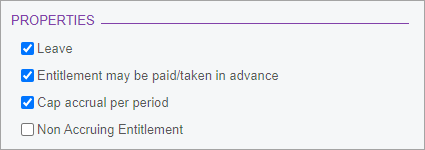
- On the form toolbar, click the Save icon (
 ).
).
- Go to the Entitlements screen (MPPP3300).
- On the form toolbar, click the Add New Record icon (
 ).
). - Complete the Entitlement ID and Description fields.
- On the Rules tab, in the Definition section, select the Units option and choose Weeks from the dropdown.

- In the Properties section, select the Leave and Non Accruing Entitlement checkboxes.
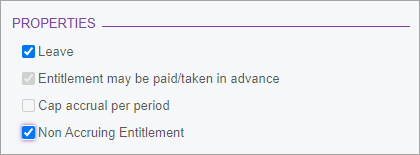
- On the form toolbar, click the Save icon ().
- Go to the Pay Items screen (MPPP2210).
- On the form toolbar, click the New Pay Item icon ().
- Complete the Pay Item ID, Description and Payslip label fields.
- In the Type field, select ENTITLEMENT PAYMENT.
- In the Attributes section, select the Allow Leave Reduction checkbox.
- In the search field, enter the ID for the LWOP entitlement you created.

- On the Calculation Method tab, click the Method field and choose Rated from the dropdown.
- In the Units section, click the Unit Type field and choose Weeks from the dropdown.
- On the Additional Info tab, in the Visibility section, select the Show On Payslip, Show Calculated Dollar Value and Show Calculated Units checkboxes.
- In the Analysis section, click the General Ledger Purpose field and choose GLPSWE - Salaries and Wages from the dropdown.
- On the form toolbar, click the Save icon ().
- Do they then need to go back to the Entitlements screen and select the LWOP pay item on the Accrued From tab?
Setting up MYOB Advanced to process LWOP
If an employee takes more than one week of continuous LWOP (excluding unpaid sick or unpaid bereavement leave), then you and your employee can agree to one of two options:
If LWOP isn't considered a continuous employment, postpone the employee's holiday anniversary.
If LWOP is considered a continuous employment, reduce the divisor for calculating average weekly earnings (AWE).
Postponing an employee's annual leave anniversary
You can postpone the employee's annual leave anniversary for entitlement to annual holidays by the amount of unpaid leave taken (excluding the first week). From them on, the employee becomes entitled to their annual holidays later each year.
If the employee is taking LWOP for more than one week, and you know the start and finish dates, you should update the annual leave anniversary when the LWOP period starts, before completing the current open pay. That way, the employee's payslip will display their new anniversary. However, if you're not certain of the LWOP start and finish dates, you can wait until the LWOP period is completed (i.e. until the continuity is broken, as per the Holidays Act 2003) before updating the annual leave anniversary.
Because annual leave continues to accrue while your employee is on LWOP, you also need to manually adjust the annual leave accrual balance after you postpone their annual leave anniversary.
To help avoid human error, you can adjust an employee's annual leave accrual balance at the end of each pay period after they've been on LWOP for more than one week.
If you do this, you need to adjust the balance by an amount equivalent to the LWOP taken in that pay period (excluding the first week of that continuous LWOP period). Make sure that the total accrual value adjusted should be equal to the portion accrued in LWOP period (i.e., the number of days trigger date is shifted). If you can’t adjust until pay is closed, you can adjust the balance before opening the next pay.
This is the default option.
In what way is it the default? If these are workarounds, the system can't "default" to this or automatically do it, right? Do you mean it's what we recommend they do?
To postpone an employee's anniversary date
Manually calculate the number of weeks the employee was on LWOP, as per the Holidays Act 2003 guidance.
In MYOB Advanced Payroll, Go to the Pay Details screen (MPPP2310).
In the Employee ID field, select the employee who has taken LWOP.
On the Employment tab, select the Override checkbox for the annual leave entitlement.
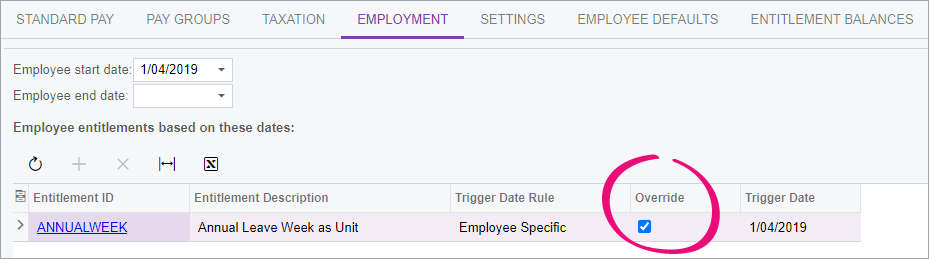
In the Trigger Date field for the annual leave entitlement, enter a new annual leave anniversary, as per the Holidays Act 2003 guidance.
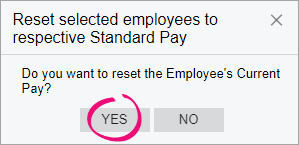
In the Reset selected employees to respective Standard Pay window, click Yes.
After finishing this procedure, you'll need to re-add the LWOP pay item to the employee's current pay.
On the form toolbar, click the Save icon (
).Go to the Entitlement Balances screen (MPPP6036) to manually adjust their annual leave accrual.
- In the Employee field, select the employee who has taken LWOP.
In the Accrual field for the annual leave entitlement, enter the adjusted amount.
The portion of annual leave an employee accrues in a day = the number of annual leaves entitled in weeks / (52 weeks * 7days). You can also check the employee's accrual amount per pay on the Entitlement History Data screen (MPPP6033).On the form toolbar, click the Save icon (
).
Reducing the divisor for average weekly earnings
You can agree with the employee that their anniversary date for annual holidays entitlement won’t change. In this case, you must reduce the divisor for calculating average weekly earnings (AWE) for annual holidays by the number of weeks or part weeks greater than one week that the employee was on leave without pay
For example, two and half weeks of LWOP means the divisor should be reduced by two weeks excluding the initial one week, so gross earnings are divided by 50 weeks instead of the usual 52 to calculate AWE).
The following kinds of unpaid leave are exempt from this: unpaid sick leave, unpaid bereavement leave, unpaid parental leave, voluntary service and leave on ACC. For these leave types, you don't need to adjust the employee's anniversary date or AWE divisor. For more information, see Leave Without Pay on the MBIE website.
To reduce the divisor for average weekly earnings
You only need to follow these steps if the AWE rate is going to be used for the employee. The Rate Method column on the Employee Leave Summary screen shows which rate will be used.
- Outside of MYOB Advanced, keep count of how many weeks the employee was on LWOP.
- When you pay annual leave, go to the Employee Leave Summary screen (MPPP4045).
- Open the AWE Inspection window by clicking the amount in the AWE ($) column.\
Manually calculate a new rate with a reduced divisor.
You need to reduce the divisor by one for each whole or partial week of LWOP taken, excluding the first week.
Override the system-calculated AWE rate with your manually calculated amount by entering the new rate into the Rate column. Couldn't open screen to get screenshots.
On the form toolbar, click the Save icon (
).Continue to process the pay as normal.
Tips and good practices
- Also, it is a good practice to make sure salary/wages paid are correct at end of every pay where employee had LWOP.
- Make sure your employee’s work schedule, timesheets and ESS calendars are reflecting your LWOP period.
2021.1.5 Release Notes