

https://help.myob.com/wiki/x/hYWTBQ
How satisfied are you with our online help?*
Just these help pages, not phone support or the product itself
Why did you give this rating?
Anything else you want to tell us about the help?
In New Zealand most employees are entitled to a minimum of four weeks Annual Leave (or Holiday Pay) for 12 months of continuous service, as per Section 16 of the Holidays Act 2003).
The exceptions are:
employees with "Casual" or "Fixed-term" contracts who, are covered by Section 28 of the Holidays Act (these employees are paid out Annual Leave with each pay, i.e., "Pay as you Earn" paid at 8% of Holiday Pay Gross each pay, unless their employment agreement treats them as a permanent employee). For instructions on how to set up a pay item for these employees, see Setting up pay-as-you-go for annual leave.
employees whose employment agreements provide better arrangements
See the Holidays Act 2003 on the New Zealand Legislation website for the full text of the Act.
This document provides information on setting up and using the Payroll module of MYOB Advanced to track and pay employees' annual leave.
We recommend that you read the MBIE document Holidays Act 2003: Guidance on annual holidays, domestic violence, leave, bereavement leave, alternative holidays, public holidays and sick leave to understand how to meet your obligations as an employer under the Holidays Act 2003. If you have further questions or are in doubt, it is best to seek legal advice to ensure you are meeting your obligations.
Employee Work Patterns
The intent of the Act is that, if you took your full annual entitlement at once, you would have been away from work for (at least) four calendar weeks.
This means employers and employees must agree on what genuinely constitutes the definition of a work week.
This also means employers must respond to changes in employees' work patterns. (Sometimes these changes might not be immediately obvious.) They must discuss these changes with their employees, and their implications for the provision of the Act's entitlements—particularly the annual holiday entitlement—in good faith and in a timely manner.
MBIE expect employers and employees to have a written agreement that describes what a week looks like included in the employee's Employment Agreement.
Defining Work Patterns
In the MYOB Advanced Payroll, there are two features that help with mapping what's in an employment agreement to the payroll system:
- Work Pattern Source
- Definition of a Week
Setting up these features lets the system know when a day is an Otherwise Working Day (OWD), and calculate leave amounts in hours/days/weeks.
This work pattern source drives the 'normal salary/wage payment calculations, controls hours/days an employee can request leave be taken and valuation of leave rates.
The Work Pattern Source field is available on the Employment tab of the Pay Details screen (MPPP2310). For each employee, select one of:
- Work Calendar
- Employee Schedule
While Importing data, make sure calendar/schedules set up covers those periods of any unprocessed leave in legacy system so that Advanced calculates the rates correctly while processing.
This option is best suited to employees who have a fixed work pattern, for example:
- employees who work exactly the same days/hours each week, e.g. eight hours per day, Monday – Friday.
- employees who work a defined number of hours per week but no fixed days or hours, where it's been agreed to average the total hours across an agreed number of days.
- E.g., Salaried/Waged employees.
Selecting Work Calendar means that the employee's work pattern is defined by the calendar selected in the Pay Groups tab on the Pay Details screen (MPPP2310). Calendars are set up on the Work Calendar screen (CS209000).
The Calendar field on the Employees screen (EP203000) is a default Acumatica feature and is not used in calculations.
The employee's usual/agreed work agreements are defined on the Calendar Settings tab.

The Exceptions tab is used to indicate whether a public holiday is a workdayfor an employee. This drives the public holiday payments and alternative days' leave and its payments.
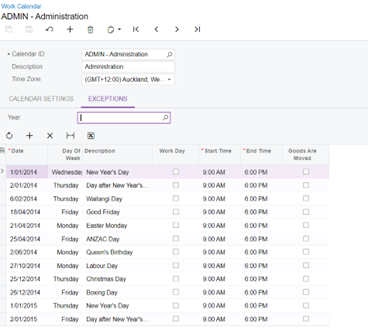
Any changes made on this screen apply to all employees linked to this calendar record.
This option is best suited to employees who have a variable work pattern, for example:
- employees that do not work the same days and hours every week.
- employees whose work patterns are cyclic; e.g. 30 hours, 5 days one week; 30 hours, 3 days then next.
- employees whose work pattern is unpredictable; e.g. employees who are rostered to fill gaps in shifts as/when needed to cover other staff absences or to meet production/seasonal demands.
Selecting Employee Schedule means that the employee's work pattern is set up on the Employee Work Schedule screen (MPPP2260). You could upload using CSV file or manually enter the schedule.
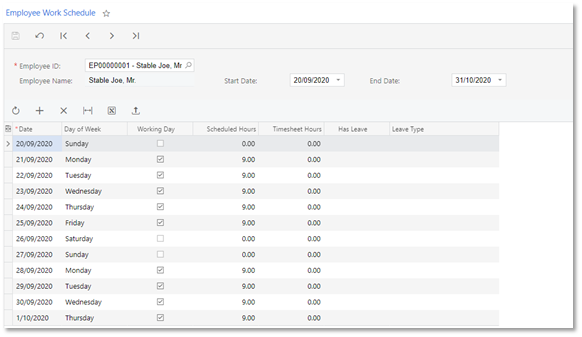
Timesheet hours is populated for pay items flagged to "show hours on employee Schedule" in the timesheet Data Map configuration in Data Map screen where you need to ensure only 'hours worked' or 'leave taken' pay items are ticked as their transaction quantities are aggregated and shown on the Employee Work Schedule. This is for sites which haven't opted for Advanced Work Force Management package.
When using the Employee Work Schedule, there must be one entry per calendar day. The employee work schedule needs to cover the period of transactions for which they are getting paid.
- For new employees you will need to have the records in the Employee Work Schedule starting from their first day of work.
- If you are processing a past leave payment, you will need to have Employee Work Schedule records that cover that leave period. When migrating existing employees to Advanced Payroll and there is a missed leave payment, the employee schedule must be set up to cover that leave period even if it is before their first pay in Advanced. If the employee schedule does not cover the leave period, the leave rate cannot be calculated correctly.
Tick the Working Day check box on days the employee is expected/agreed to work (even if it's a public holiday). Enter the total number of paid work hours expected/agreed to work in the Scheduled Hours column. The other columns will be auto-populated by other payroll processes. e.g. leave details gets updated when a leave is added to a pay.
Employers are required to record what genuinely constitutes a working week for an employee—refer to Section 17 of the Holidays Act for details. These records must be kept up to date for the duration of employment. Defining what a week look likes typically involves defining how many hours a week represents so that portions of a week taken for Annual Leave can be correctly calculated for each entitlement year.
To help with this, every employee in the payroll system must have their definition of a week (DOW) recorded on the Pay Details window (MPPP2310). If an employee has no DOW recorded, the system will be unable to calculate what the employee's DOW Hours are or calculate what portion of a week the employee is taking as annual leave, which will trigger errors in the pay.
We strongly recommend that you add new record to an employee's DOW each time there is a change to the written employment agreement. Editing existing records impacts historical data.
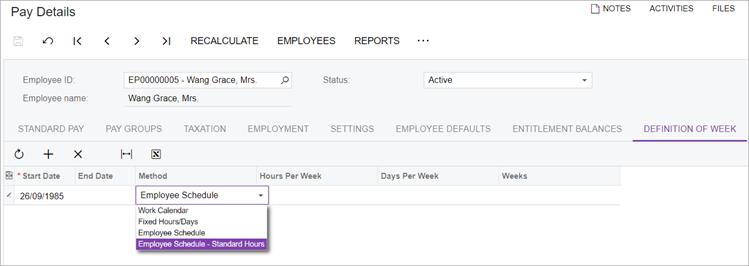
When adding a record to an employee's DOW, you must:
- Set the Start Date.
- The first record added, i.e. for new employee, should equal the employment start date.
- Second or subsequently added records, i.e. for an existing employee, should equal the date the new agreement become effective.
- Select a Method from the following options:
- Work Calendar (default)
- Fixed Hours/Days
- Employee Schedule
- Employee Schedule – Standard Hours
End Date gets automatically populated when you add a new record on employee's termination.
Below Methods could be chosen while defining your DOW. Selection should be aligned with the employee's Work Pattern Source unless you have an employee whose total hours or days worked each week are same but specific days worked or hours worked on a given day are variable from week to week AND it's been agreed to average/flatten variance.
Work Calendar (default)
This option is intended to be used by those employees with fixed work patterns that fit within a seven day cycle. It should only be used for employees whose Work Pattern Source is set to "Work Calendar".
Fixed Hours/Days
This option is intended to be used by employees whose total hours or days worked each week are the same, but whose specific days worked or hours worked on a given day vary from week to week. It is ideally suited to employees whose Work Pattern Source is set to "Employee Schedule", but can also be used for employee where the Work Pattern Source is "Work Calendar" and it has been agreed to average the total hours across an agreed number of days.
When using this option, you must set a number of hours; setting a number of days is optional. If the Work Pattern Source = "Work Calendar", then the Hours and Days values in the DOW record should match the Work calendar values, to avoid awkward questions from MBIE or other auditors.
Employee Schedule
This option should only be used for employee whose Work Pattern Source is set to "Employee Schedule". It is ideally suited to employee's with regular cyclic work patterns.
Annual Leave Payment Rates
The Holidays Act requires that Annual Leave be paid at the greater of an employee's Ordinary Weekly Pay rate (OWP) or their Average Weekly Earnings rate (AWE). MYOB Advanced Payroll includes settings that determine both of these rates for payroll employees.
Different rules can apply to employees who take annual leave after returning from parental leave—see "Parental Leave" on page for more information.
Ordinary Weekly Pay
As per Section 8 of the Holidays Act 2003, there are three different OWP rates that employers must consider when paying an employee Annual Leave. Before an employee receives their first pay in MYOB Advanced Payroll, you will need to set a default Ordinary Weekly Pay Rate on the Pay Details window.
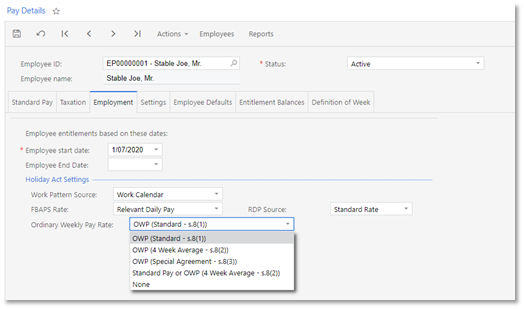
The following OWP options are available:
- OWP (Standard - s.8(1)) – This rate is calculated using the sum of pay items flagged as Liable for OWP Std that are included in the employee's Standard Pay, converted to a weekly value. This option should be used for employees whose pays (in Current Pay records) rarely deviate from what is recorded in their Standard Pay.
- OWP (4 Week Average - s.8(2)) – This rate is calculated using the sum of pay items flagged as Liable for 4 Weeks OWP that are included in all pays the employee received in the four-week period, divided by four. This option should be used for employees who do not use the Standard Pay, or who's Current Pay records consistently deviate from what is recorded in their Standard Pay.
- OWP (Special Agreement - s.8(3)) – This is a fixed value rate. It should be used for employees whose employment agreement provides a specific agreed rate that can be proven to be higher than a rate as defined by s.8(1) or s.8(2). If you select this option you will be prompted to enter a rate—it is up to you to ensure that the rate entered is higher than the s.8(1) or s.8(2) rates. The rate entered must be a weekly rate as Annual leave supports only weekly rates.
- Standard Pay or OWP (4 Week Average - s.8(2)) – When this option is selected, the payroll system compares the OWP (Standard - s.8(1)) and OWP (4 Week Average - s.8(2)) rates, and sends the greater valued one to be used for comparison to the AWE rate.
- None – Selecting this option means that no OWP rate will be calculated. This is an interim option used only when employee has recently returned from Parental leave.
Pay items are flagged as liable for OWP on the Pay Item Liabilities screen (MPPP1025).
An employee's Ordinary Weekly Pay – 4 week average (OWP4) rate is calculated as:
HP Gross / 4 Weeks
Where HP Gross is the sum of all pay items flagged as Liable for 4 Weeks OWP that the employee has received with a pay period end date (not payment date) falling within the "look-back period".
The look back period is determined as follows:
- When taking leave – the four calendar weeks before the end of the pay period immediately before the holiday start date.
- When paying on termination – the four calendar weeks immediately before the end of the last pay period before the end of the employee's employment.
Average Weekly Earnings
The Average Weekly Earnings (AWE) rate must be used when calculating Holiday pay rates for:
- "Entitled" leave taken
- Leave taken in advance (of becoming in entitled)
- "Entitled" leave paid on termination
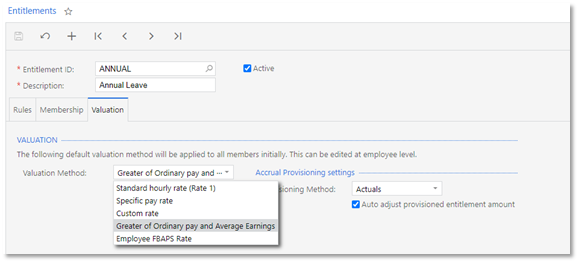
To ensure this rate gets applied correctly, the Annual Leave entitlement record must have the Valuation Method set to "Greater of Ordinary pay and Average Earnings"
The earnings that are used to calculate the AWE rate are all pay items in an employee's pay that are flagged as Liable for Holiday Pay on the Pay Item Liabilities screen (MPPP1025). The Liable for Holiday Pay flag lets you control your compliance with Section 14 of the Holidays Act.
An employee's Average Weekly Earnings rate is calculated as:
HP Gross / X Weeks
Where:
- HP Gross is the sum of all pay items flagged as Liable for Holiday Pay that the employee has received with a pay period end date (not payment date) falling within the "look-back period". The look back period is determined as follows:
- When taking leave – the 12 months immediately before the end of the last pay period before the holiday start date.
- When paying on termination - the 12 months immediately before the end of the last pay period before the end of the employee's employment.
MYOB Advanced Payroll defines the 12 month period as a straight 52 week look back.
- X Weeks is the number of weeks to average over:
- If the employee has been employed less than 12 months, then X = the count of weeks employed
- If the employee has been employed for 12 months or greater, then X = 52
Leave without pay of more than one continuous week can affect the X value in this calculation—see "Leave Without Pay" on page for more information.
Limitations
MYOB Advanced Payroll does not currently cater for Leave Without Pay (LWOP):
- Breaks in service as defined by the Holidays Act section 16(2).
At this time, if an employer wants to change an employee's Annual Leave anniversary date, they will need to set up a bespoke Entitlement record for the employee and then transfer entitlements to the new record.
- Reducing the AWE divisor for periods of Leave without Pay, as defined by Holidays Act section 16(3).
At this time, if an employer wants to enact on this section of Act, they will need to manually calculate the AWE rate outside the system and override the system calculated value with this amount. Please refer to "Scenarios Requiring Manual Steps" section below for more details.
Setting up MYOB Advanced
Entitlements
To set up Annual Leave entitlements for your organisation, you must identify the total number of contract variations your organisation has. For each variation, a separate Annual Leave Entitlement record may need to be configured.
To help manage your obligations under the Holidays Act, every employee must be linked to one and only one active Annual Leave entitlement record.
If you have employment agreements that provide for either of the following AND the extra entitlements are agreed not to be subject to the Holidays Act then employee will need a subsequent Entitlement record configured as "Other Leave".
- more than four weeks each year
- one off lump sums after X years service
The recommended setup for a four-week entitlement, as per section 16 of the Holidays Act, is as follows:
Setting | Recommendations |
|---|---|
Entitlement ID | The code used to reference this entitlement throughout the system. Enter a code that suits your organisation's naming conventions. |
Description | The descriptive name of the entitlement. Enter a name that suits your organisation's naming conventions. |
Active | Only untick this option if the entitlement record is not being used any more. |
Definition | |
Trigger Date | Should be set to "Employee Specific Date", which defaults to the Employee Start Date, unless your organisation has annual shutdowns, and you want to align entitlements with Sections 30 to 35 of the Holidays Act. |
Dollars/Units | Units must be selected, with the unit type set to "Weeks". Units of "Days" and "Hours" are no longer supported for Annual Leave in New Zealand. |
At Period End | "C/Fwd Balance" must be selected to carry forward the unused leaves on anniversary, as the Holidays Act does not specify a time limit on which Annual Leave balances must be kept. |
Full Time Hours Per Year | This field is currently mandatory field, but it is not used in any NZ Annual leave calculations. The value typically represents the total hours for someone working a 40-hour week. |
Changes | |
Time period after trigger date | Must be set to zero—this ensures accrual of entitlements start from day 1 the employee's employment. |
Period Duration / Period | This can be set to 12 months or 1 year—both give the same result. |
Entitlement Unit | Must be no less than 4.0000 (four weeks). |
Lump Sum | Must remain unticked. |
Properties |
|
Leave | Must be ticked. |
Choose leave type | Must be set to "Annual leave". |
Entitlement may be paid/taken in advance | If your organization allows Annual Leave to be taken in advance as per Section 20 of the Holidays Act, this must be ticked. |
Cap accrual per period | Must not be ticked. |
Non-Accruing Entitlement | Must not be ticked. |
Payslip | |
Include Entitlement Movement Summary | Ticking this option means that a line for Annual Leave will appear in the Entitlements section of employees' payslips. We recommend that this option is ticked, so the employee can see how much Annual Leave they have available each pay. |
Include Accruals | Tick this option if you want to include the Accrual amount in the Annual Leave entitlement information that appears on employees' payslips. |
Termination treatment |
|
Pay Entitlement balance upon termination | Must be ticked. |
Accrued entitlement % of gross | Must be 8.0000. This field indicates how the annual holidays' accrued values are paid out at the time of final payments which, as per holidays act 2003, is 8% of gross earnings from employee start date/last anniversary date until last working day. |
Treat As | This field is not used for NZ companies but needs to be populated—select "Annual Leave". |
Pay Item | This field is not applicable to Annual Leave. |
Self Service | |
Show Leave Balances | Generally recommended to be ticked if balances are also shown on employees' payslips. |
Show Projected Leave | Generally ticked if you are using the Employee Self-Service module, as it helps employees determine how much leave they will have available when planning a future holiday. |
Membership tab | This tab shows all employees that are currently linked to this entitlement record. |
Valuation tab | |
Valuation Method | Select "Greater of Ordinary pay and Average Earnings" for compliance with Holidays Act sections 21, 22 and 24. If employment contracts offer a better deal than section 21, 22 and 24 then the other options can be applied. |
Provisioning Method | Must be set to "Actuals". |
Auto adjust provisioned entitlement amount | This must be ticked, so that the system will automatically provision the correct amount and generate the appropriate journals if and when a rate has changed. |
Pay Items
The only default pay items MYOB Advanced provides for Annual Leave purposes are for unused leave on termination. All other pay items needed to manage annual leave in your payroll site must be added manually
When adding pay items to your site and/or before paying any employees, regardless of what the pay item is for, you must check that your pay items have the correct liability flags set on the Pay Item Liabilities screen (MPPP1025). In respect of Annual Leave, the following liabilities apply:
- Liable for Holiday Pay - this controls how you comply with section 14 (Holiday Pay Gross Earnings) and is used in the AWE rate calculations.
- Liable for OWP Std - this controls how you comply with section 8(1) and used in the OWP Standard rate calculations.
- Liable for 4 Weeks OWP - this controls how you comply with section 8(2) and used in the OWP 4 Week Average rate calculations.
An accrual pay item is needed to help manage liability costs to your organisation for:
- when the employee becomes entitled to their 4 weeks.
- when an employee is allowed to take leave in advance
- determining costs for ending of employment
Setting | Recommendations |
|---|---|
Pay Item ID | The code used to reference this pay item throughout the system. Enter a code that suits your organisation's naming conventions. |
Description | The descriptive name of the pay item. Enter a name that suits your organisation's naming conventions. |
Payslip label | This is a required field, but this pay item is not usually included on payslips. |
Type | This must be set to "Entitlement Accrual". |
Attributes |
|
Maximum limit applies? | Must be set to "No". |
Threshold(s) apply? | Must be set to "No". |
Super? | Must be set to "No". |
Entitlement? | Must be set to "Yes" to allow the link to the specific Entitlement record used to control an employee's Annual leave movements/balances. Note that a pay item can only be linked to one entitlement record, but an Entitlement record can be linked to many pay items. If your organisation has more than one Annual Leave agreement policy, you will need to create one pay item per Annual Leave entitlement record. This is where naming conventions are necessary to avoid the wrong pay item selection in a pay.| |
Entitlement ID | Select the Entitlement record this pay item relates to. |
Calculation Method tab |
|
Accrual Method | Must be set to "Full Contract Accrual". |
Method | When "Full Contract Accrual" is selected, this field is disabled. |
Additional Info tab |
|
Visibility |
|
Override Value |
|
Self Service |
|
General Ledger Purpose | Select a General Ledger Purpose for the pay item, which determines how it should behave when being posted to GL journals. A default GL Purpose can be specified for the pay item's type on the Pay Item Types screen (MPPP2160). |
Pay items for paying Annual Leave should be set up as follows:
Setting | Recommendations |
|---|---|
Pay Item ID | The code used to reference this pay item throughout the system. Enter a code that suits your organisation's naming conventions. |
Description | The descriptive name of the pay item. Enter a name that suits your organisation's naming conventions. |
Payslip label | The name for the pay item that will appear on employees' pay slips. This defaults to the Description, but you can enter a different name if necessary. |
Type | This must be set to "Entitlement Payment". |
Taxation | It is common practice for employers to align the payment of leave taken to the pay period(s) in which the leave falls; in this case use "Taxable: Standard PAYE". MYOB Advanced does not currently cater for the 'even spread' tax option outlined in section RD13 of the NZ Taxation Act. |
Attributes | |
Maximum limit applies? | Must be set to "No". |
Threshold(s) apply? | Must be set to "No". |
Super? | Must be set to "No". |
Entitlement? | Must be set to "Yes" to allow the link to the specific Entitlement record used to control an employee's Annual leave movements/balances. A pay item can only be linked to one entitlement record, but an Entitlement record can be linked to many pay items. If your organisation has more than one Annual Leave agreement policy, you will need to create one pay item per Annual Leave entitlement record. This is where naming conventions are necessary to avoid the wrong pay item selection in a pay.| |
Allow Leave Reduction | If your salary/wage/ordinary time hours come into a pay as a full pay period amount, then it is recommended to use this feature to avoid overpayments; otherwise do not use this feature, because then the employee will be underpaid. |
Entitlement ID | Select the Entitlement record this pay item relates to. |
Calculation Method tab | |
Method | Must be set to "Rated". |
Precision | Must be set to "Rounded Cents". |
Use Employee's Rate | This field is ignored when Entitlement Valuation Method is set to "Greater of Ordinary pay and Average Earnings". |
Use Custom Rate | This field is ignored when Entitlement Valuation Method is set to "Greater of Ordinary pay and Average Earnings". |
Rate Multiplier | Leave as the default value of 1.000. |
Units | Must be set to "Entered". |
Default number of units | Leave as the default value of 0.000. |
Unit Type | Must be set to "Weeks". |
Additional Info tab | |
Visibility |
|
| Override Value |
|
Self Service |
|
| General Ledger Purpose | Select a General Ledger Purpose for the pay item, which determines how it should behave when being posted to GL journals. A default GL Purpose can be specified for the pay item's type on the Pay Item Types screen (MPPP2160). |
Adjusting Accrued Annual Leave
In some instances, such as when migrating an employee from another payroll system, it might be necessary to create opening entitlement balances for an employee. Using the Entitlement Adjustment screen (MPPP3000), a user can set an entitlement’s opening balance or adjust an existing balance.
For both opening balances and adjusting existing balances, for each adjustment you choose a type of either accrued leave, leave paid in advance or earned leave. See the “Import Pay History NZ” white paper for more details.
Paying Leave
To pay annual leave to employees, add payment pay items to their Current Pays, then process the pay run as normal. Annual leave payments are valued according to the valuation method set on the related entitlement.
Annual leave pay items can be added to employees' pays in the following ways:
- Employee Self-Service
- Timesheets
- Manual entry in a pay run
- WFM Timesheets
Employee Self-Service
The Submit a Leave Request screen (MPES3020) in the MYOB Advanced Employee Self-Service module allows employees, or managers acting on their behalf, to capture leave requests for:
- 1 or more full days: the user selects the annual leave type and enters the start and end leave dates. MYOB Advanced calculates the relevant hours and days requested.
- less than 1 day: the user selects the annual leave type, enters the start date and enters the hours they are taking. MYOB Advanced calculates the portion of a day being taken for processing the leave on context of the employee's daily rate.

The above relies on the Work Pattern Source selected for the employee on the Employment tab of the Pay Details window (MPPP2310). If the employee's source is set to "Work Calendar", the appropriate Work Calendar is determined from the employee's default pay group. If the employee's source is set to "Employee Schedule", the schedule entries as imported/captured by the payroll administrator on the Employee Work Schedule screen (MPPP2260) are used.
Submitted leave requests appear on the Leave Administration screen in the Payroll module (MPPP5040). Once they have been marked as "Ready to Pay", they can be added to a pay run by clicking Import Leave in the Actions dropdown on the Pay Run Details screen (MPPP3120).
Clicking this action imports any leave requests for employees in the pay run that fall within the pay period's start and end dates (partially or in full) and have the "Ready to Pay" status.
If a leave request spans multiple pay periods, only the portion of the request that falls within the pay's start and end dates will be imported.
If necessary, leave can be re-imported into the pay—when importing leave, if any leave items already exist in the pay, you will be given the option of re-importing and overwriting the existing leave, or only importing new leave requests.
Importing leave does not affect any leave that has been added to the pay manually (see below).
See the Employee Self-Service white paper for more information.
Timesheets
Batches of timesheet data, which can include leave, are created on the Import Timesheets screen (MPPP7030). Once timesheet data has been imported and validated, you can import unprocessed timesheet batches into an open pay run from the Pay Run Details screen (MPPP3120). Click Import Timesheet in the Actions dropdown to import timesheet data related to the pay run. The import process scans all timesheet batches for records that match the following criteria:
- Not associated with any other pay run.
- The Pay Effective Date on the timesheet record falls within the pay run's start and end dates.
- The employee associated with the timesheet record exists in the pay run.
See the "Importing Timesheets" white paper for more information.
Manual Leave Entry
To add annual leave payments to an employee's pay manually, go to the Pay Run Details screen (MPPP3120), then click on the name of the employee who is taking leave. This opens the Employee's Current Pay screen (MPPP3130)—use the + button on this screen to add an annual leave payment pay item to the employee's pay.
For leave payment items, a Days Taken link becomes available in the Leave column for the pay item. Clicking this link opens a window where you can specify the calendar days that the employee took leave on.
Employees on a Work Schedule There is an issue in MYOB Advanced Payroll that can cause the number of hours to be calculated incorrectly when manually entering leave for employees using the Work Schedule. To pay leave to these employees, see our troubleshooting article.
The Employee Leave Summary screen (MPPP4045) allows payroll administrators to review all leave captured in a pay run, prior to completing the pay run. Each line item describes the leave period and relevant valuation rate applied. To compare rates, the user is also provided with other possible rates that might apply. The user may choose to override the applied rate method, or to even override the Payment Amount. Doing so will re-evaluate the calculated amount within the pay run. If the user has not applied the highest possible rate to the pay item a warning is shown in the Status column. The user may choose to ignore the warning message if required.
Annual leave payments on termination are shown on the Unused Annual Leave tab of the Termination window—see the "Terminations in Payroll (NZ)" white paper for details on the termination process and paying outstanding leave.
If you get the error "The Advanced People pay calculator does not support the Request supplied, please contact customer support" while entering a termination pay, you need to recreate the termination form. See our troubleshooting article for more information.
Paying leave in special scenarios
At present, MYOB Advanced Payroll requires manual adjustments in certain scenarios to ensure that employees' annual leave is treated correctly. These scenarios are detailed below.
Normally, annual leave is paid at the greater of the OWP and AWE rates for the employee; however, employees who take annual leave after returning from parental leave are always paid at the AWE rate. This applies until the employee reaches either their first annual leave anniversary date after returning to work, or 12 months after returning to work, whichever is earlier.
This affects any annual leave balance that accrued during the annual leave year(s) that the parental leave occurred in. If the parental leave spanned two years, then annual leave from both years that the leave spanned are affected.
An annual leave year is the year from one annual leave anniversary date to the next.
For each employee who takes parental leave, you must keep track of which annual leave years the employee's leave accrues in. At present, this must be done outside of MYOB Advanced Payroll.
If an employee takes annual leave after returning from parental leave, and the annual leave was accrued during a year that the parental leave was taken in:
- Go to the Employee Leave Summary screen (MPPP4045) and check the Rate Method column for the employee's annual leave payment.
- If the Rate Method is "AWE", nothing more needs to be done.
- If the Rate Method is "OWP", you will need to change it to "AWE".
- Save the change on the Employee Leave Summary screen and continue to process the pay as normal.
You can process leave without pay (LWOP) in MYOB Advanced Payroll, even though it's not currently a completely automated process and annual leave entitlements don't automatically update when an employee takes LWOP.
For information on how to process LWOP and what you need to consider, see the online help page for setting up leave without pay.
Leave Conversions
When requesting leave on the Employee Self-Service portal, employees always enter a leave value in hours. The following table shows how the system converts the value in hours to days or weeks, depending on the employee's setup and the units of the entitlement.
Work Pattern | Entitlement Units | DOW Method | Calculation |
|---|---|---|---|
Calendar | Weeks | Calendar | "Hours requested" divided by "Work Hours" for the week |
Calendar | Weeks | Schedule | This is an invalid setup. |
Calendar | Weeks | Fixed Hours/DaysHours = not null | "Hours requested" divided by "DOW Hours". |
Calendar | Weeks | Fixed Hours/Days | This setup is not currently supported. |
Schedule | Weeks | Calendar | This is an invalid setup. |
Schedule | Weeks | Schedule | "Hours requested" divided by "Expected Work Hours" for the calendar week(s) in which the leave start to end dates fall, where the calendar week begins on a Monday. |
Schedule | Weeks | Fixed Hours/DaysHours = not null | "Hours requested" divided by "DOW Hours". |
Schedule | Weeks | Fixed Hours/Days | This setup is not currently supported. |