

In MYOB Essentials Cashbook, journal entries are transactions you can use to track business activity that you wouldn’t want to track with other kinds of transactions, such as deposits or payments.
Usually, journal entries are used for special situations only, such as when you need to record depreciation of your assets, or when you need to enter year-end adjustments to your financial records.
Entering amounts in journal entries
You should enter only positive numbers in the Debit and Credit fields. If you want to enter a negative number, be aware that a negative debit amount is the same as a positive credit amount, and vice versa. In other words, a positive amount in the Credit field is the same as a negative amount in the Debit field, and a positive amount in the Debit field is the same as a negative amount in the Credit field.
You can’t record a journal entry in which a line item includes an amount in both the Debit and the Credit fields. To balance a transaction, at least two line items—one with an amount in the Debit field and one with an amount in the Credit field—must be entered.
You can choose whether line item amounts are Tax/GST inclusive or Tax/GST exclusive.
Changing and deleting journal entries
Usually, you shouldn’t alter journal entries once they’re saved. Instead, it’s best to make two new entries (one debit and one credit) to reverse the originals, then make two more new, correct entries.
If you do need to change or delete a journal entry, open the journal entry by clicking on the number in the References column on the General journals page. Change the journal entry by editing the information on the screen and then clicking Save. To delete the journal entry, click the Delete link at the top of the screen.
To add a journal entry
- Open the cashbook for the relevant business.
- Go to Journals. The General Journals page appears.
- Click on Add journal entry. The Add journal entry panel appears. Notice that a Reference number is automatically generated.
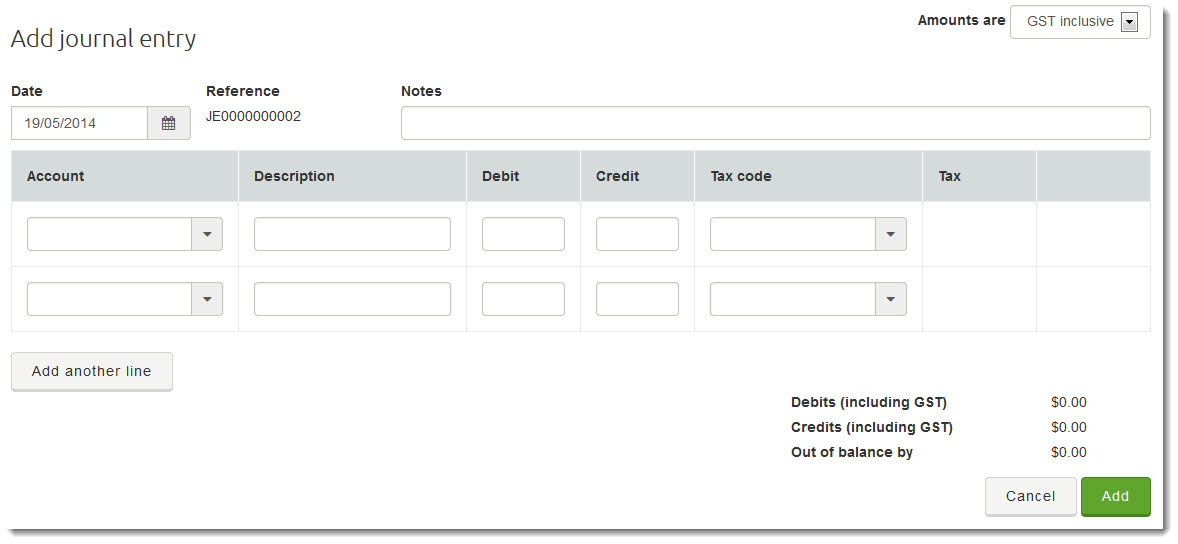
- In the Amounts are field (at the top right), choose whether the amounts you will enter are GST Inclusive or GST Exclusive.
- In the Date field, enter or select a date.
- Add any Notes about the entry.
- Enter a line item for the journal entry:
- Selecting the appropriate Account from the list.
- Add a short Description for the line item.
- As appropriate, enter either a Debit amount or a Credit amount.
Note: Do not enter negative amounts (e.g. -345.00).
- Select the appropriate Tax code from the list. The Tax amount is calculated and automatically displayed
- Add further line items by repeating step 7 above.
Note: To add more lines, click Add another line. - When you have finished entering all the line items, check the total Debits and Credits displayed at the bottom left of the panel. If the amounts are not equal, there will be an amount in the Out of balance by field.
If you see an amount in this field, make sure that for each credit, there’s an equal debit, and vice versa. The Out of Balance by amount must equal 0.00 before you can continue.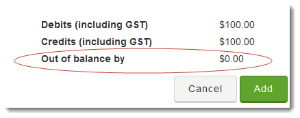
- When your debits and credits are balanced, click Save.