Page tree

You are viewing an old version of this page. View the current version.

Compare with Current View Page History

« Previous Version 19 Next »


Close

How satisfied are you with our online help?*

Just these help pages, not phone support or the product itself

0
1
2
3
4
5
Very dissatisfied
Very satisfied

Why did you give this rating?

Anything else you want to tell us about the help?
If you have Administrator access in MYOB, you can create a user for anyone who needs to sign in to your MYOB business. If you need a hand with your books, you can Invite your accountant.

All users can access your MYOB business at the same time, and there's no limit to how many users you can create.

Let's step you through it.


To create a user

To create a user 

  1. Sign in to your MYOB business as an administrator.
  2. Click your business name and choose Users to display a list of all users.
  3. Click Create user to open the Create user page.
  4. Enter the user’s Name and Email.

  5. In the Access section:
    1. Select the access you want to give the user. Learn about access levels
    2. Choose the User Type, which determines which businesses the user can access:

      • File user – can only access the current business
      • Online Administrator — can access all businesses with this serial number.

        Only the owner can make a user an Online Administrator. The owner is usually the person who set up the subscription.

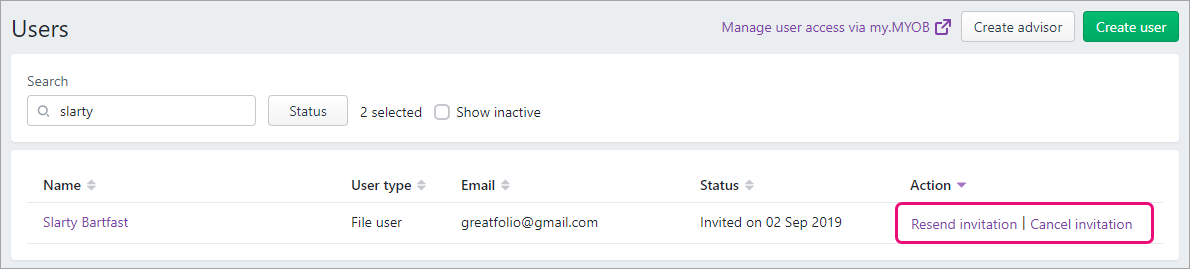
  6. Click  Save and send invitation. The user is added to the list on the Users  page, with the status of Invited .
  7. For all File User user types, an email is sent to the user giving them the option to:
    • accept the invitation by creating a new user login,
    • accept the invitation by using an existing user login, or
    • decline the invitation.

      Online Administrator user types don't receive this email and don't need to accept an invitation to access a file. 

  8. To set up another user, repeat from step 3.

You can resend or cancel a user's invitation on the Users page.

Need to change a user's details or delete them? See Edit and delete users.

  FAQs