

- Created by admin, last modified by RonT on Jun 29, 2020
You are viewing an old version of this page. View the current version.
Compare with Current View Page History
« Previous Version 21 Next »
https://help.myob.com/wiki/x/SwFMAw
How satisfied are you with our online help?*
Just these help pages, not phone support or the product itself
Why did you give this rating?
Anything else you want to tell us about the help?
Whether it's an overpayment, an underpayment or something else in your payroll needs fixing, you can either adjust the employee's next pay, or record a separate pay for the adjustment.
Sometimes it might be easier to simply delete a pay and start again. It's up to you.
Single Touch Payroll reporting
Your employees' year to date (YTD) figures are sent to the ATO as part of Single Touch Payroll reporting. If changing or deleting a pay affects YTD figures, the updated figures will be sent to the ATO the next time you do a pay run.
Let's take a look at the details:
Each of these scenarios uses a similar approach—adjust the following pay or record a separate adjustment pay. If this doesn't suit your needs, you can delete the incorrect pay then re-enter it.
To fix a pay which contained the wrong leave or super amounts, you can either:
- make the adjustment on the next pay by increasing or decreasing the leave or super, or
- record a new pay for the adjustment
If you record a separate pay for the adjustment:
- Enter the adjusted leave hours or super amounts as positive or negative values depending on the adjustment. For example, if you've paid an employee too much leave, enter a negative number of leave hours.
- Zero out all the pay items that you're not adjusting and finalise the pay as usual. Need a pay run refresher?
To fix a pay where the wrong amount of PAYG tax was withheld, work out how much PAYG tax has been overpaid or underpaid, then adjust the PAYG on the employee's next pay.
Alternatively, you can create a separate pay for the adjustment and enter the adjustment value against the PAYG Withholding category. Remember to zero out all other hours and values on the pay.
If the employee had overpaid PAYG, enter the adjustment as a positive value. If it's to adjust an underpayment, enter a negative value.
If you've overpaid an employee you'll need to make the adjustment by reducing their next pay. Note that you can't record negative amounts in pays.
If you've underpaid an employee you can:
- make the adjustment on the next pay, or
- record a new pay for the adjustment
Enter the adjustment value against the hours or amount for the pay item that was overpaid. Remember to zero out all the pay items that you're not adjusting. The net pay amount should be equal to the underpayment.
You should only delete a pay if the amount hasn't been withdrawn from your bank account. If you need to adjust an overpaid or underpaid amount, see To fix the hours or amounts in a pay above.
If you've already paid the employee and reconciled your bank account, deleting the payroll transaction can affect future bank reconciliations. Therefore, you'll need to unmatch or unreconcile it first.
- it's in the current payroll year
- it's NOT part of a processed bank file payment
- it's NOT part of a Pay Super payment
To delete an employee's pay:
- Go to the Payroll menu and click Pay runs.
- Click the Date of payment to display the details.
- Click the name of the Employee whose pay you want to delete.
- Click Delete.
- At the confirmation message, click Delete.
To delete an entire pay run
If you need to delete all the employee pays in a pay run, you'll need to delete the pay of each employee in the pay run as described above.
If a pay you want to delete is included in an electronic bank file transaction, you'll first need to delete the bank file transaction. Note that this only deletes the bank file transaction in MYOB but doesn't affect your actual bank accounts.
- Go to the Banking menu and click Find transactions.
- On the Debits and credits tab:
- Enter a date range that includes the pay date in the Date from and Date to fields.
- In the Account field, choose the Electronic Clearing Account.
- Click Apply filters.
- Click the Reference no to open the pay transaction.
- In the lower right corner, click the electronic payment reference number.
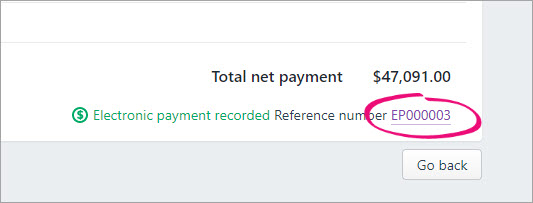
Details of the electronic payment are shown, including all payments within the payment file. - Click Delete.
- At the confirmation message, click Delete. All the payments that were included in the bank file are now listed again on the Record payment and download bank file page.
You'll now be able to delete the pay. If required, you can also re-process payments to create a new bank file.
 Yes
Yes
 No
No
 Thanks for your feedback.