

https://help.myob.com/wiki/x/64okBg
How satisfied are you with our online help?*
Just these help pages, not phone support or the product itself
Why did you give this rating?
Anything else you want to tell us about the help?
Before starting a payroll migration with MYOB Adapt, you need to create and provision an MYOB Advanced Business site, so that it's ready to receive your customer's data.
We recommend that you create two sites: a test site and a production site. You can use the test site to practise using MYOB Adapt to migrate data.
To learn what ERP data you can migrate, see the MYOB Adapt FAQs.
What to set up
As an MYOB Partner or consultant, you should be familiar with the basics of setting up a site. The procedures on this page only cover settings that need to be set up in a specific way for Adapt migrations.
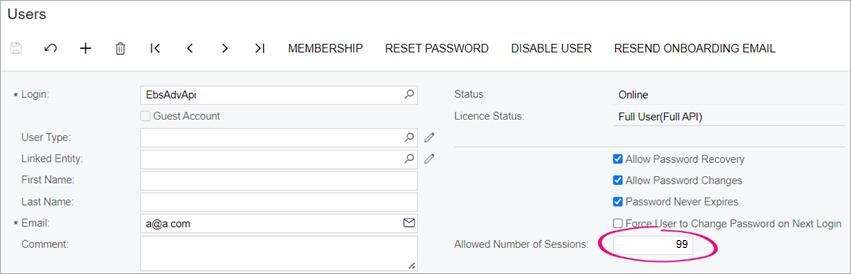
- Go to the Users screen.
In the Password field, create a password.
To avoid errors, make sure the password complies with the criteria.
In the Allowed Number of Sessions field, enter a number between 1 and 99.
When you finish adding the user, you must edit their details and set the Allowed Number of Sessions to 100.
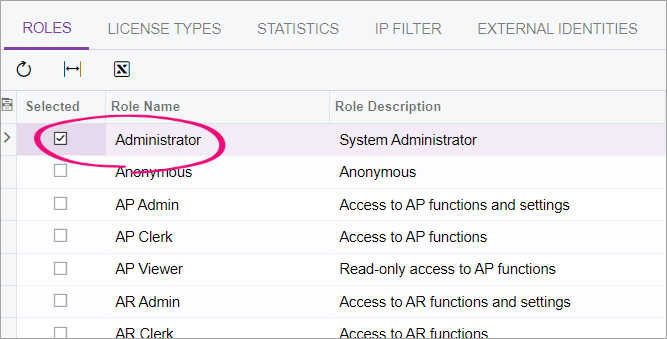
- Click the Roles tab.
- Select the checkbox for the following roles:
- Administrator
- People ESS
- People MSS
- People Payroll User.
- Click the License Types tab.
- Select the Limited API licence type checkbox.
- On the main toolbar, click the Save icon (
 ).
).
For MYOB Adapt to be able to upload data to the site, you must publish the ADAPTERP customisation.
Log in to the MYOB Adapt online portal.
Need a login for the online portal? Request one in Phoenix. Select MYOB Advanced as your product, ADAPT as the area and New User Login as the subarea.
- Click Downloads on the left. The Files to Download page opens.
Click ADAPTERP.zip to download the MYOB Adapt customisation for ERP migrations.
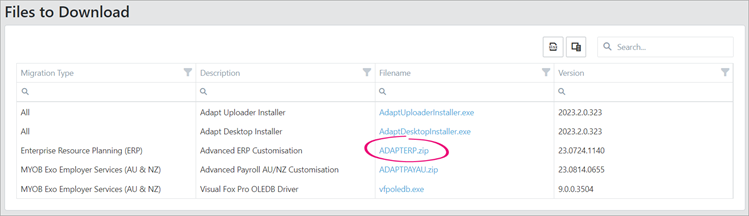
To prevent errors when using the files, make sure that the name of the file you downloaded matches the name on the MYOB Adapt online portal. For example, if you've previously downloaded the MYOB Adapt customisation file, it might be named ADAPTERP (1).zip. In that case, you should rename it to ADAPTERP.zip.
- Log in to the MYOB Advanced site for the customer you're migrating.
- Go to the Publish Customisation screen.
- Publish the ADAPTERP.zip file you downloaded in step 3.
In MYOB Advanced, you can set a company ID on the Companies screen (CS101500) by clicking Change ID on the form toolbar.
You need to set up at least one cash account for each company and company branch.
Before you can set up a cash account you need to:
- Set up an account as a cash asset on the Chart of Accounts screen (GL202500).
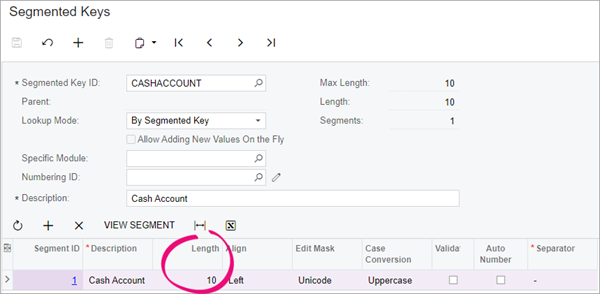
- The segmented key ID for cash accounts should have a length of at least ten. You can check this by going to the Segmented Keys screen and entering CASHACCOUNT in the Segmented Key ID field.
| What to set up | How to set it up |
|---|---|
| Branches | These should match the branches in the customer's source product. By default, Adapt maps all branches to MAIN. |
| Warehouses | These should match the warehouses in the customer's source product. By default, Adapt maps all warehouses to MAIN. |
| Credit terms | These should match the credit terms in the customer's source product. |
| Extra fields | When migrating from MYOB Exo Business, you can either set up fields or attributes to map the extra fields to. |
| Subaccounts | If you don't set up any subaccounts, Adapt maps all subaccounts to the default 0 subaccount. |
| Chart of accounts | Set this up as you would for any other migration. |
| Financial calendar | Set this up as you would for any other migration. |
| Retained earnings account | Set this up as you would for any other migration. |
| Tax periods | Set this up as you would for any other migration. |
| Tax codes | Make sure you create the tax codes for purchase-exempt GST and sales-exempt GST. |
Back up your customer's site
After configuring your customer's sites, it's a good idea to back up both the test site and production site. That way, if something breaks during the migration, you can quickly restore the site to its original state, without having to reconfigure all of its settings.
Alternatively, you can take a snapshot of the site before beginning the migration.
What's next?
After you've finished setting up your customer's MYOB Advanced Payroll site, you need to set up a migration in the MYOB Adapt online portal.

We're constantly improving MYOB Adapt. If you've got feedback, submit your ideas to the ideas portal.
To report an issue, raise a case in Phoenix with Class ID "Advanced Business" and Area "Adapt".