

- Created by BrianQ, last modified by AdrianC on Aug 29, 2016
You are viewing an old version of this page. View the current version.
Compare with Current View Page History
« Previous Version 19 Current »
https://help.myob.com/wiki/x/dwLW
ANSWER ID:11234, 31895
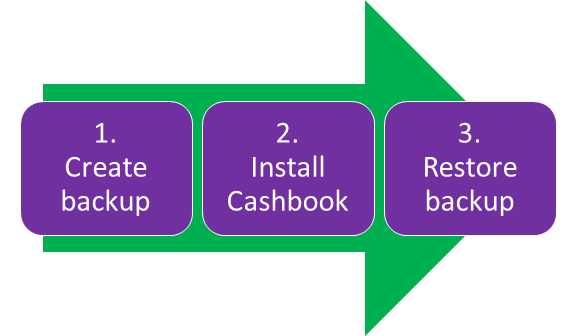
Moving Cashbook to a new computer is done by creating a backup of your Cashbook data, then installing Cashbook on the new computer and restoring your backup.
Before you start, check that Cashbook will work on your new computer.
- Go to the File menu and choose Backup. The Backup Cashbook window is displayed.
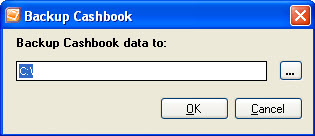
- Click the ellipsis (...) button and choose where you want to save your backup file. To make it easy to find, save it to your desktop.
- Click OK.
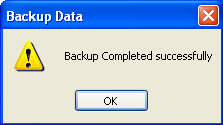
- Click OK to the backup completion message.
- Copy the backup file to a portable storage device, like a USB stick. This allows you to transfer the file to your new computer.
Before you can restore your backed up Cashbook data file, you need to create a "dummy" data file into which you can restore your backup. To do this:
- Open Cashbook and choose Create a new Cashbook.

- At the New Cashbook window select Build your Own.
- In the Cashbook Name field enter anything, for example "abc", then click OK. See our example below.

- Click OK through the Cashbook Options window.
- Click Close at the Easy Setup Assistant window.

- Go to the File menu and choose Restore.
- Browse using the ellipsis button (...) to locate the required cashbook backup.
- Click to highlight the required backup then click OK as shown below.

- Click OK at the WARNING window.
- Click OK at the Restore completed message.
You are now ready to continue using Cashbook. Your data is as it was when you made the backup.