Child pages
  • Viewing accounts

You are viewing an old version of this page. View the current version.

Compare with Current View Page History

« Previous Version 16 Next »


Close

How satisfied are you with our online help?*

Just these help pages, not phone support or the product itself

0
1
2
3
4
5
Very dissatisfied
Very satisfied

Why did you give this rating?

Anything else you want to tell us about the help?

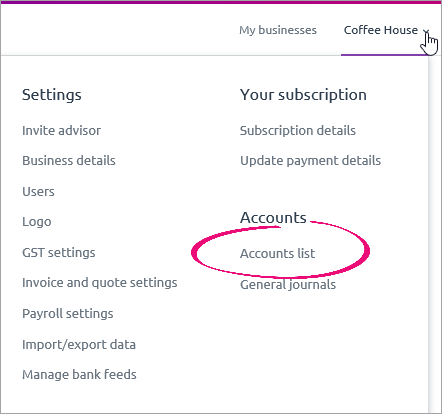
To view your accounts, open the Accounts list page accessed via the Settings menu.

The Accounts list page lists all of your accounts. For each account, the account number, account name, account type, tax rate and current balance is listed. Locked accounts are represented by an icon (  ).

The new Accounts list

We've improved the layout of the Accounts list, and added great new features like easier account editing and sorting.

Feeling nostalgic for the old accounts list? Click Back to the old accounts list to switch versions. On the old version, click Switch to the new accounts list if you want to go back.

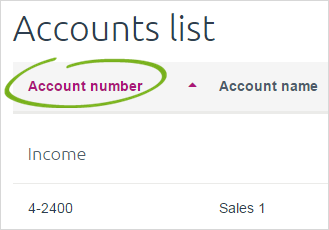
Accounts are grouped in the list according to their type (income, cost of sales, etc.). You can sort your accounts within each account type by clicking Account number.

To find an account on the old accounts list, you can use the search feature.

To search for an account

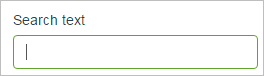
In the search field, enter part of a number or word relating to the account you’re trying to find.

For example, you can enter part of the account number, the account name, the account type, the tax rate or the current balance.

As you type, the accounts list is automatically populated with the accounts that match your search.

Use sorting in addition to searching

If searching gives you a large number of results, try sorting by the Account number column. Note that accounts will remain grouped according to type, and will be sorted within these groups.

(Old accounts list only) To hide the accounts for an account type, click the minus icon to the left of the account type (  ). To view the accounts again, click the plus icon (  ). To view inactive accounts, click Show inactive accounts at the top of the list.

  FAQs


How do I stop an account from appearing in my accounts list?

If you have an account which you don't need, you can delete it. You can only delete an account if it hasn't been used in a transaction or if it hasn't been assigned to a stock item.

If you can't delete an account, you can make it inactive. This will keep the account in your accounts list, but will prevent it from being selected for a transaction.

To make an account inactive:

If usingDo this
the new accounts list
  1. On the Accounts List page, click Edit accounts.
  2. Find the account you want to make inactive.
  3. Deselect the checkbox in the Active column.
  4. Click Save.
the old accounts list
  1. On the Accounts List page, click the account you want to make inactive. The Edit account screen appears.
  2. Select the option Account is inactive.
  3. Click Save.
 
From the community

Could not retrieve http://community.myob.com/myob/rss/search?q=accounts+list&filter=labels%2Clocation%2CsolvedThreads&location=category%3AMYOBEssentials&search_type=thread&solved=true - Page not found.