

You are viewing an old version of this page. View the current version.
Compare with Current View Page History
« Previous Version 11 Next »
https://help.myob.com/wiki/x/RT3nAQ
How satisfied are you with our online help?*
Just these help pages, not phone support or the product itself
Why did you give this rating?
Anything else you want to tell us about the help?
Transactions can be imported into Client Accounting using the Manage client file imports wizard. You can find this function on the Tasks bar of your client's Client Accounting > Trial Balance (or Workpapers) tab.
You can only import transactions via Client Accounting if your configured ledger is an MYOB Ledger. If you're using something different, you can still use the import functions in your configured ledger's software.
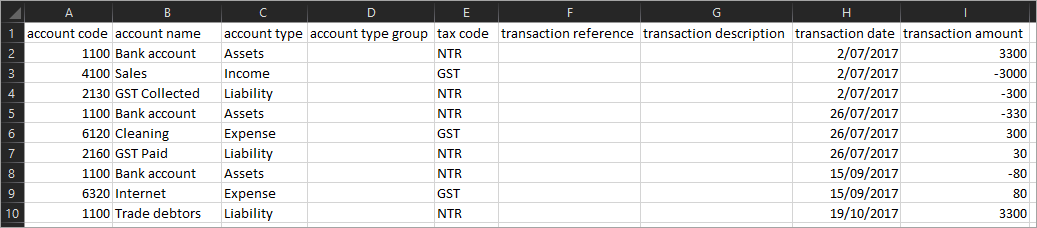
Importing of CSV files is controlled by an XML configuration file, located in the Deploy folder. This file controls the mapping between columns in your CSV file and ledger fields. Additional information can be found in the XML file.
CSV files containing up to 38,000 journal lines are supported.
Where you don't have data to import, leave the field blank.
| A | B | C | D | E | F | G | H | I | |
|---|---|---|---|---|---|---|---|---|---|
| 1 | account code | account name | account type | account type group | tax code | transaction reference | transaction description | transaction date | transaction amount |
- From AE/AO, open the client and go to the Client Accounting > Trial Balance (Workpapers) tab.
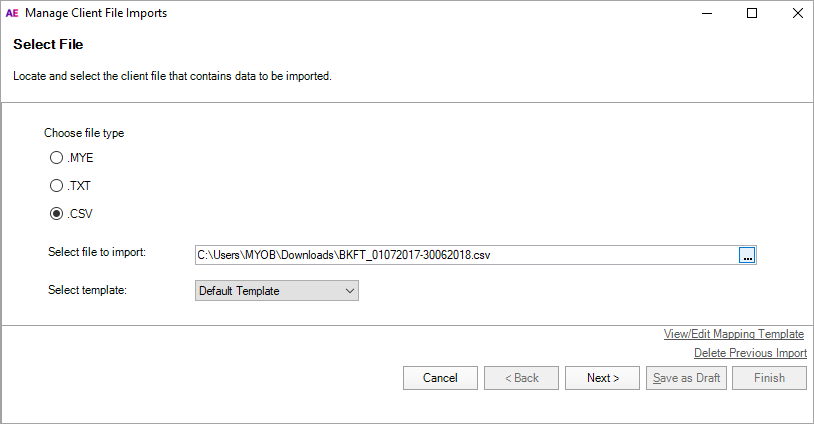
- On the TASKS bar, click Manage client file imports. The Manage Client File Imports window appears.

- Select .CSV .
- At the Select file to import field, click the ellipses (
 ) button and browse to the location of the export file.
 Highlight the file and click Open. The file path appears in the Select file to import field.
- At the Select template field, click on the drop-down menu and choose Default Template. If you've created a custom import template, you can select this template here.
- Click Next.
Choose whether you want to map your client's account codes to your ledger's accounts, or to import your client's accounts:
Option Description The chart of accounts in the file being imported is different to the chart in the ledger – I want to specify how to map the accounts to the ledger If the chart of accounts in the export file is the same as your chart of accounts, you can choose whether to select this option.
When this option is not selected, all transactions import with the account code from the export file. Any accounts that don't exist in your chart are automatically added.
If your chart of accounts is different from the chart in the export file, select this option. This will let you map the exported accounts to your ledger accounts.
Consolidate imported transactions into single monthly or annual transactions for each account Consolidates transactions into a single monthly or annual transaction for each account. To import all transactions, leave this checkbox unticked.
Only imported transactions can be viewed. If you choose to import consolidated transactions, you'll only be able to view one imported transaction per month or year (as selected).
You can import up to 38,000 transactions. If you have more than this, select this checkbox to consolidate your transactions or alternatively, separate the CSV file into multiple files.
If you've selected this checkbox, select to import either:
Monthly – imports one transaction per month for each account
Annually – imports one transaction per year for each account.
Click Next.
If you've selected the first option, continue to Map Accounts. Otherwise, continue to Stage 4.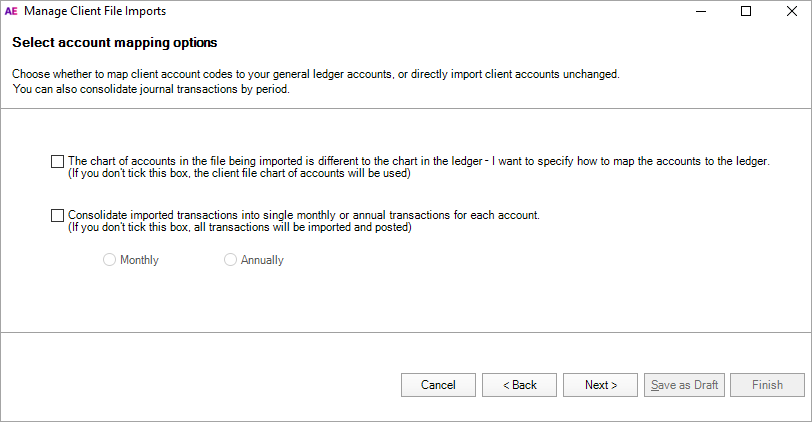
In the Map Accounts window, click in the Map to column for each account and choose an account to import your client's transactions to.
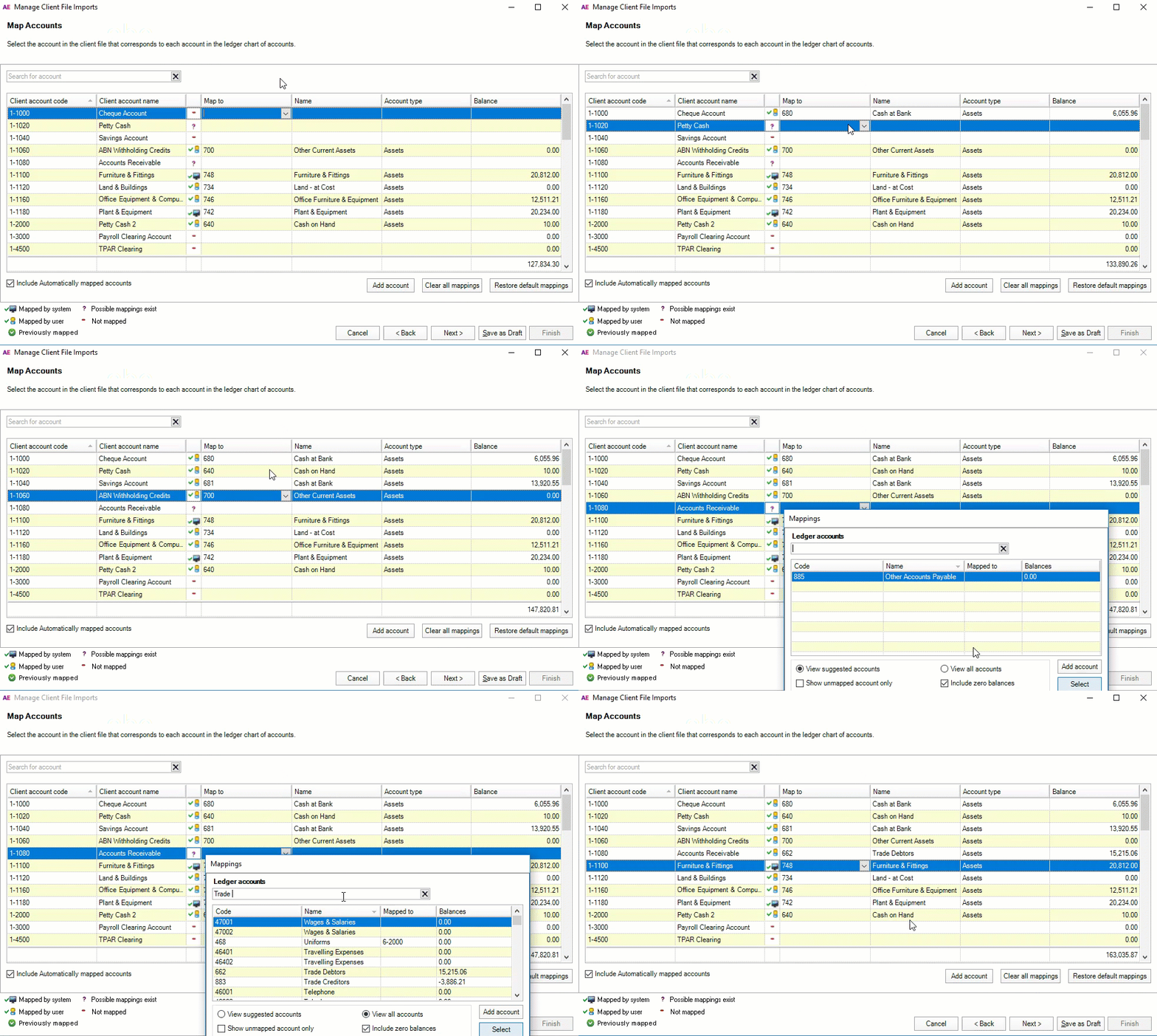
The Account name, Account type and Balance are updated automatically. Repeat this step for each account code.
Can't find the account you're looking for? You may need to create a new one. Click Add account and fill in the details.
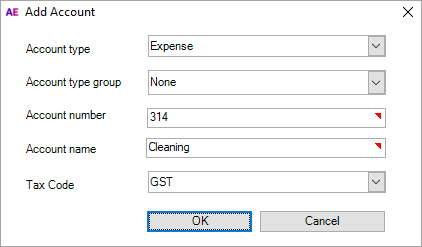
Once all accounts have been mapped, click Next.
Preview the accounts and make sure all accounts are mapped correctly.
To export the data, click Export to Excel.
When you're ready to submit the transactions, click Finish. The client data is posted to your ledger.
 Yes
Yes
 No
No
 Thanks for your feedback.