Page tree


Close

How satisfied are you with our online help?*

Just these help pages, not phone support or the product itself

0
1
2
3
4
5
Very dissatisfied
Very satisfied

Why did you give this rating?

Anything else you want to tell us about the help?
Australia only

Once you include an employee in a pay run, you can't remove (delete) them from MYOB. But if the employee is no longer needed in your software, you can mark them as Inactive. When you deactivate an employee, they:

  • no longer appear in pay runs
  • no longer appear in selection lists (where you can choose from your list of employees), and
  • are excluded from some payroll reports (but you'll have the option to show them if you like).

It also lets you reactivate the employee if needed. This is handy for occasional or seasonal workers who might leave and return.

Before you begin

Your plan may limit the number of employees you can pay each month. Learn about payroll limits and fees.

To deactivate an employee
  1. From the Payroll menu, choose Employees.
  2. Click the employee to be made inactive.
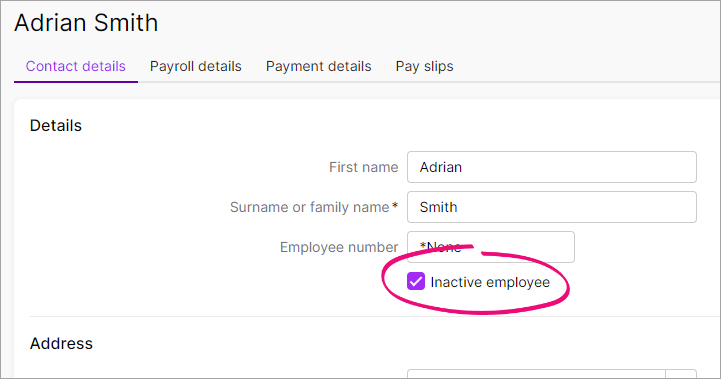
  3. On the Contact details tab, select the Inactive employee option.

  4. Click Save.

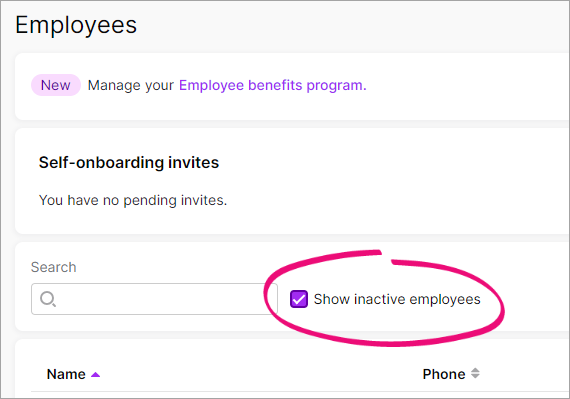
To see an inactive employee in your employee list or in some payroll reports, select the option to show (or include) inactive employees.


To reactivate an employee
  1. From the Payroll menu, choose Employees.
  2. Select the option Show inactive employees.
  3. Click the employee to be reactivated.
  4. On the Contact details tab, deselect the Inactive employee option.
  5. On the Payroll details tab, remove the Termination date (if one has been entered).
  6. Check that the employee's other details are correct. See Adding an employee for details.
  7. Click Save.
  8. If you're reinstating an employee in the same payroll year they were terminated, you'll need to undo the termination in the Single Touch Payroll reporting centre. This lets the ATO know the employee has been reinstated.
    1. Go to Payroll Single Touch Payroll reporting.
    2. Click Employee terminations.
    3. Click Undo to the right of the employee.
    4. When prompted, enter your details and click Send.