

You are viewing an old version of this page. View the current version.
Compare with Current View Page History
« Previous Version 10 Next »
https://help.myob.com/wiki/x/UgRgB
How satisfied are you with our online help?*
Just these help pages, not phone support or the product itself
Why did you give this rating?
Anything else you want to tell us about the help?
When you move from other payroll software to MYOB, you'll set up Single Touch Payroll (STP). During the STP setup, you notify the ATO that you've transferred from previous payroll software. This ensures there's no doubling-up of employees' payroll information at their end.
So once you've set up STP in MYOB, we recommend you (or your accounting advisor) check that your employees' year-to-date (YTD) amounts reported to the ATO match the payroll figures in MYOB.
You'll do a similar check at the end of the payroll year, but it's a good idea to find any issues now rather than wait until the busiest time of the year.
- Set up payroll (this includes entering employee YTD pay amounts and leave balances)
- Set up STP
To check your payroll totals
After setting up STP, compare these two reports to ensure they match:
- the YTD verification report in the Payroll Reporting Centre—this shows the YTD amounts you've reported to the ATO
- the Payroll Summary report in MYOB—this shows the YTD amounts you've processed through payroll in MYOB
- Go to the Payroll menu and choose Single Touch Payroll reporting.
- Click the the EOFY Finalisation tab.
- Choose the Payroll year. The Gross Payments (YTD) and PAYG withholding (YTD) values are the total amounts sent to the ATO for all your employees.
- Click View YTD verification report (PDF).
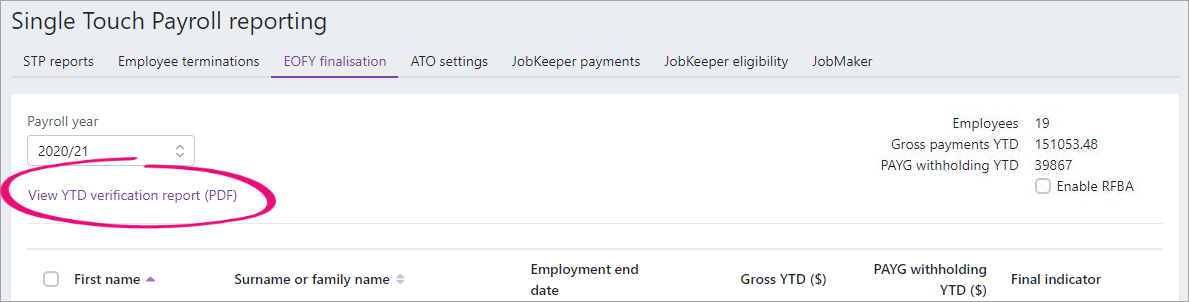
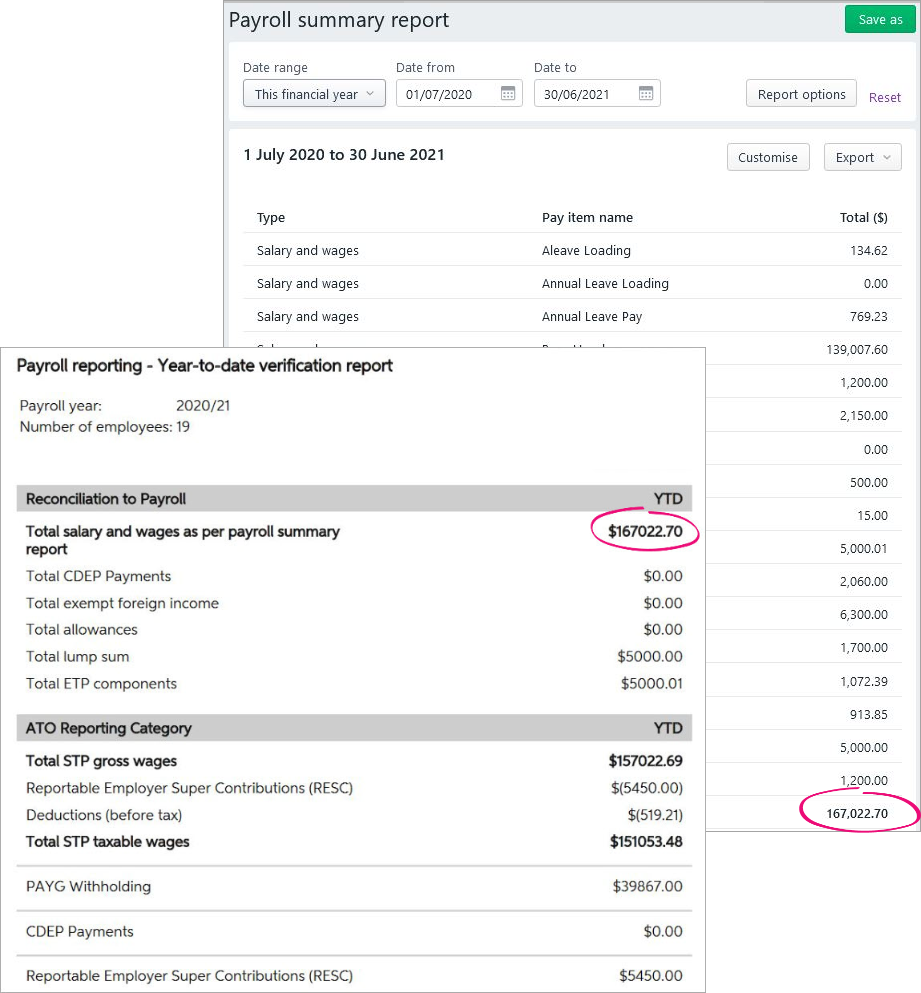
The report displays as a PDF. Take note of the total salary and wages YTD amount. Here's an example: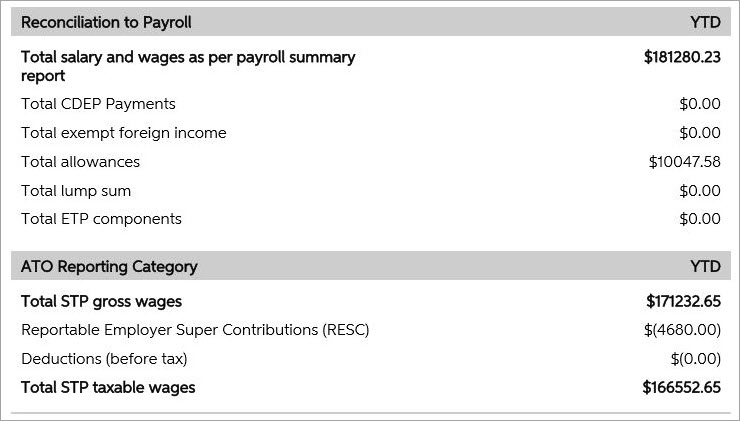
What am I looking at?
- This report shows the total of all ATO reporting category amounts sent to the ATO for all employees.
- The Reconciliation to Payroll section is not sent to the ATO. It shows total gross wages which you'll also see in the Payroll Summary report in MYOB. This amount will differ from the total gross wages reported to the ATO, as it doesn’t include Allowances, CDEP, Foreign Income, ETP components (not ETP Tax), Lump Sum values or any additional reimbursable/employee expenses.
- The ATO Reporting Category section lists the things that have been submitted to the ATO.
- The Total STP gross wages (in the ATO Reporting Category section) doesn't include allowances, such as JobKeeper amounts. This amount should be the same as what's shown in your Payroll Summary report in MYOB, minus any allowances or the other pay components which are listed in the Reconciliation to Payroll section.
- An employee's reportable fringe benefit amounts are reported to the ATO when you finalise, so these won't display on the YTD verification report until after you've completed the finalisation.
- In MYOB, go to the Reporting menu and choose Reports.
- Click the Payroll tab.
- Click the Payroll summary report.
- Set the report filters to cover the entire payroll year (1 July to 30 June).
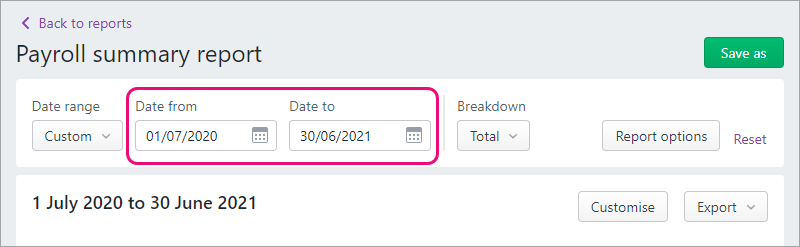
- Check the YTD total for Salary and wages. Here's our example:
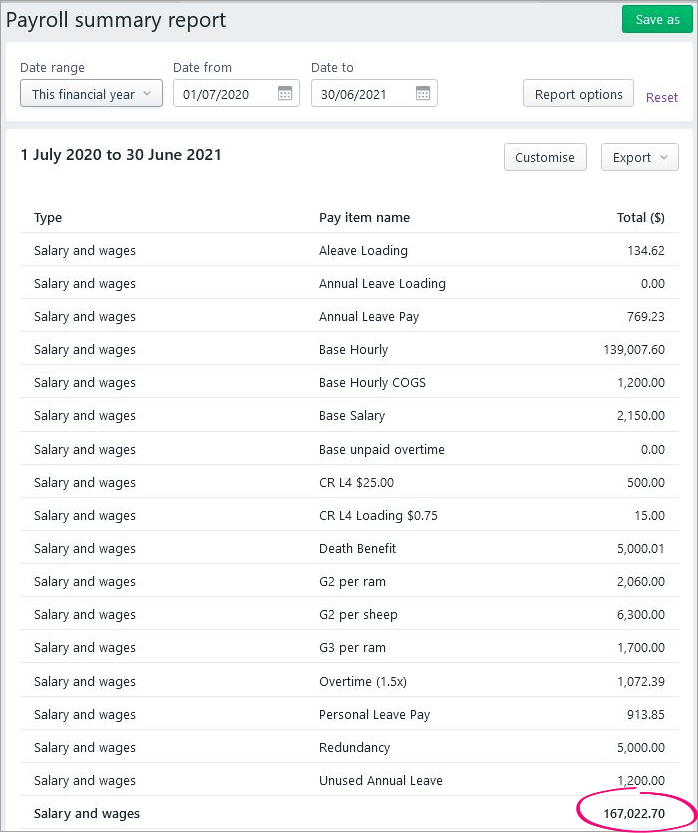
After you've run the above reports, compare the YTD total wage amounts on both. If they match (like in our example), everything is fine.
If the reports don't match
Here are some things to check.
Make sure you've assigned an ATO reporting category to each of your pay items.
- Go to the Payroll menu and choose Pay items.
- On the Wages and salary tab, look for any pay items which are To be assigned. Here's an example:
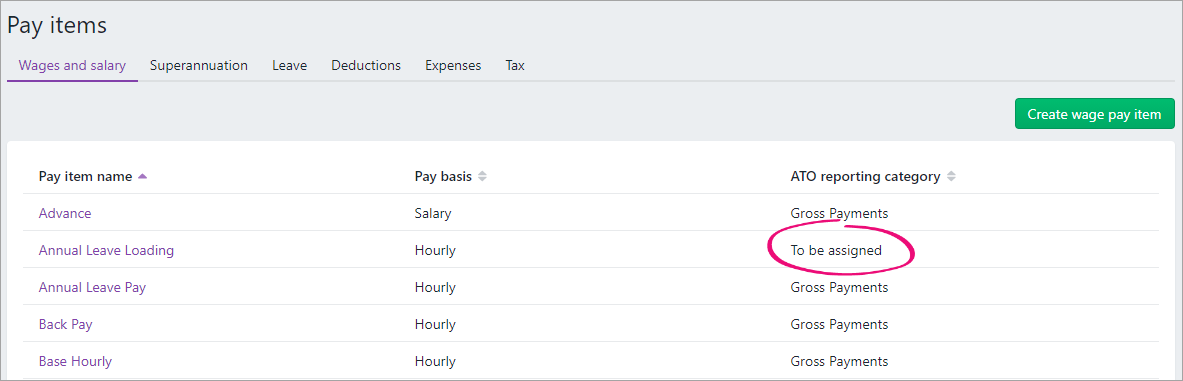
- If any pay items are To be assigned:
- Click the pay item name to open it.
- Assign the applicable ATO reporting category. For help choosing the right one, see Assign ATO reporting categories for Single Touch Payroll reporting or speak to your accounting advisor.
- Click Save.
If you add or change the ATO reporting category in a pay item, send an update event to the ATO (Payroll menu > Single Touch Payroll reporting > STP reports tab > Send update event).
Once all pay items are assigned an ATO reporting category, run the YTD verification and Payroll summary reports again (as we did above) to ensure they match. If they do, everything is fine. Otherwise, continue below to check the reported wage values for individual employees. This will help you narrow down your out of balance.
There are two reports you can use to check the amounts paid to individual employees for the payroll year.
- In MYOB, run the Payroll register report (Reporting menu > Reports > Payroll tab > Payroll register > click the dropdown arrow
 for each employee).
 - In the Single Touch Payroll reporting centre, click the ellipsis
 button for an employee and choose View summary report (PDF). This report shows a summary of all ATO reporting category amounts sent to the ATO for an employee (gross payments, PAYG withholding, allowances, etc.).
Here's what these reports show:
| Report | Description |
|---|---|
| Payroll register (in MYOB) | The total wages include all pay items and doesn't reduce the total wages by any non-taxable deduction or wage pay items, and pay items that don't have an ATO reporting category. |
| Summary of Payments (in the Single Touch Payroll reporting centre) | The gross payments amount is reduced by any non-taxable deduction or wage pay items, and pay items that don't have an ATO reporting category. |
Reports still don't match?
Try sending an update event to the ATO to make sure they have the latest YTD payroll totals for your employees (Payroll menu > Single Touch Payroll reporting > STP reports tab > Send update event).
If things still don't look right, you might need help from an expert to dig a little deeper into your issue. Reach out to your accounting advisor, or try the MYOB professionals on our community forum. Of course, you can always get help from our support team.
 Yes
Yes
 No
No
 Thanks for your feedback.