Page tree

You are viewing an old version of this page. View the current version.

Compare with Current View Page History

« Previous Version 7 Next »


Close

How satisfied are you with our online help?*

Just these help pages, not phone support or the product itself

0
1
2
3
4
5
Very dissatisfied
Very satisfied

Why did you give this rating?

Anything else you want to tell us about the help?
About activation

This information is for older MYOB products, including AccountRight v19 and AccountEdge. For activation and confirmation help for the latest version of AccountRight, your help is here.

Activation is a way of protecting against potential piracy and provides you with the reassurance that you are using an authentic product that can be trusted with your business data. Activation occurs when you create a new company file or upgrade a company file from a previous version.

The activation process authenticates your product serial number (which is stored in your company file) against the MYOB software database, and also records how many company files you’ve activated using that product serial number.

About confirmation

Confirmation follows activation and is a re-authentication of your product serial number against the MYOB software database. Confirmation is requested monthly to ensure you are using a licensed version. If you are asked to confirm your file more often than this, you may need to contact product support for assistance. You can also confirm your company file at any time by going to the Help menu and choosing Confirm your Company File.

Note that none of your business data is transmitted during the activation or confirmation process. For more information, view MYOB’s Privacy Policy.

Ready to activate or confirm?

Activate or confirm your company file
  1. In your MYOB product, when prompted to activate or confirm your company file, choose to Confirm/activate by phone and click Continue.
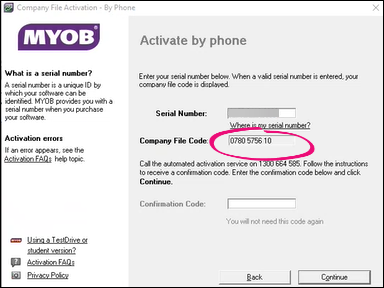
  2. If required, enter your serial number in the Serial Number field. Do not include any spaces or special characters.
  3. Tab out of the Serial Number field. A code appears in the Company File Code field. Note down this number (you can't copy it).
  4. Go to confirmation.myob.com.
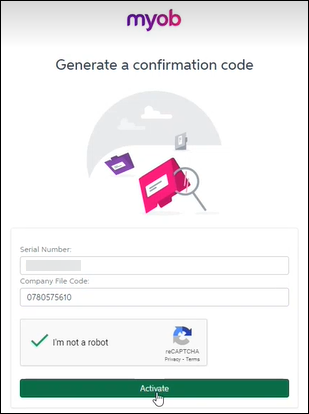
  5. On the Generate a confirmation code page, enter your serial number and the company file code.


  6. Click I'm not a robot.
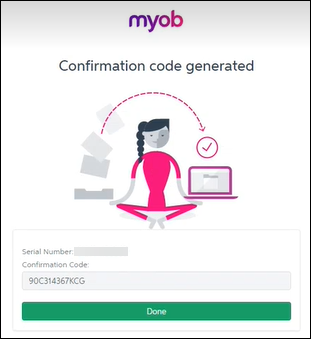
  7. Click Activate. A confirmation code appears.
  8. Copy the confirmation code and click Done.
  9. In your MYOB product, enter the confirmation code in the Confirmation Code field.
  10. Click Continue. Your MYOB product has been activated/confirmed.