

- Created by admin, last modified by AdrianC on Sep 02, 2016
You are viewing an old version of this page. View the current version.
Compare with Current View Page History
« Previous Version 17 Next »
https://help.myob.com/wiki/x/qQL
ANSWER ID:9250
If you have a current support subscription you can download full AccountEdge versions from the my.MYOB website (AU | NZ). Some minor updates can only be downloaded from within AccountEdge. If a minor update is available, AccountEdge will prompt you to download and install it.
Purchased AccountEdge but don't have a support subscription? Call us and we'll email you a download link (Australia 1300 555 123 or New Zealand 0508 328 283).
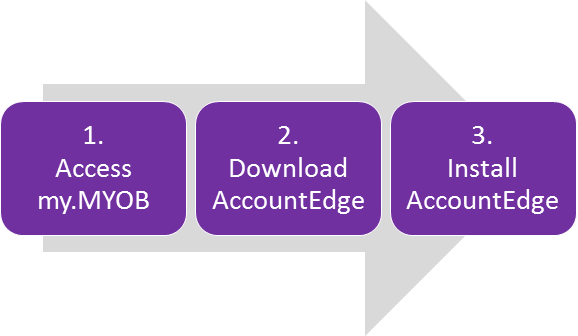
OK, let's step you through it.
When you register AccountEdge or download a trial from us, you'll specify an email address and password. You'll need these details to log in to my.MYOB.
- Go to my.myob.com.au (AU) or my.myob.co.nz (NZ).
Log in using the email address and password you registered with us. If you're not sure of your password, click Forgot your password? and follow the prompts to reset your password.
Having issues accessing or using my.MYOB?
Contact the MYOB Customer Service Team (Australia | New Zealand).
Once you're logged in to my.MYOB, go to the My Products menu and choose Downloads.

'Downloads' option not available?
You might not have a current support subscription. To check the support status for your product, go to the My Products menu and choose My Products.
- Select your MYOB product and all available downloads will be listed. Here's an example:

Click the name of the file you want to download and choose where you want to save it. Take note of where you've saved it as you'll need to find it for the next task.
Also download the Release Notes to learn more about your new AccountEdge version.
Look on your Hard Drive (HD) or use Finder to locate the downloaded files. You can also press Command-F to bring up the Find dialogue.
If you downloaded the update instructions, double-click to open the PDF file. You'll need a PDF reader for this, such as Adobe Reader.
To install AccountEdge:
- Double-click the downloaded installation .zip file to unzip it.
- Double-click the .dmg file to display an installer window.
- Start the installation:
- AccountEdge Pro and Basic: Click and drag on the AccountEdge icon on the left hand box, and drop it on top of the Applications shortcut.
- AccountEdge Network Edition: Double-click the Setup icon and follow the on-screen instructions to install your update.
After installing, manually check for additional updates by going to the AccountEdge menu and choosing Check for Updates.