

You are viewing an old version of this page. View the current version.
Compare with Current View Page History
« Previous Version 113 Next »
https://help.myob.com/wiki/x/voDEAw
How satisfied are you with our online help?*
Just these help pages, not phone support or the product itself
Why did you give this rating?
Anything else you want to tell us about the help?
If you've been upgraded to the new MYOB Essentials, you now have more fully-featured payroll, including more insights and customisation. Naturally, we've had to change how some things work.
You'll find that we've rethought employee details, pay items and payroll workflows. This means some things have moved, have different names, or function in a slightly different way.
There's quite a lot that's changed, so here are some key things to note.
- You can pay your staff wages just as you did before the upgrade without having to change anything or set anything up
- Employee pay components have been mapped to the relevant pay items
- Employee pay history has been migrated
- There are many more pay items in the new MYOB Essentials, giving you more flexible and customisable payroll
Where to find payroll functions
The names of some Payroll menu items have changed or been moved to other areas of the product and new features have been added.
If you have been using the following services, you may need to change over to new services:
- MYOB's super portal to pay your employees' super
- YourPay to enter employee timesheets.
Reorganised Payroll menu
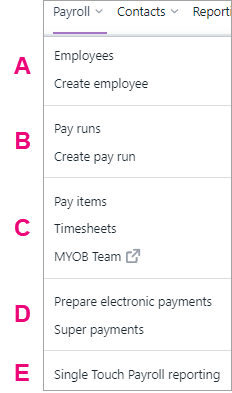
The Payroll menu is still the main area where you pay your employees and keep track of their payroll information. Some menu items have been renamed, have moved, or have been removed, as a result of new features.
We've also grouped functions in a more logical way and made some existing features available in the menu, so you have to do fewer clicks to perform functions.
| |
| A |
|
| B |
|
| C |
|
| D |
|
| E | Single Touch Payroll reporting. Manage your STP reporting and see your reported pay runs. If you're already using STP, you don't need to set it up again – you can continue reporting your payroll to the ATO as previously. |
Payroll Activity report replaces the Payroll Summary report
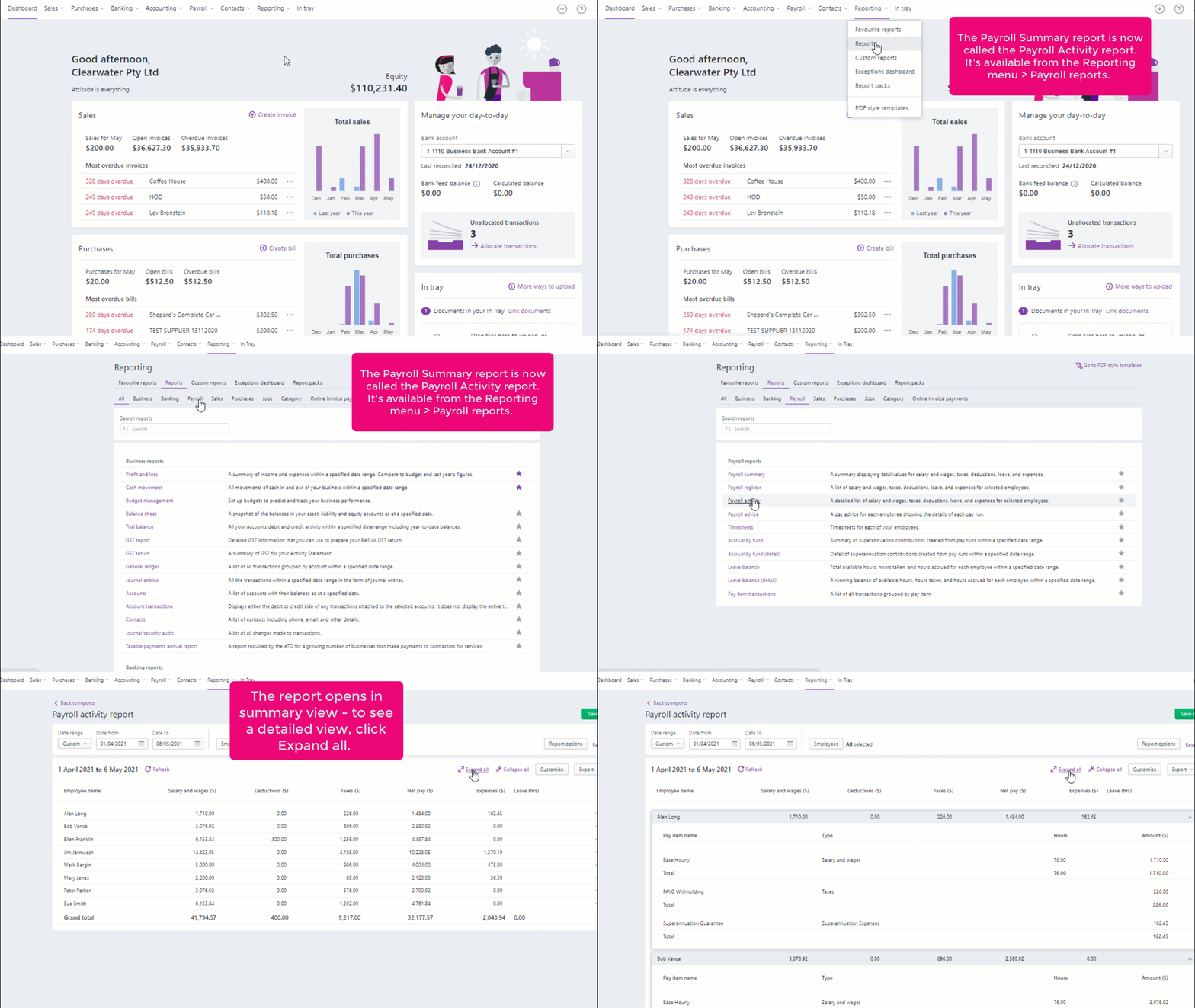
Payroll summaries has been removed from the Payroll menu to the Reporting menu > Payroll. It's also been renamed as the Payroll Activity report and you can see either a summary or detailed view (click the animation to expand it):
New Payroll settings page
Payroll settings has been removed from the Payroll menu, but you can still find it under your business name:
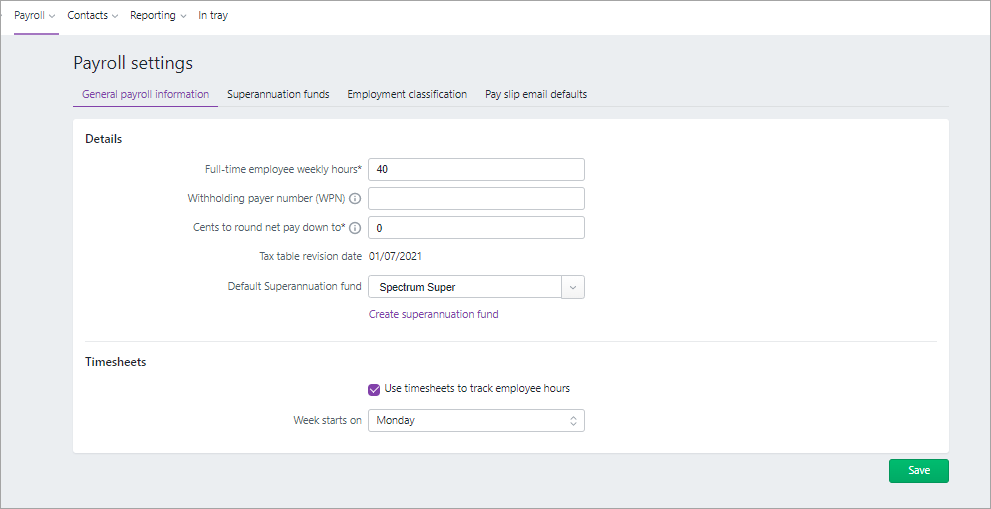
There are a lot more functions in Payroll settings and some previous functions have moved or changed.
Payroll bank account is now the cash payments linked payroll account
The Banking tab has been removed from Payroll settings. If you want to view the details of the bank account that you use to pay employees, go to the Accounting menu > Chart of Accounts and click the account number (it will be the same account number of the account you entered in the Banking tab in old MYOB Essentials).
Note that in the new MYOB Essentials, there are linked accounts for payroll features. Linked accounts are similar to the control accounts in your old MYOB Essentials. They work behind the scenes to make sure that the right accounts are used consistently and correctly. This saves you from needing to choose an account every time you use a function.
The account you chose to pay wages in your old MYOB Essentials is now the linked Bank account for cash payments. <CONFIRM WITH TRISTAN> You can view this account with your other linked payroll accounts by going to the Accounting menu > Manage linked accounts > Payroll:
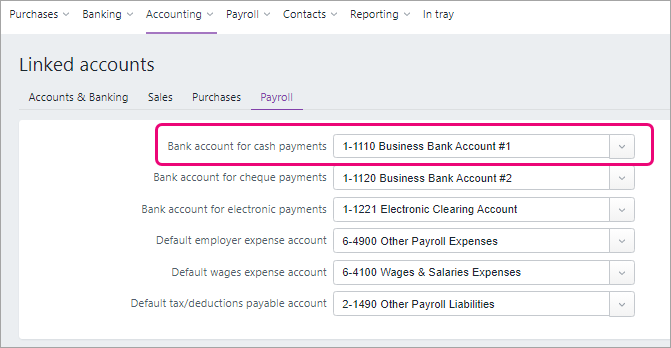
Although you can't turn linked payroll accounts off, you can change the default linked accounts if you want. See Managing linked accounts.
Pay slip settings changes
asjfldjf
PAYG payment summaries tab has been removed
alfjjf
Payroll settings give you more detail and control
alkfjf
Employee changes
There's more you can do when setting up employees now and because of this we've had to change how employee information is laid out.
Restructured employee information
You get a more detailed view and more customisation in employees in your new MYOB Essentials. Because of this, we've had to move some features to different locations.
Here's a summary of where you'll find things and what they're now called:
| old MYOB Essentials | new MYOB Essentials | (screenshot) |
|---|---|---|
| Employee details tab | Contact details tab | |
| Notes tab | Contact details tab > More information | |
| Pay details | Payroll details tab > Salary and wages
| |
| Pay items – earnings & deductions tab (wages) | ||
| Tax tab | Payroll details > Tax tab | |
| Pay items – earnings & deductions tab (deductions) | Payroll details > Deductions tab | |
| Employee details tab > Banking | Payment details tab |
There are two new tabs you should check out: Standard pay and Expenses. See the information about these below.
Standard pay
In the employee (Payroll menu > Employees), there's a new tab, Standard pay:
<SCREENSHOT>
This tab shows the default pay details for the employee based on the information recorded in the other tabs.
Some values, like tax, will be labelled as Calculated, meaning they're calculated each pay.
Set values will be displayed, but can be changed here or when you do a pay run.
Learn more about reviewing standard pay details.
There are now more pay items
Just as in your old MYOB Essentials, you use pay items to calculate the different parts of an employee's pay, like wages, deductions, superannuation and tax. But there are now more pay items you should be aware of.
New default pay items
Your upgraded MYOB comes with a set of default pay items you can use, or customise, based on your business needs. These default pay items are added to all of your employees during the upgrade. These default pay items are:
- Base Salary and Base Hourly. Base Salary is assigned to salaried employees and Base Hourly is assigned to hourly-based employees.
- Superannuation Guarantee. Superannuation Guarantee super pay item is for their mandatory 9.5% superannuation contributions.
- PAYG Withholding. PAYG Withholding is used to calculate PAYG on employee pays, for all tax tables (or tax scales) provided by the ATO.
MAKE INTO A TABLE AND HAVE A WHERE TO FIND COLUMN
Leave is now controlled by pay items
The new MYOB Essentials uses leave pay items to track the hours of leave an employee accumulates.
Previously, you would set up leave (annual leave and personal leave) for an employee by entering their annual entitlement and opening leave balance. Now, you need to choose the leave pay items the employee is entitled to. For example, if they'll accrue annual leave and personal leave, you need to add pay items for annual leave and personal leave.
<SCREENSHOT>
If an employee had a leave entitlement in old MYOB Essentials, they'll have the corresponding leave pay item automatically assigned to them in the new MYOB Essentials. For example, if an employee had an annual leave entitlement and is a salaried employee, they'll be assigned a pay item called Annual Leave Accrued Per Pay.
Also, the employee's Current balance available will be transferred during the upgrade and added as a Balance adjustment (Employee > Payroll details > Leave):
<SCREENSHOT>
CONFIRM THE ABOVE WITH TRISTAN
Additional super
During the upgrade, the names of the super pay items, Super salary sacrifice and Super personal contrib'n, are changed to Salary Sacrifice and Employee Additional as these are the default names for these types of pay items in the new MYOB. If you want, you can edit these pay items and change them back to their original names. These pay items, which were previously in the Deductions section of the employee, are now in the Superannuation tab of the employee (Employee > Payroll details > Superannuation).
<SCREENSHOT>
In your old MYOB Essentials, you couldn't set up reportable employer additional super contributions. In the new MYOB Essentials you can report employer additional super contributions, by creating an Employer Additional pay item and assigning an ATO reporting category to it. See Additional superannuation contributions.
Super and leave calculations
Any new pay item you create in the new MYOB Essentials will be automatically set to be included in all super and leave calculations. This differs from old MYOB Essentials, where the pay item was excluded by super and leave calculations by default.
If you want to exclude a pay item from super or leave calculations, you need to edit the relevant super or leave pay items and add the pay item you've created to the list of exempted pay items:
<SCREENSHOT>
Expenses
You can now track benefits (other than superannuation) that you pay on behalf of your employees, by assigning Expense pay items. You can find these pay items in the new Expenses tab:
<SCREENSHOT>
EXAMPLES OF EXPENSES
See what's new when doing a pay run
We've made some improvements to employee pay cycles, which changes what employees appear when you do a pay run.
New pay cycle options
You have the new pay cycle options, Twice a month and Quarterly:
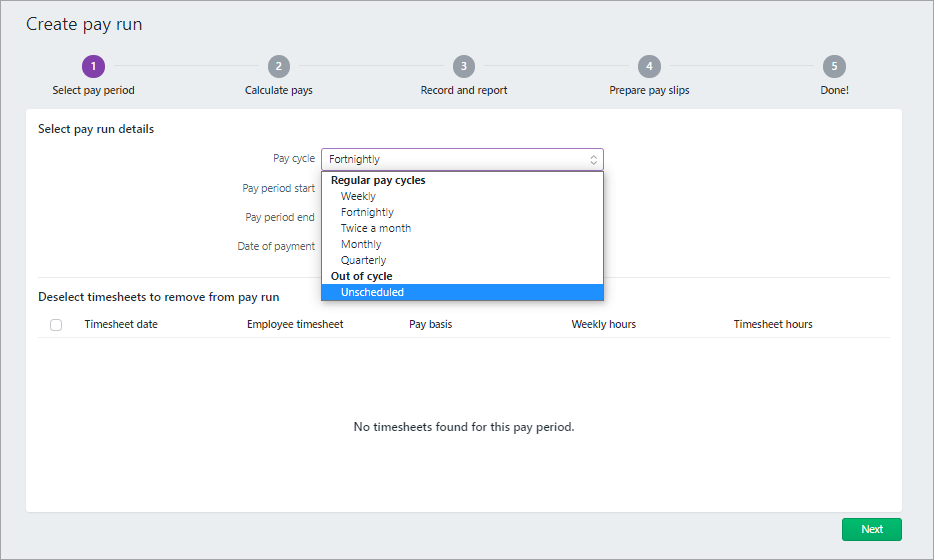
Need to pay employees 'out of cycle'?
CONTENT AND FEATURE TO COME
Employee pay cycle determines whether they appear in a pay
In old MYOB Essentials, you could pay any employee in any pay cycle. In your upgraded software, the pay cycle frequency set in the employee card (Payroll menu > Employees > Payroll detail tab) determines if they appear when you create a pay run:
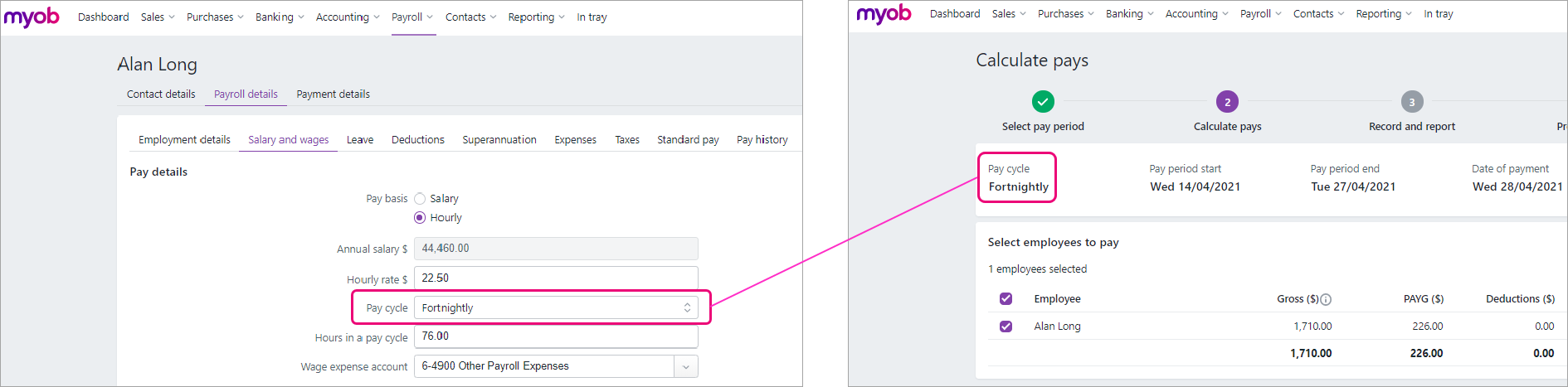
So, if you're doing a pay run and an employee isn't appearing, check what pay cycle has been chosen in the employee.
Hourly rate and pay cycle is based on the last pay before the upgrade
In each employee card (Payroll menu > Employees > Payroll detail tab), the Hourly rate and Pay cycle are based on their last recorded pay before the upgrade:
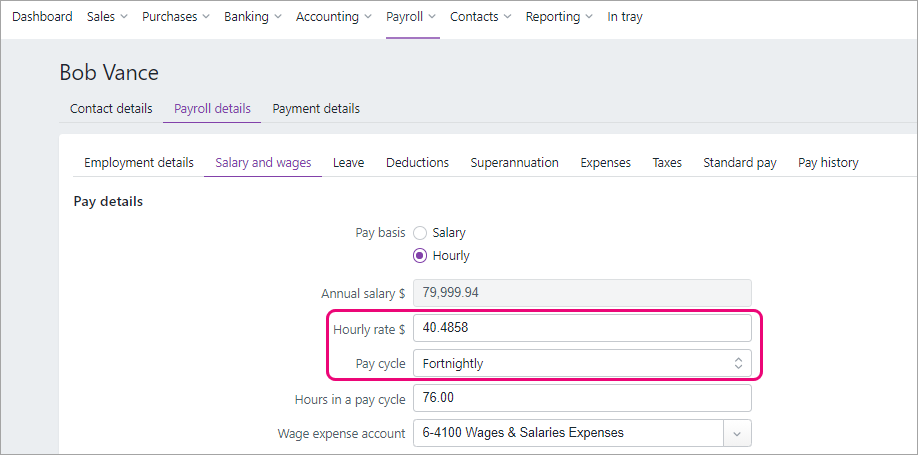
CONTENT TO COME
There's no option to filter Pay items by active or deleted status - do we need info on this?
Want to learn more about what's different in your new MYOB?
For more information on the upgrade of MYOB Essentials:
visit our website: small businesses | MYOB Partners
check out the free upgrade training course.

 Yes
Yes
 No
No
 Thanks for your feedback.