

- Created by TaliS, last modified by AdrianC on Aug 13, 2019
You are viewing an old version of this page. View the current version.
Compare with Current View Page History
« Previous Version 15 Next »
https://help.myob.com/wiki/x/84ZqAg
How satisfied are you with our online help?*
Just these help pages, not phone support or the product itself
Why did you give this rating?
Anything else you want to tell us about the help?
Get money in your pocket faster by notifying your customers to pay invoices that have been emailed to them. There are two ways to gently prod your customers in Essentials – reminders and unpaid invoice summaries.
What's the difference?
- Reminders allow you to choose when you want your customers to receive reminders on individual invoices.
- Unpaid invoice summaries contain a list of outstanding invoices that a customer will automatically be sent monthly.
You can turn reminders on for all customers then, if you like, turn it off for some customers. Or, you can turn on invoice reminders for selected customers.
See how invoice reminders and unpaid invoice summaries will look to your customers.
Set up unpaid invoice summaries for all customers
Turn on invoice reminders for all of your customers. Here's how:
Click your business name in the top-right corner and choose Invoice and quote settings.

Click the Reminders tab.
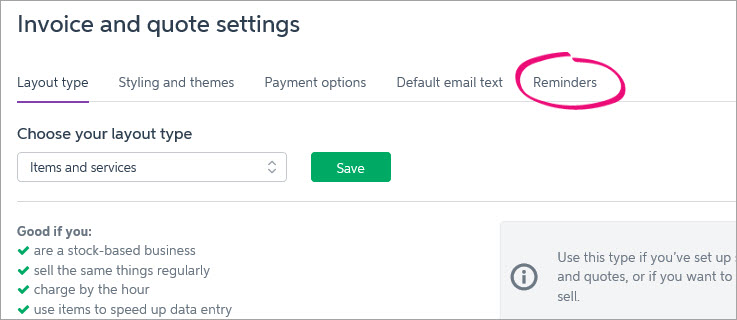
Click Reminders settings. The Reminders and unpaid invoice summaries window appears.
Click the Unpaid invoice summaries tab.
Select the option Send unpaid invoice summaries.
Select the option Send to all customers.
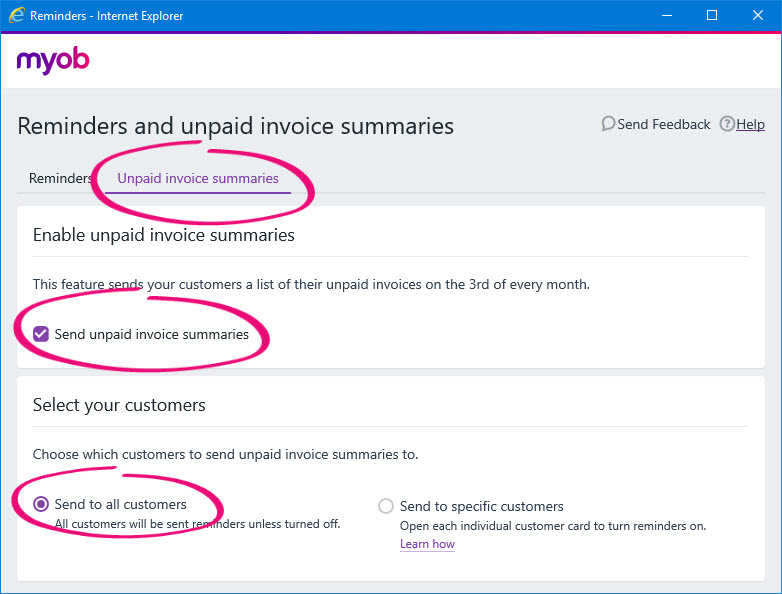
- Click the X in the top-right corner to close the Reminders and unpaid invoice summaries window.
On the 3rd of every month, a list of outstanding invoices will now be sent to customers who have been sent invoices from MYOB Essentials. If you don't want to send summaries to some customers, you can turn off reminders for them in their customer record.
To turn off invoice summaries for all customers, repeat these steps and deselect the option Send unpaid invoice summaries.
Set up unpaid invoice summaries for selected customers
You can send invoice reminders to specific customers. First, enable the reminders feature then turn on reminders for the individual customers.
Click your business name in the top-right corner and choose Invoice and quote settings.
Click the Reminders tab.
Click Reminders settings. The Reminders and unpaid invoice summaries window appears.
Click the Unpaid invoice summaries tab.
Select the option Send unpaid invoice summaries.
Select the option Send to specific customers.
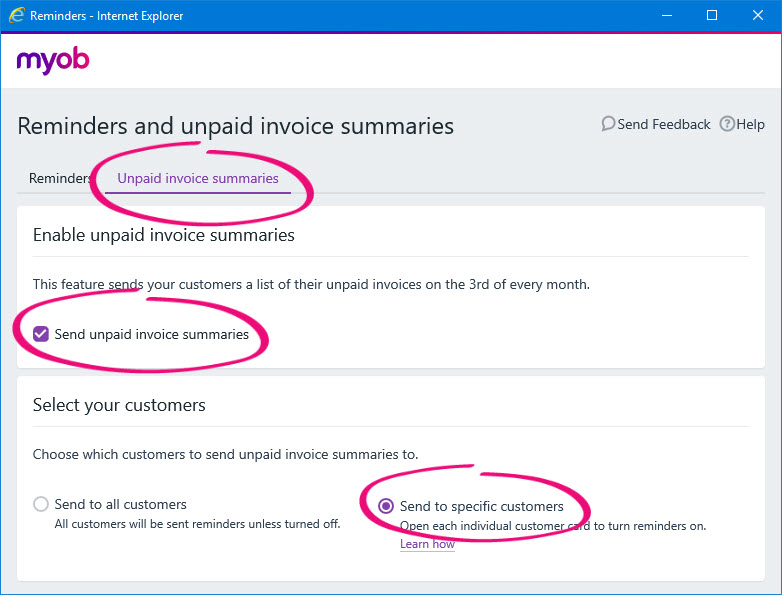
- Click the X in the top-right corner to close the Reminders and unpaid invoice summaries window.
You can now choose the customers you want to send unpaid invoice summaries to - see the next task for steps.
To turn off invoice summaries for all customers, repeat these steps and deselect the option Send unpaid invoice summaries.
Set up unpaid invoice summaries for a single customer
Once you've activated the invoice summaries setting as shown in the previous task, you can turn on or off invoice summaries for specific customers.
- From the Contacts menu, choose View contacts.
- Click a customer's name to open their record.
- Click the Reminders settings tab.
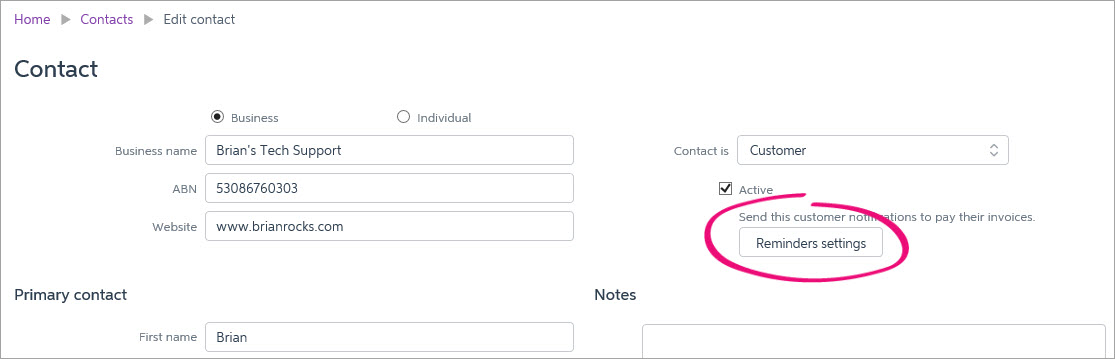
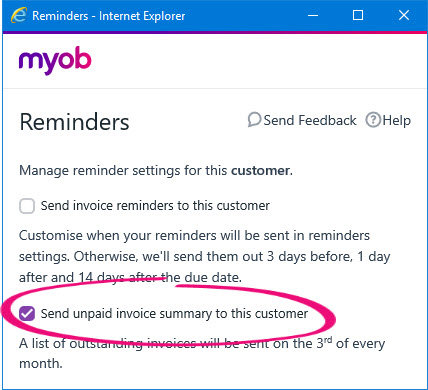
- On the Reminders window, select the option Send unpaid Invoice summary to this customer.
- Click the X in the top-right corner to close the Reminders window.
- Click Save to save the changes for this customer.
- Repeat these steps for other customers you'd like to send reminders to.
To turn off unpaid invoice summaries for all customers
This is how you can turn off unpaid invoice summaries for all your customers. If you only need to turn it off for specific customers, see Set up unpaid invoice summaries for a single customer above.
Click your business name in the top-right corner and choose Invoice and quote settings.
Click the Reminders tab.
Click Reminders settings. The Reminders and unpaid invoice summaries window appears.
Click the Unpaid invoice summaries tab.
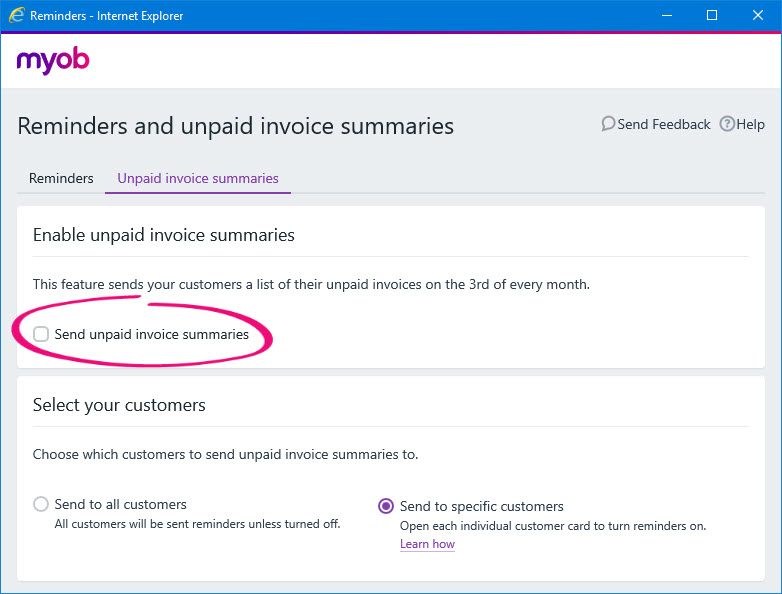
- Deselect the option Send unpaid invoice summaries.
Click the X in the top-right corner to close the Reminders and unpaid invoice summaries window.
Any feedback on unpaid invoice summaries?
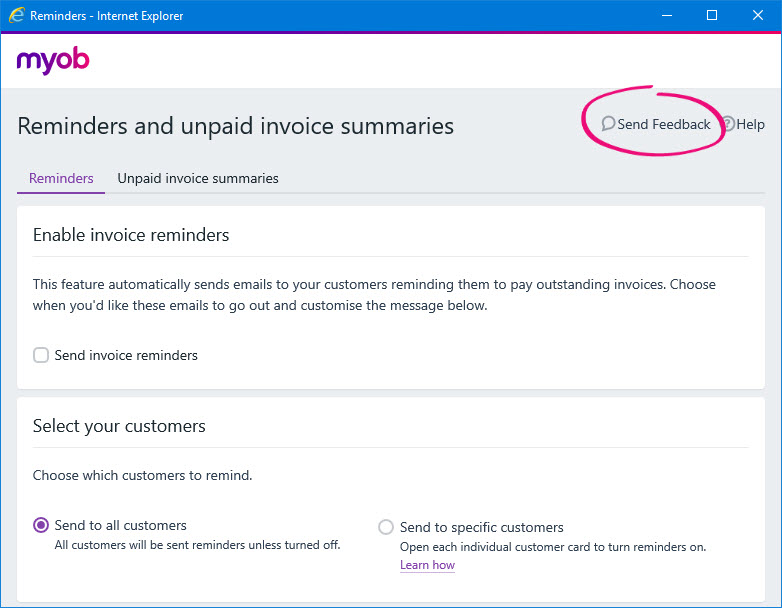
We're keen to hear from you about how we can improve this feature. Just click Send Feedback in the Reminders and unpaid invoice summaries window and tell us what you think.
 Yes
Yes
 No
No
 Thanks for your feedback.