

- Created by TeresaP, last modified by AdrianC on Jun 15, 2021
You are viewing an old version of this page. View the current version.
Compare with Current View Page History
« Previous Version 72 Next »
https://help.myob.com/wiki/x/r4cEB
How satisfied are you with our online help?*
Just these help pages, not phone support or the product itself
Why did you give this rating?
Anything else you want to tell us about the help?
Australia only
The super funds your employees belong to need to be set up in MYOB. So in addition to setting up superannuation pay items, you'll need to:
- add the standard and self managed (SMSF) super funds that your employees use
- assign the relevant funds to your employees.
- Sign up for Pay Super (it’s included with your MYOB subscription and you can use it to make super payments directly from MYOB).
To add a standard super fund
Standard super funds are those used by most employees. These funds are registered with – and regulated by – APRA (Australian Prudential Regulation Authority). If you need to set up a self-managed super fund, see the info in the section below.
Click your business name and choose Payroll settings.
Click the Superannuation funds tab.
- Click Create super fund. The Create superannuation fund page appears.
- Select the fund Type as Standard (APRA regulated). Standard funds are those registered with – and regulated by – APRA (Australian Prudential Regulation Authority).
- Enter the Name you want to use for the fund within MYOB. For example, you might want to give a fund with a long or confusing name a shorter, clearer one. (This is different to the fund's Fund name, which we'll get to shortly.)
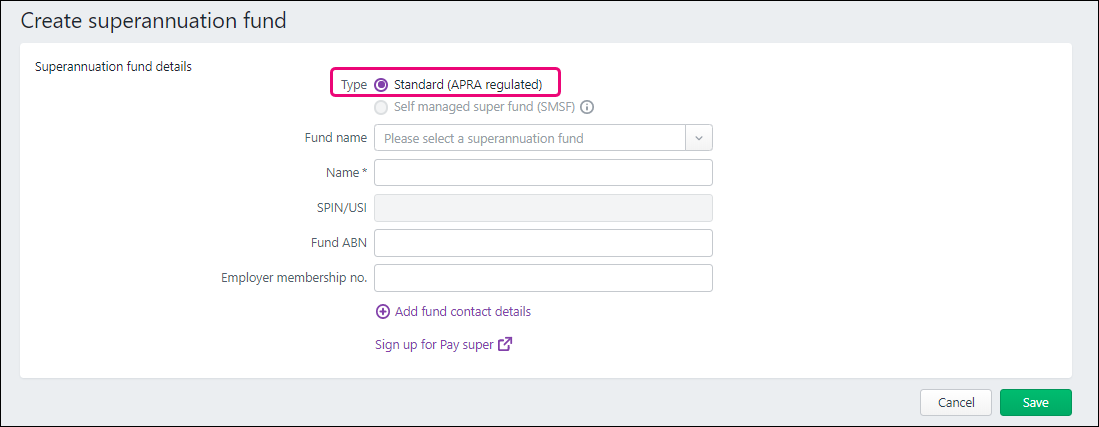
Select the Fund name from the list. This is the name that's registered with APRA.
If a SPIN (Superannuation Product Identification Number) or USI (Unique Superannuation Identifier) exists for the fund, it will appear in the SPIN/USI field automatically. The Fund ABN for the fund will appear automatically as well.
Can't find a super fund?
It might be listed under a slightly different name than you're used to. In the Fund name drop-down, try entering and searching for the fund's SPIN/USI. You can also check our list of super funds to make sure the fund can be paid using Pay Super. Still can't find the fund? Contact MYOB Support on 1300 555 931.
- If you have your membership number for the fund, type it in the Employer membership no. field. This is a unique employer identification number provided by some funds when you register an employee or group of employees.
- (Optional) Click Add fund contact details to add the fund's Phone and Website details.
- If you've signed up for Pay Super and want to pay the fund directly from MYOB, select the option Pay using PaySuper.
- Click Save.
- If prompted, enter your MYOB account details.
- Repeat from step 3 for each additional standard fund you want to create.
To add a self managed super fund
If an employee uses a self managed super fund, here's how to set it up. For standard super funds, see the info above.
Click your business name and choose Payroll settings.
Click the Superannuation funds tab.
- Click Create super fund. The Create superannuation fund page appears.
- If you've signed up to Pay Super, select the fund Type as Self managed super fund (SMSF).
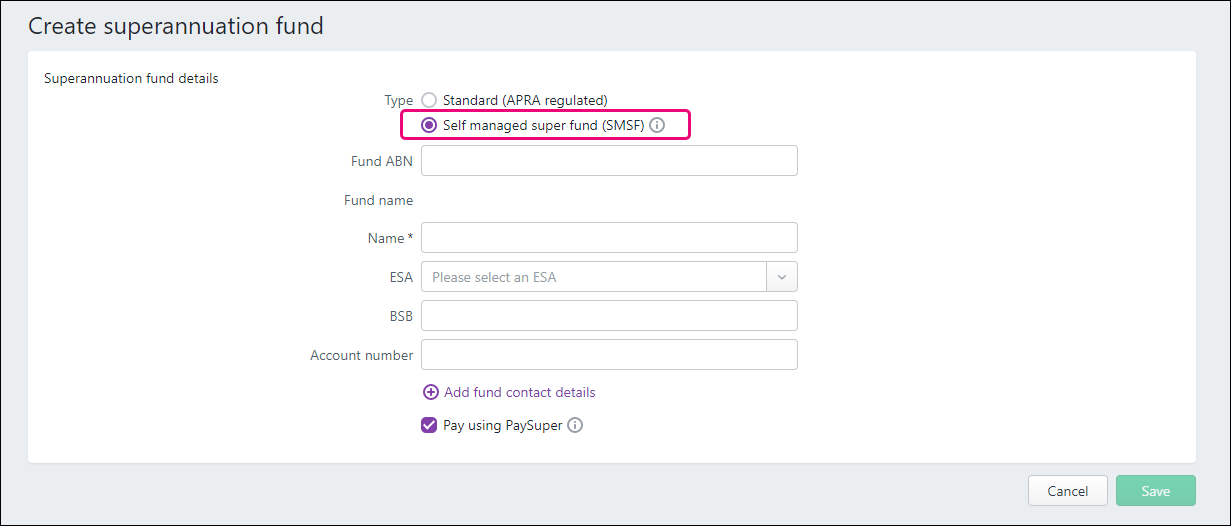
- Enter the Name you want to use for the fund within MYOB. For example, you might want to give a fund with a long or confusing name a shorter, clearer one. (This is different to the fund's Fund name, which we'll get to shortly.)
Enter the Fund ABN and hit TAB. The Fund name will appear automatically. If it doesn't, check the ABN you've entered.
Select the fund's ESA from the list. This is the Electronic Service Address, and is used to send data messages to the fund about the contributions you make.
Not sure which ESA to select? Check with your employee or the trustee/administrator of the Self Managed Super Fund. For more details on where to obtain an ESA, check the ATO website.
- Enter the fund's BSB and Account number.
- (Optional) Click Add fund contact details to add the fund's Phone and Website details.
If you've signed up for Pay Super and want to pay the fund directly from MYOB, select the option Pay using PaySuper.
Once you've selected this option for a Self managed fund, you won't be able to edit the fund, so make sure you've entered the correct details.
- Click Save. The fund now appears in the super fund list.
- Repeat from step 3 for each additional SMSF you want to create.
To assign funds to your employees
Once you've created super funds , you need to assign the super funds to your employees.
You can select a super fund in the Payroll Details view of each employee’s record (Payroll menu > Employees > click the employee's name > click the Payroll details tab > Superannuation tab.)
You also need to enter the Employee membership number.
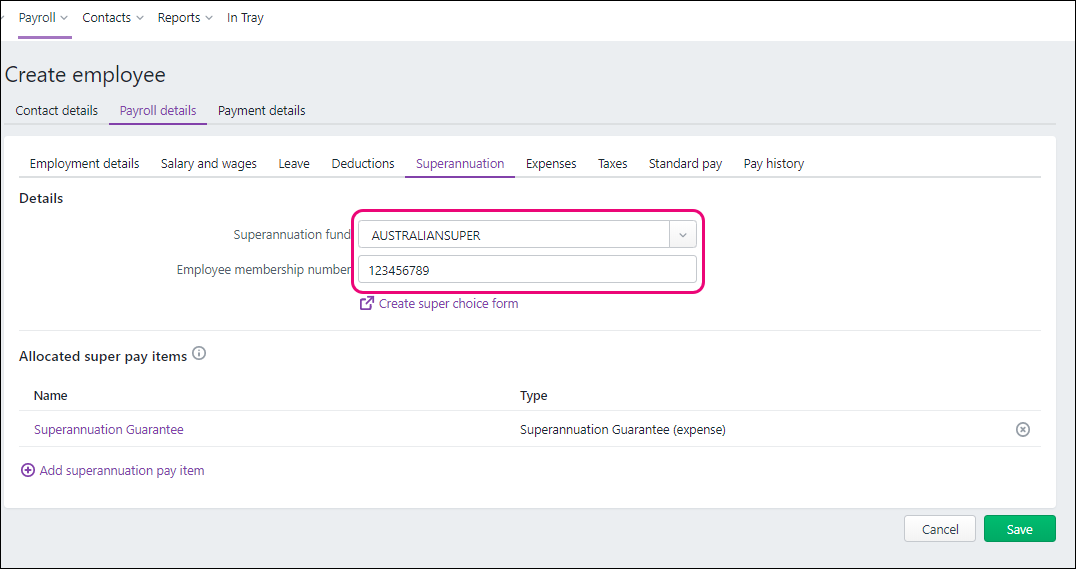
If the employee doesn't have a membership number, contact their nominated super fund who will advise what to enter here.
To complete superannuation setup for the employee, assign superannuation pay items to them to calculate and track their payments. Learn more about Superannuation items.
To edit or delete a super fund
Self managed funds can't be edited. Instead, you'll need to create a new self managed fund with the updated details and assign it to the applicable employees. You'll need to enter a different name in the Name field to the one use previously to be able to save the new fund.
To edit standard funds
Click your business name and choose Payroll settings then click the Superannuation funds tab. Click a fund to display its details, make your changes then click Save.
To delete a fund
A super fund can only be deleted if it hasn't had a payment made to it.
Click your business name and choose Payroll settings then click the Superannuation funds tab. Click a fund to display its details then click Delete. At the confirmation message, click Delete again.
To set a default super fund
If your business uses a default super fund, click your business name and choose Payroll settings, then choose a Default superannuation fund on the General payroll information tab.
But you can choose a different super fund when adding an employee.
 Yes
Yes
 No
No
 Thanks for your feedback.