

You are viewing an old version of this page. View the current version.
Compare with Current View Page History
« Previous Version 243 Next »
https://help.myob.com/wiki/x/CwHlAw
How satisfied are you with our online help?*
Just these help pages, not phone support or the product itself
Why did you give this rating?
Anything else you want to tell us about the help?
If you've been upgraded to the new MYOB Essentials (or 'new MYOB' as you might see it referred to elsewhere in the online help), you now have more fully-featured payroll, including more insights and customisation. Naturally, we've had to change how some things work.
You'll find that we've rethought employee details, pay items and payroll workflows. This means some things have moved, have different names, or function in a slightly different way.
While there are quite a lot of changes, there's no need to stress.
- You can pay your staff wages just as you did before the upgrade without having to set anything up
- Employee pay details, leave balances and pay history have been brought across from your old MYOB Essentials (but organised a bit differently)
- Default pay items were added to all of your employees during the upgrade
- Leave accrual is now controlled by pay items
- When you start a pay run, the pay cycle determines which employees appear
Bookmark this help topic so you can refer to it later.
See where to find payroll functions
The names of some Payroll menu items have changed or been moved to other areas of the product and new features have been added.
Reorganised Payroll menu
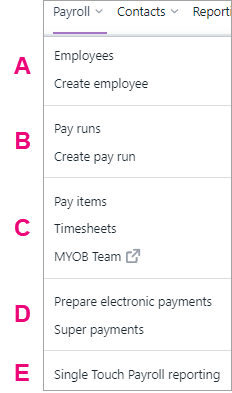
The Payroll menu is still the main area where you pay your employees and keep track of their payroll information. Some menu items have been renamed, have moved, or have been removed due to new features.
We've also grouped functions more logically and made some existing features available in the menu, so you have to do fewer clicks to perform functions.
| |
| A |
|
| B |
|
| C |
|
| D |
|
| E | Single Touch Payroll reporting. Manage your STP reporting and see your reported pay runs. If you're already using STP, you don't need to set it up again – you can continue reporting your payroll to the ATO as previously. |
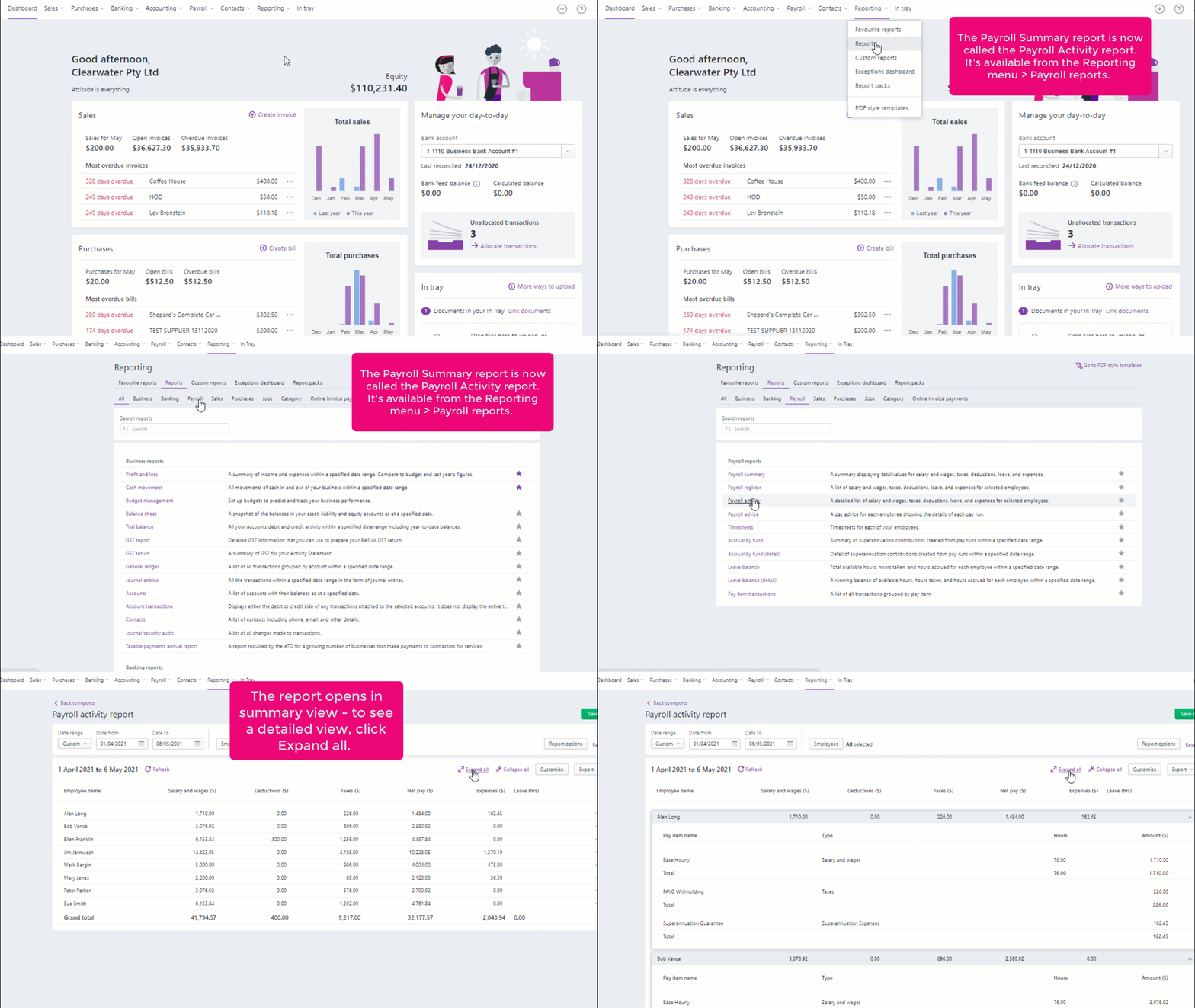
Payroll Activity report replaces the Payroll Summary report
Payroll summaries has been removed from the Payroll menu to the Reporting menu > Payroll. It's also been renamed as the Payroll Activity report and you can see either a summary or detailed view (click the animation to expand it):
New Payroll settings page
Payroll settings has been removed from the Payroll menu, but you can still find it under your business name:
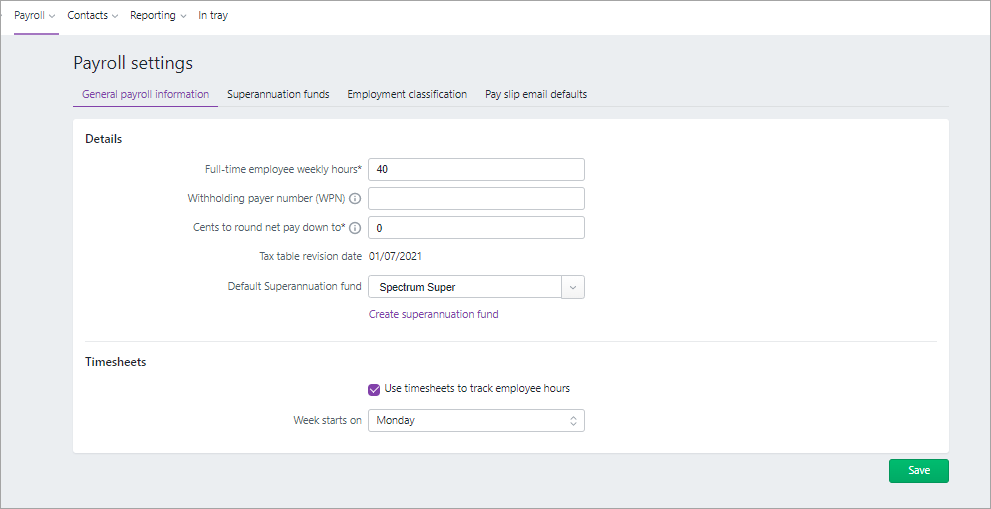
There are a lot more functions in Payroll settings and some previous functions have moved or changed.
Payroll bank account is now the cash payments linked payroll account
The Banking tab has been removed from Payroll settings. The account that was listed in the Banking tab is now the linked Bank account for cash payments (it will be the same account number of the account you entered in the Banking tab in old MYOB Essentials).
What are linked accounts?
In the new MYOB Essentials, there are linked accounts for payroll and other features. Linked accounts are similar to the control accounts in your old MYOB Essentials. They work behind the scenes to make sure that the right accounts are used consistently and correctly. This saves you from needing to choose an account every time you use a function.
You can view the Bank account for cash payments account with your other linked payroll accounts by going to the Accounting menu > Manage linked accounts > Payroll:
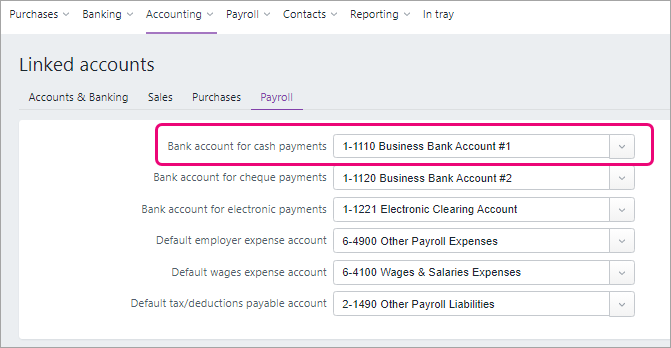
Although you can't turn linked payroll accounts off, you can change the default linked accounts if you want. See Managing linked accounts.
If you want to view the details of any of your payroll linked bank accounts, go to the Accounting menu > Chart of Accounts and click the account number
Pay slip settings changes
The Payslips tab is now called the Pay slip email defaults tab:
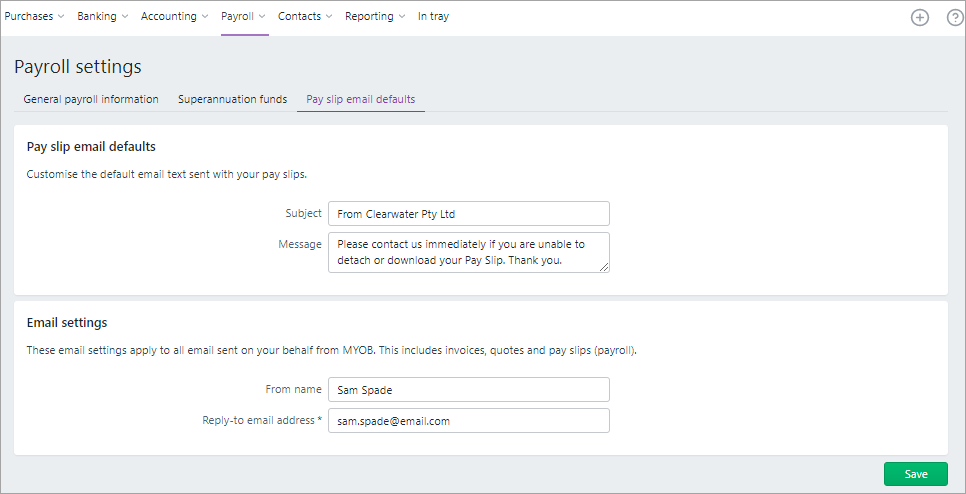
Use this page to determine what the default text will be when you email pay slips. There are a couple of differences to note.
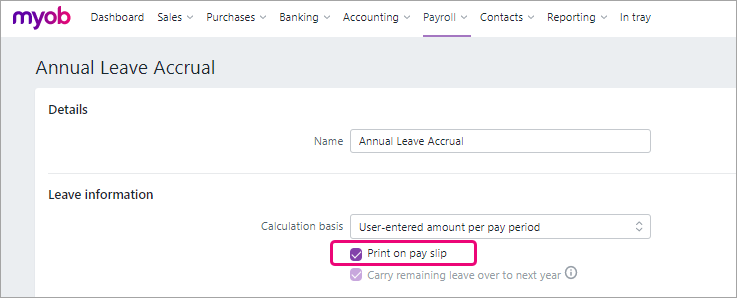
The option to show personal leave entitlements on payslips has been moved to pay items
Previously, there was an option in the Payslips tab to show leave entitlements on pay slips. Now, leave entitlements are now set up as pay items (see There are now more pay items) and you can select the Print on pay slip option in any leave pay item (not just for personal leave):
You are no longer able to blind-copy the pay slip to others
In the old MYOB Essentials, you could choose to blind copy the pay slip to others when you emailed them (by adding email addresses to the Who else should get a copy of the payslip section). This option has been removed to improve security. You're also no longer able to include the name of your employee on your default pay slip email text.
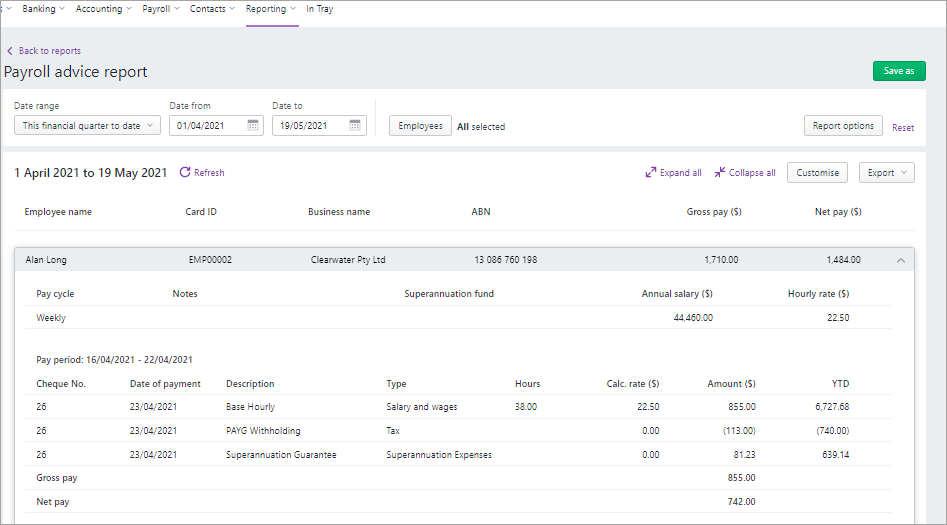
To view information about previous pays, run the relevant payroll report. For example, to see the details of each pay run for an employee, run the Payroll advice report:
PAYG payment summaries tab has been removed
The PAYG payment summaries tab enabled you to indicate if your business was eligible for exemption from fringe benefits under section 57A of the Fringe Benefits Tax Assessment Act of 1986.
We've removed this tab because in the new MYOB Essentials you now enter any relevant reportable fringe benefits amounts at the end of the year (including fringe benefits amounts exempt from FBT under section 57A) as part of end of year finalisation with Single Touch Payroll reporting.
General payroll information
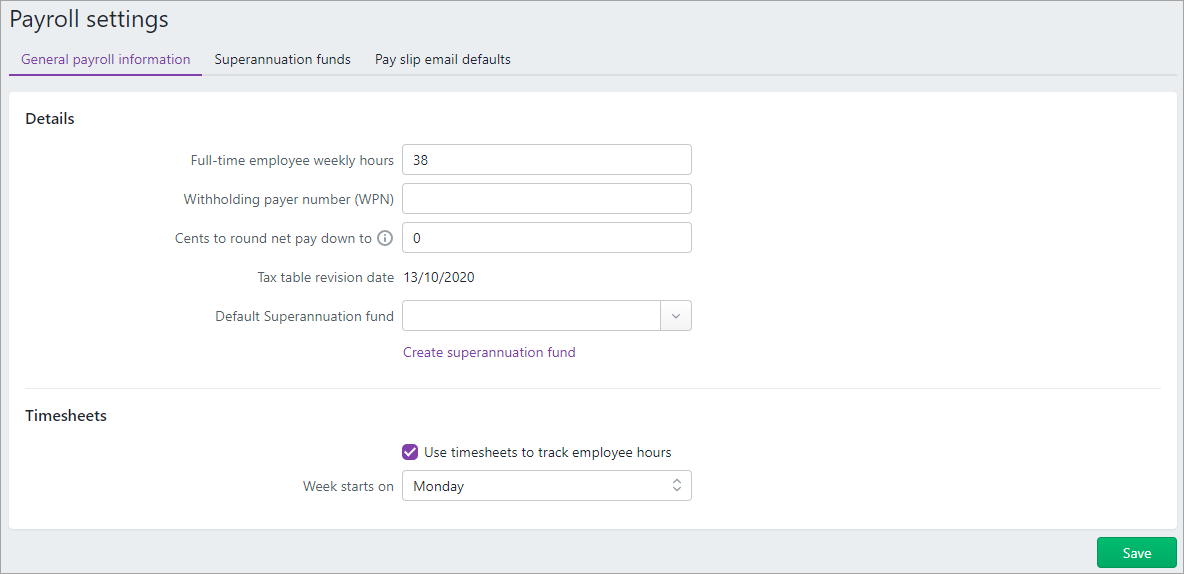
You can customise the details on the General payroll information tab. Here are some pointers:
- Full-time employee weekly hours are the default hours in your working week. You can change employee hours when you pay them
- Only enter a Withholding payer number (WPN) if you have one
- You might choose to round pays down to a specific cent value if you pay cash
- The Tax table revision date is the date the tax tables apply from. The tax tables, provided by the ATO, calculate the tax on employee pays
- You can set a Default Superannuation fund if you have one and it'll apply to all new employees, or you can set up your super funds later
- If you have employees paid by the hour, you can opt to use timesheets to track their hours. These employees can also submit timesheets using the MYOB Team mobile app.
Superannuation funds
Here, you can create all the superannuation funds for your employees. MYOB Essentials comes with a set of superannuation pay items that you can use to calculate and track your employees' super payments. You easily add additional ones.
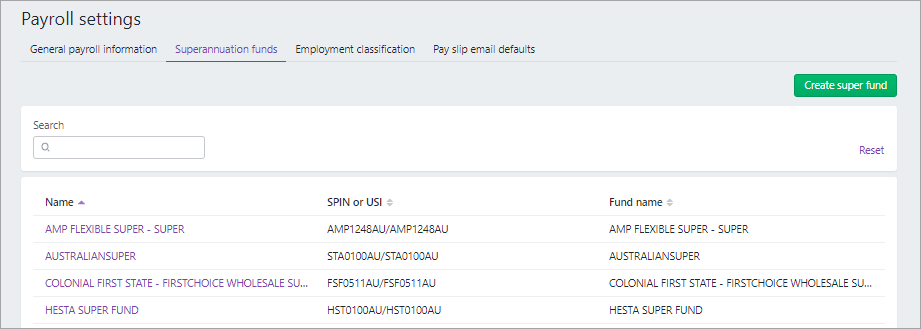
After creating a super fund you can then assign it to employees. See Set up superannuation funds.
Learn about employee changes
All of the pay details, leave balances and pay history of your employees have been brought across in the upgrade. However, because there's more you can do when setting up employees we've had to change how employee information is organised.
Restructured employee information
You get a more detailed view and more customisation in employees in your new MYOB Essentials. Because of this, we've had to move some features to different locations.
To see your employee information, go to the Payroll menu > Employees and click the name of the employee:
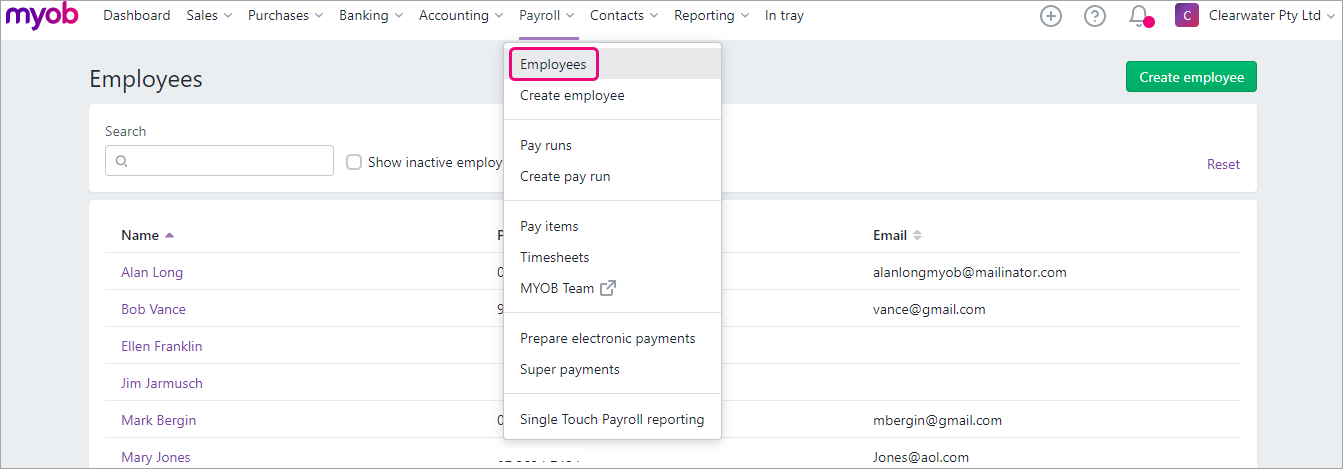
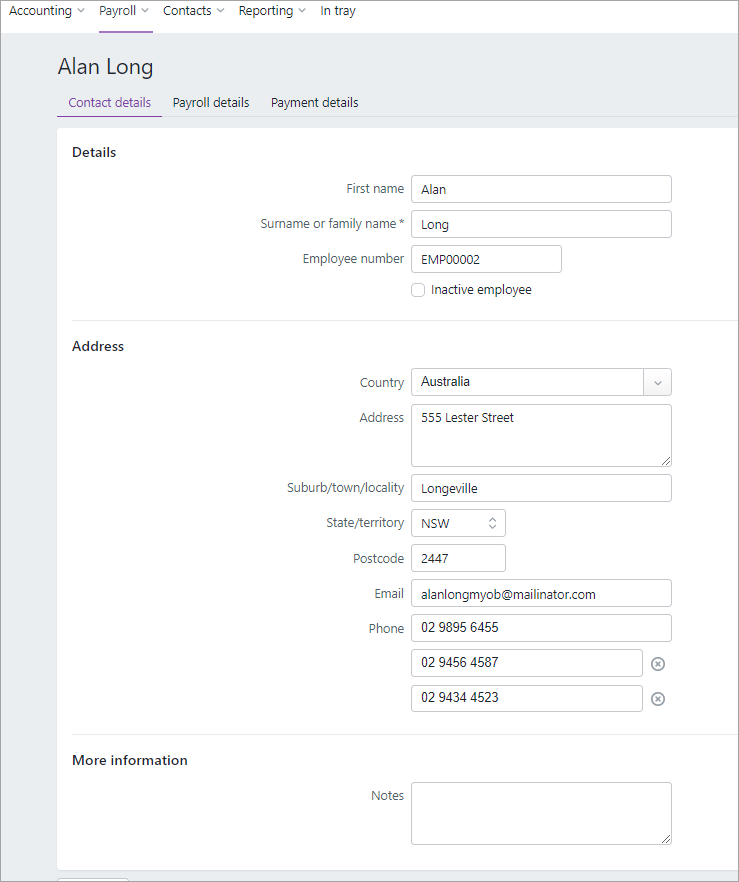
Here's a summary of where you'll find things and what they're now called:
| old MYOB Essentials | new MYOB Essentials |
|---|---|
| Employee details tab | Contact details tab |
| Notes tab | Contact details tab > More information |
| |
| old MYOB Essentials | new MYOB Essentials |
| Pay details | Payroll details tab > Salary and wages
|
| Pay items – earnings & deductions tab (wages) | |
| |
| old MYOB Essentials | new MYOB Essentials |
| Tax tab | Payroll details > Taxes tab |
| |
| old MYOB Essentials | new MYOB Essentials |
| Pay items – earnings & deductions tab (deductions) | Payroll details > Deductions tab |
| |
| old MYOB Essentials | new MYOB Essentials |
| Employee details tab > Banking | Payment details tab |
| |
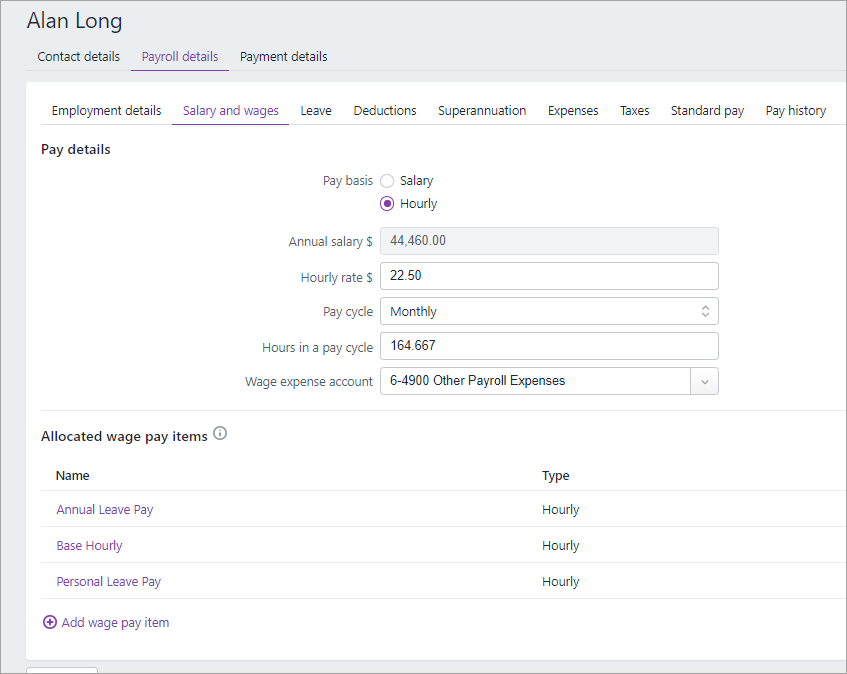
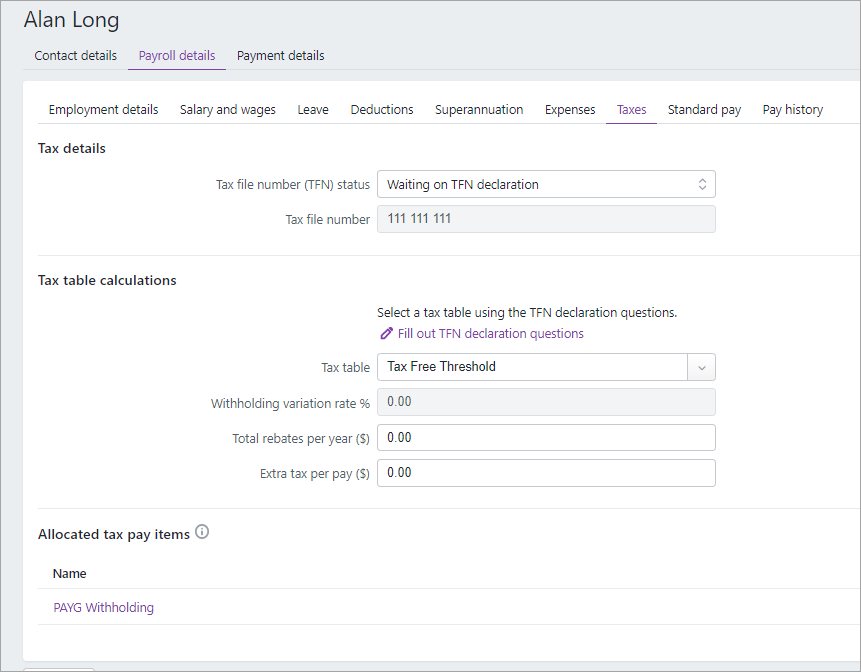
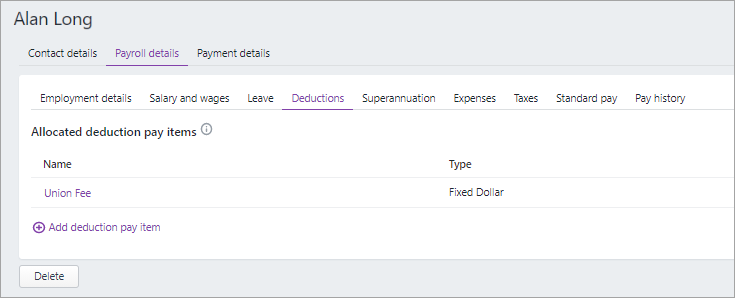
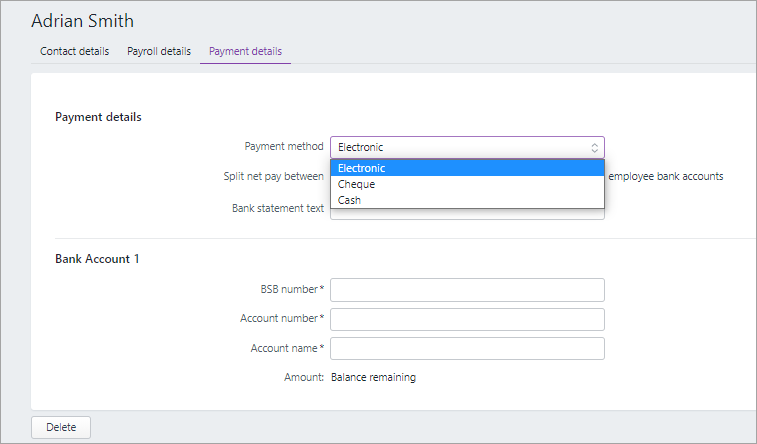
There are also two new tabs in employees you should check out: Standard pay and Expenses. See the information about these below.
Standard pay
In the employee (Payroll menu > Employees), there's a new tab, Standard pay:
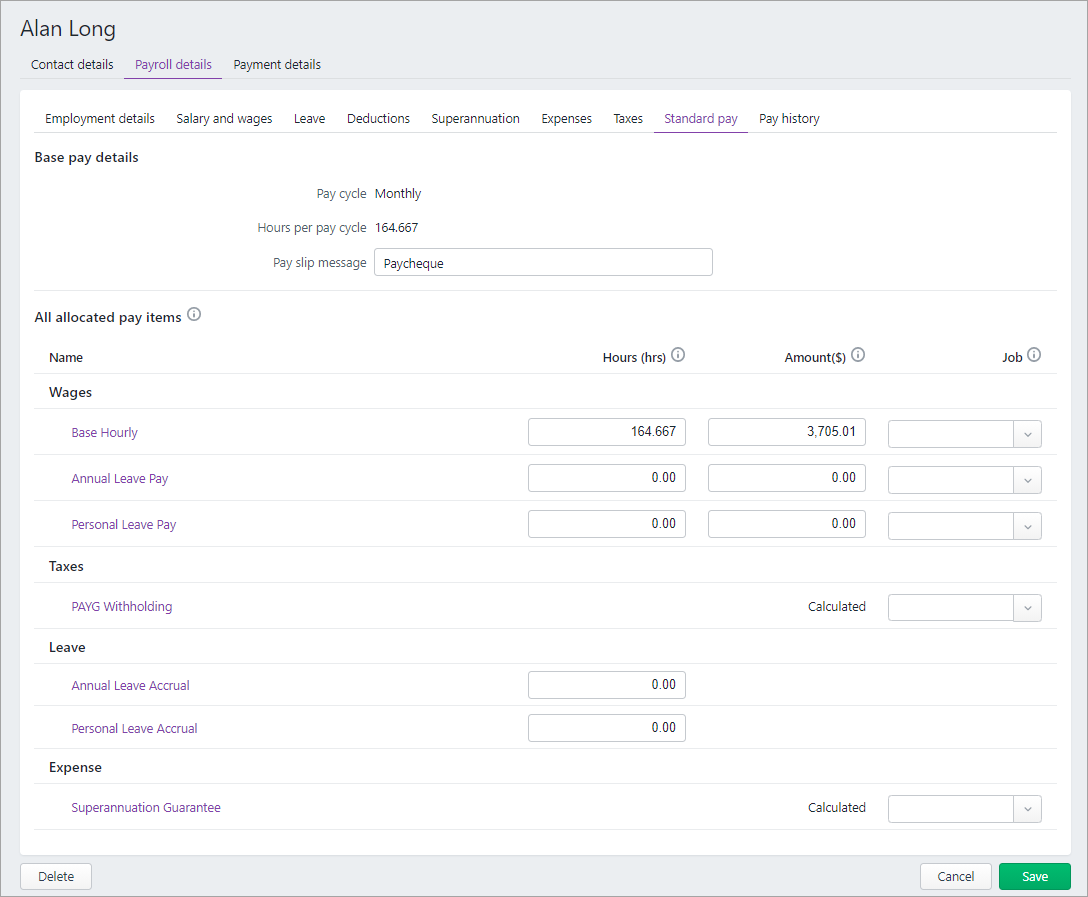
This tab shows the default pay details for the employee based on the information recorded in the other tabs.
Some values, like tax, will be labelled as Calculated, meaning they're calculated each pay.
Set values will be displayed, but can be changed here or when you do a pay run.
Learn more about reviewing standard pay details.
Where to find employee pay history
Pay history balances have moved across as part of the upgrade. You can view pay history in the Payroll details > Pay history tab of the employee:
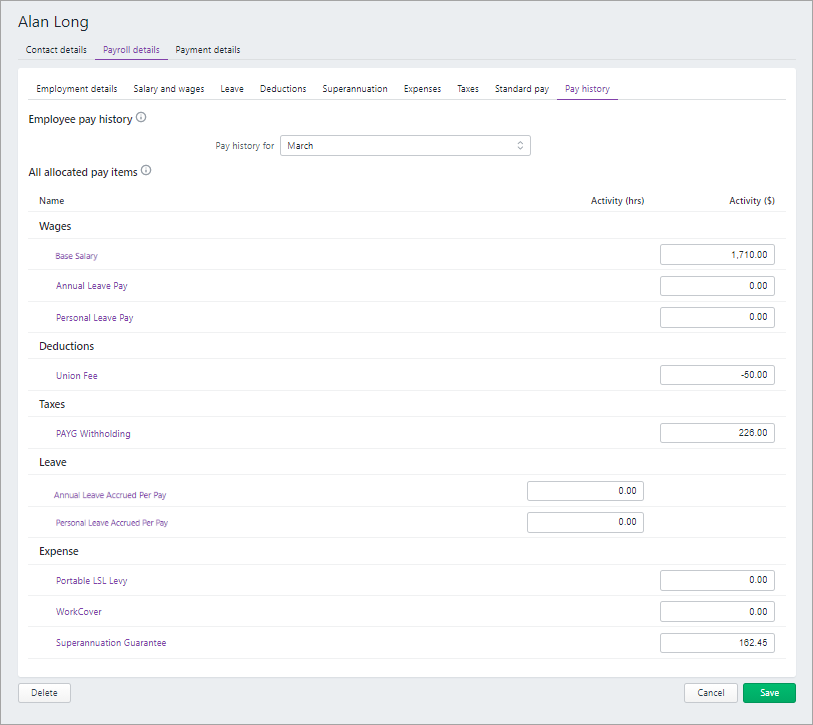
Pay history is now broken down by pay items
Where you previously only saw gross earnings and hours worked, you now get to see all of the components that made up an employee's pay for a selected period.
There are some new pay items in the pay history (depending on the setup of the employee), such as Base Hourly, Base Salary and PAYG Withholding. These are the default pay items that are automatically added to employees that have come across from your old MYOB Essentials as well as any new employees you may create. For information on these, see Find out about the new pay items.
In the old Pay history tab, you could view past pay slips. Now you can get the equivalent information by going to Payroll > Pay runs:
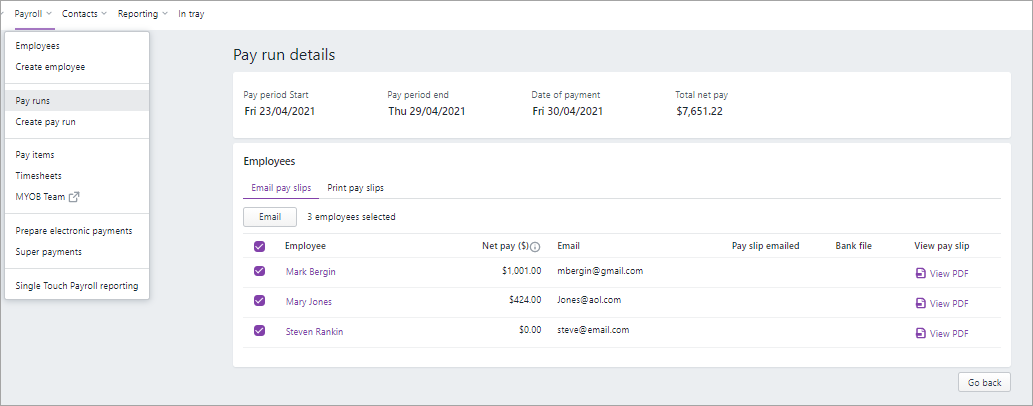
How leave balances appear now
In the employee Payroll details > Leave tab, you can see the employee's leave balances (in hours):
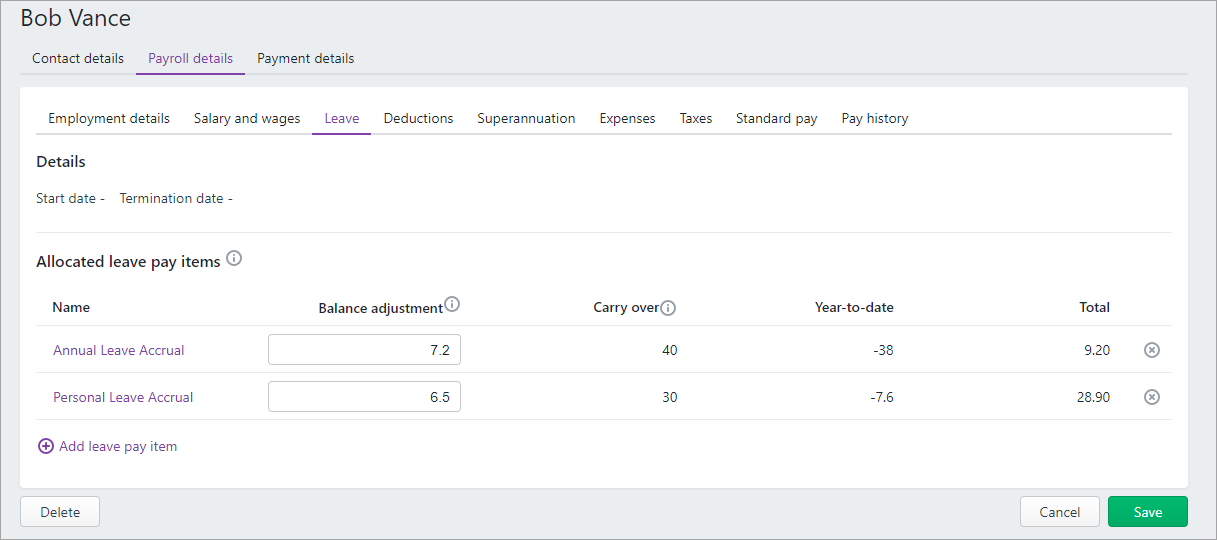
There are new columns, Balance adjustment, Carry over, Year-to-date and Total:
- Balance adjustment enables you to adjust the total leave accrued or enter leave opening balances. You can change this balance if you want. During the upgrade, the employee's Opening balance in old MYOB Essentials is added as a Balance adjustment.
- Carry over is the leave accrued from previous financial years. So now you get to see what proportion of total leave accrued is carried over from a previous year.
- Any leave taken during the current financial year is in the Year-to-date column
- Total is any Balance adjustment plus Carry over and minus Year-to-date.
If you click the Name of a leave accrual, you'll also notice that it opens a pay item. In the new MYOB Essentials, leave is now controlled by pay items – see Find out about the new pay items.
Find out about the new pay items
Just as in your old MYOB Essentials, you use pay items to calculate the different parts of an employee's pay, like wages, deductions, superannuation and tax. But there are now more pay items you should be aware of.
Default pay items are added to employees in the upgrade
Your upgraded MYOB comes with a set of default pay items you can use, or customise, based on your business needs. These default pay items are added to all of your employees during the upgrade. These default pay items are:
- Base Salary and Base Hourly. Base Salary is assigned to salaried employees and Base Hourly is assigned to hourly-based employees.
- Superannuation Guarantee. Superannuation Guarantee super pay item is for their mandatory 9.5% superannuation contributions.
- PAYG Withholding. PAYG Withholding is used to calculate PAYG on employee pays, for all tax tables (or tax scales) provided by the ATO.
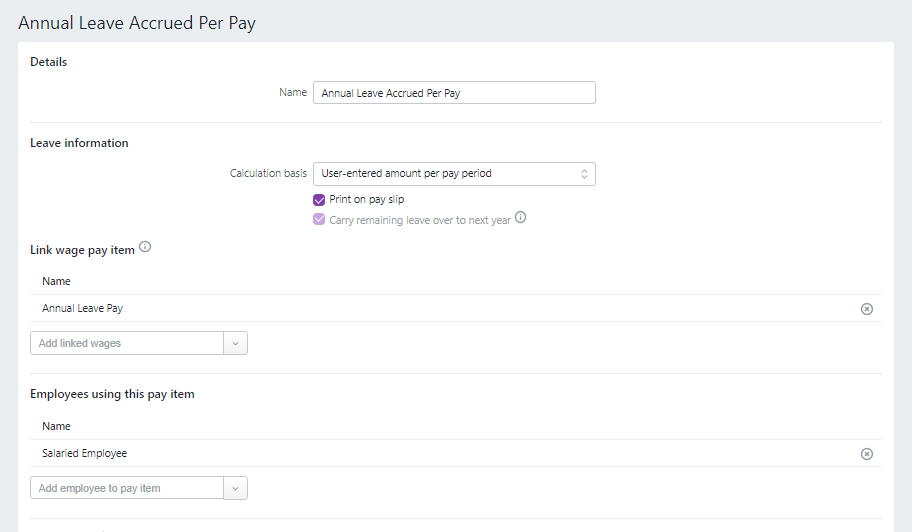
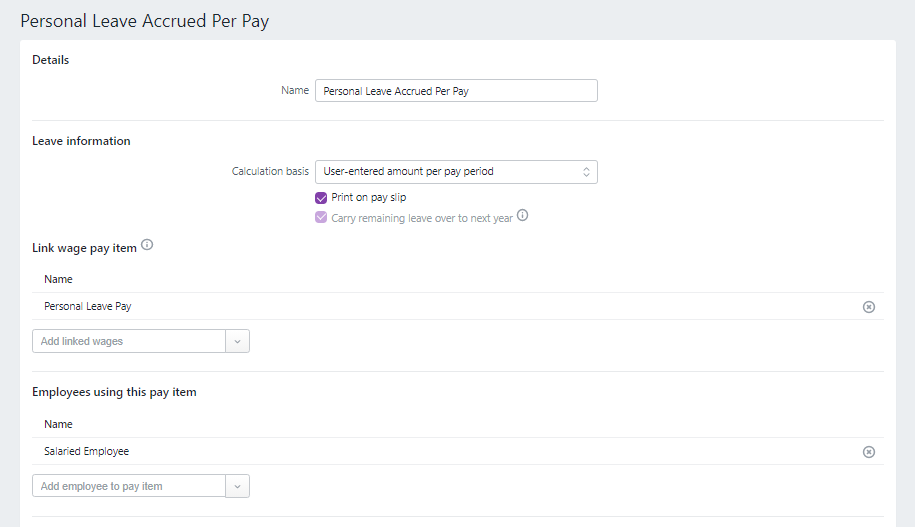
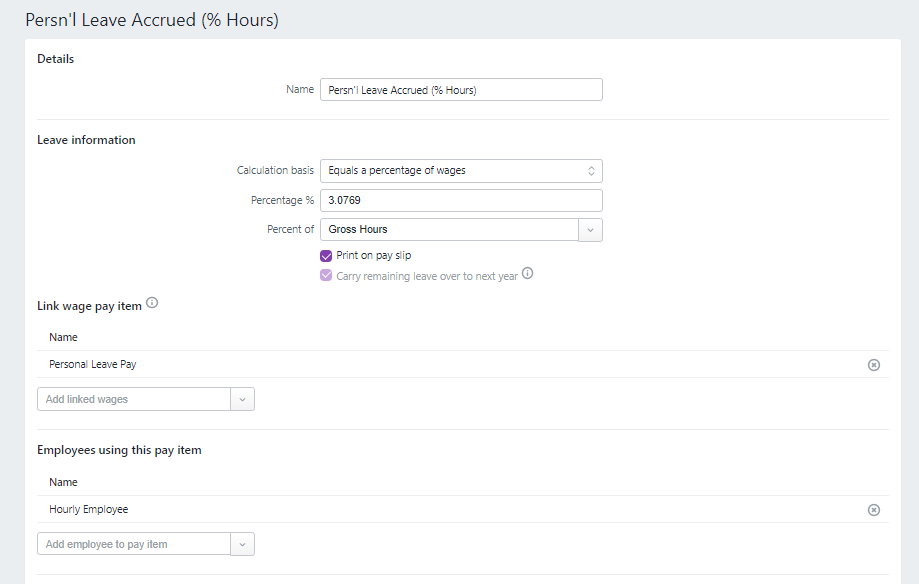
- <LEAVE NAME> Accrued Per Pay and <LEAVE NAME> Accrued (% Hours). As we mention below, leave accrual is now controlled by pay items. Because of this, if an employee had a leave entitlement in old MYOB Essentials they'll have a relevant leave pay item automatically assigned to them in the new MYOB Essentials.
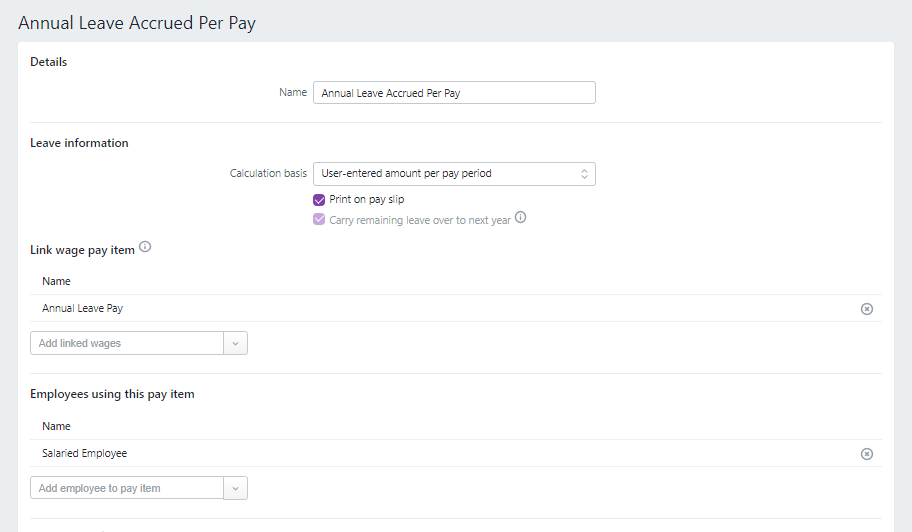
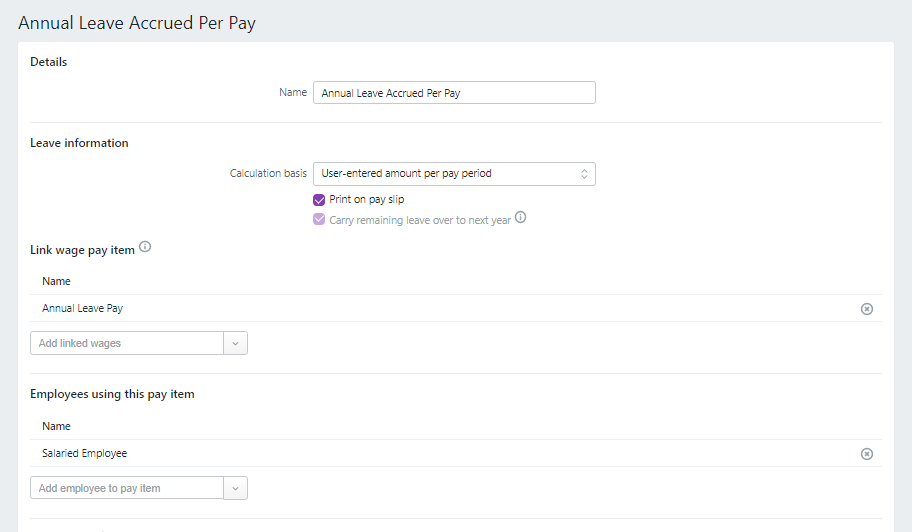
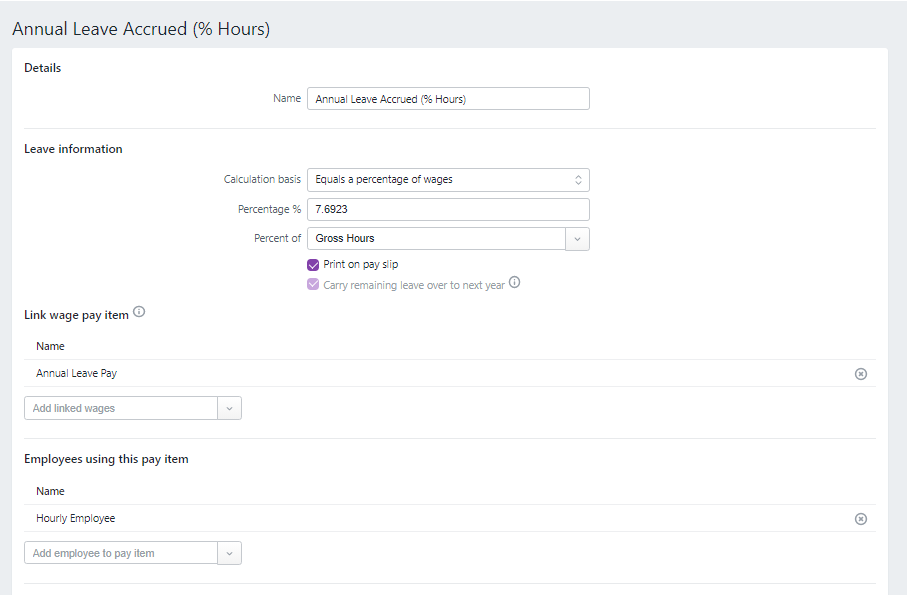
For example, Annual Leave Accrued Per Pay is assigned to salaried employees who have an annual leave entitlement and Annual Leave Accrued (% Hours) is assigned to hourly-based employees who have an annual leave entitlement. For more detail on the calculation basis of default leave pay items, see How leave is calculated in the new default leave pay items, below.
All of these default pay items are set up to ensure that employees receive exactly the same pay and entitlements they were receiving before MYOB Essentials was upgraded, so you don't need to do anything to them. However, if you do want to check them out or if you want to customise them, see the steps below.
To see what default pay items have been assigned to your employees
- Go the Payroll menu > Employees and click the name of the employee.
- Click to the Payroll details tab and then any of the following:
- Salary and wages – to see the default salary and wages pay items
- Leave – to see the default leave accrual pay items
- Super – to see the Superannuation Guarantee pay item
- Taxes – to see the PAYG Withholding pay item
- Click the name of the pay item to see its details. You can customise the default pay items if you want.
Leave is now controlled by pay items
The new MYOB Essentials uses leave pay items to track the hours of leave an employee accumulates.
Previously, you would set up leave (annual leave and personal leave) for an employee by entering their annual entitlement and opening leave balance in the employee's Leave tab. Now when you create an employee, you need to choose the leave pay items the employee is entitled to. For example, if they'll accrue personal leave, you need to assign a pay item for personal leave to them.
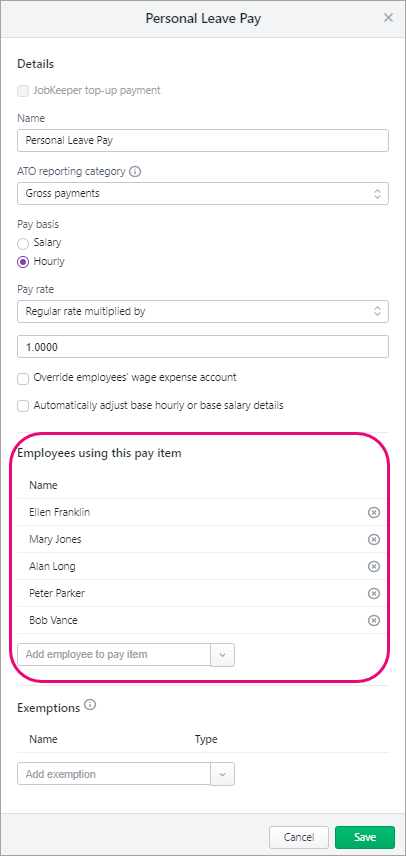
If you had employees in old MYOB Essentials who had leave entitlements, they'll have default leave accrual pay items assigned to them as part of the upgrade. See 'Default pay items are added to employees in the upgrade', above.
You can now track more types of leave
Being able to set up leave as a pay item means you can now create as many leave types as you like, such as:
- Rostered days off (RDOs)
- Time off in lieu
- Leave without pay
- Long service leave
- Paid parental leave
When creating a leave pay item, you also get more leave calculation options:
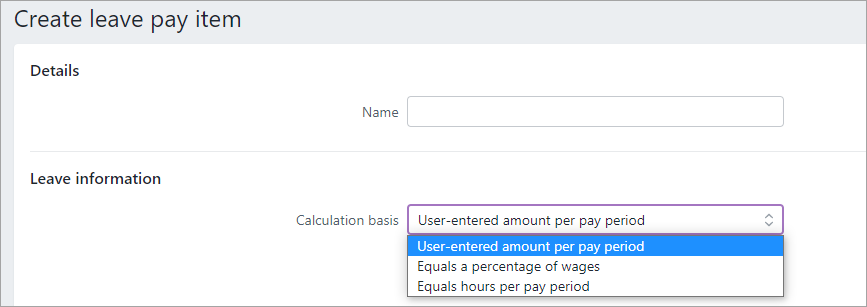
- User-entered amount per pay period – choose this if you want to enter the hours to accrue in each employee’s standard pay, or manually enter hours accrued when recording the pays
- Equals a percentage of wages – choose this if your employees are paid on an hourly basis or work variable hours
- Equals dollars per pay period – choose this if your employees are paid a salary.
For more information, see Set up leave.
How leave is calculated in the new default leave pay items
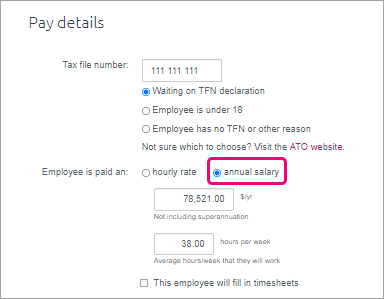
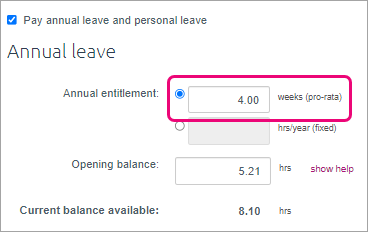
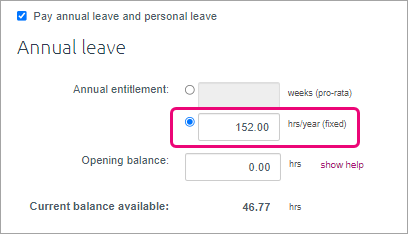
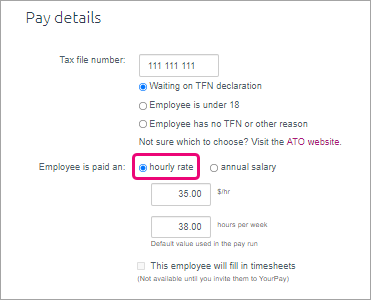
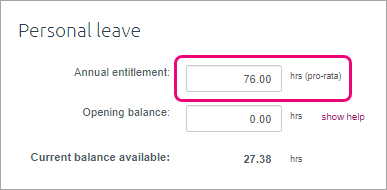
In the new MYOB Essentials, which default leave pay item is assigned to the employee is determined by whether the employee was paid at an hourly rate or an annual salary and whether their leave entitlement accrued in weeks (pro rata) or hours per year (fixed) in old MYOB Essentials.
All relevant leave accrual pay items are automatically set up and assigned to your employees in the upgrade – there's nothing for you to set up, although you can customise them if you want.
If you want to understand the calculation basis of the default leave pay items, see the table below.
| An employee set up like this in old MYOB Essentials... | ...is assigned this pay item in new MYOB Essentials | ||
|---|---|---|---|
| Employee is paid an | Leave type and entitlement | Leave calculation basis | What the default leave pay item in new MYOB Essentials pay item looks like |
annual salary
| Annual leave – weeks (pro-rata)
|
|
|
Annual leave – hrs/year (fixed)
|
|
| |
hourly rate
| Annual leave – weeks (pro-rata)
| % of wages |
|
hourly rate
| Annual leave – hrs/year (fixed)
|
|
|
annual salary
| Personal leave – hrs (pro-rata)
|
|
|
hourly rate
| % of wages |
| |
Reviewing leave accruals
You can see the leave accrual pay items assigned to your employees in the Leave section of their Standard pay.
If an employee is assigned a leave accrual pay item with user entered amount calculation basis, you'll see a figure in the Hours column next to their leave accruals:
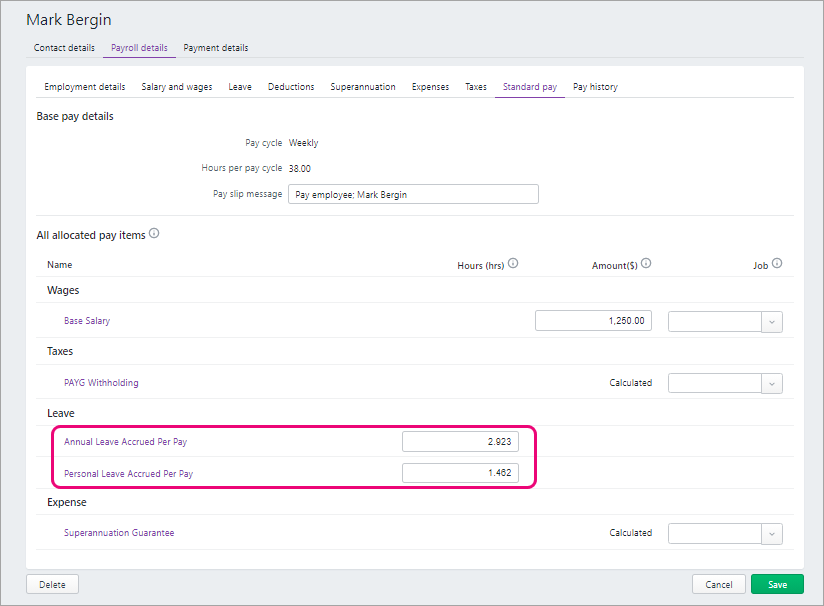
You can change this figure if you want.
If an employee is assigned a leave accrual pay item with a percentage calculation basis, Calculated will appear in the Hours column next to their leave accruals:
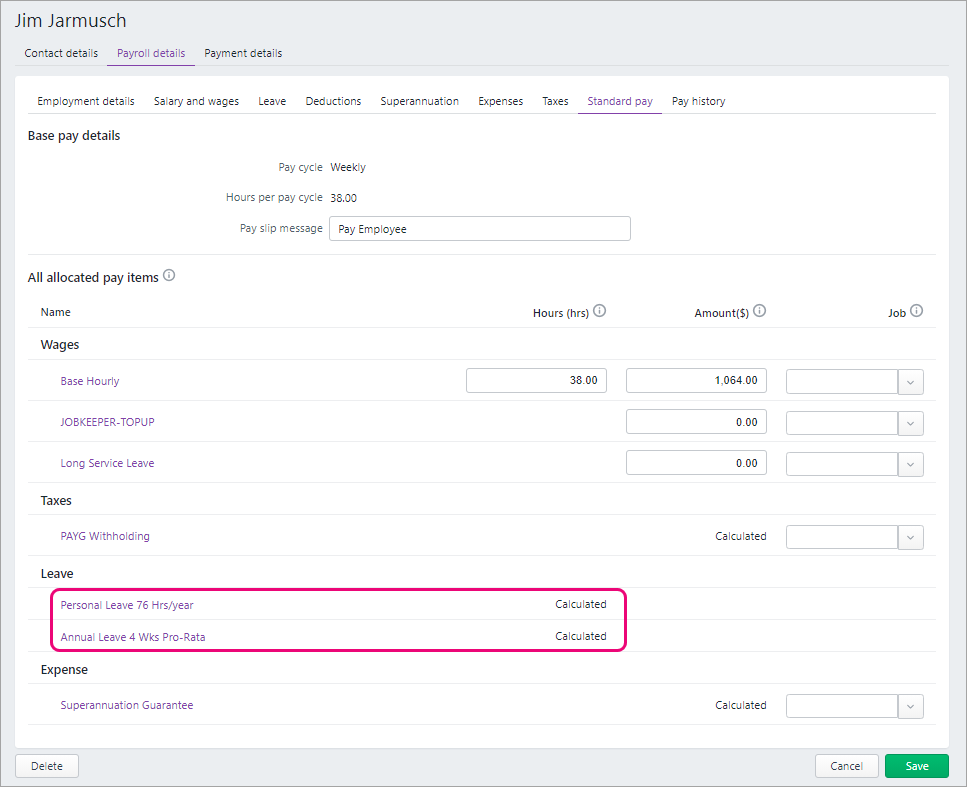
Click the name of the leave accrual to see how it's set up.
Any changes you make to leave pay items affects all employees assigned to the pay item.
Find out more
For information on:
- how leave works in the new MYOB, see Set up leave
- what information is in Standard pay, see Review standard pay details
- minimum leave entitlements? See the Fair Work website.
Additional super pay item changes
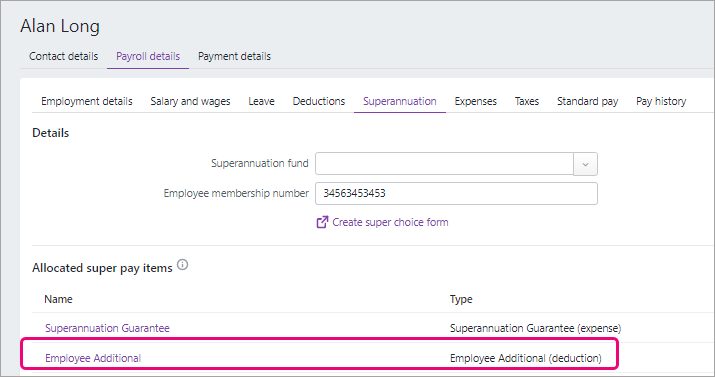
During the upgrade, the names of the super pay items, Super salary sacrifice and Super personal contrib'n, are changed to Salary Sacrifice and Employee Additional as these are the default names for these types of pay items in the new MYOB. If you want, you can edit these pay items and change them back to their original names. These pay items, which were previously in the Deductions section of the employee, are now in the Superannuation tab of the employee (Employee > Payroll details > Superannuation).
In your old MYOB Essentials, you couldn't set up reportable employer additional super contributions. In the new MYOB Essentials you can report employer additional super contributions, by creating an Employer Additional pay item and assigning an ATO reporting category to it. See Additional superannuation contributions.
Super and leave calculations
Any new pay item you create in the new MYOB Essentials will be automatically set to be included in all super and leave calculations. This differs from old MYOB Essentials, where the pay item was excluded by super and leave calculations by default.
If you want to exclude a pay item from super or leave calculations, you need to edit the relevant super or leave pay items and add the pay item you've created to the list of exempted pay items:
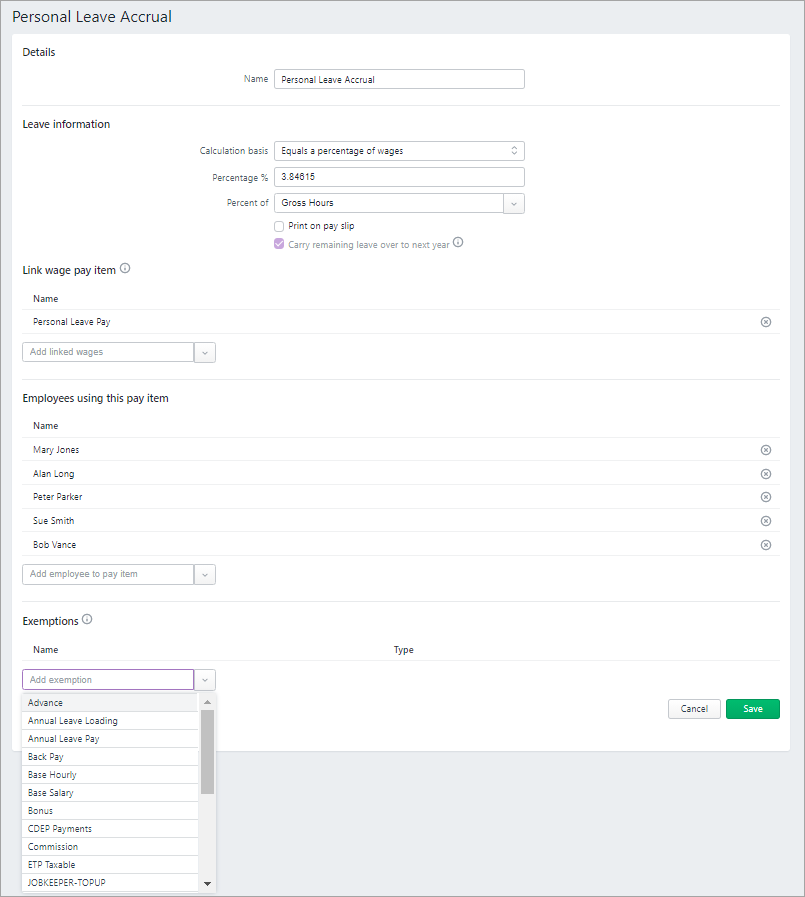
You can only exempt pay items if the leave or deduction Calculation basis is set to Equals a percentage of wages.
Expenses
You can now track benefits (other than superannuation) that you pay on behalf of your employees, by assigning Expense pay items. You can assign these pay items to the employee in the new Expenses tab:
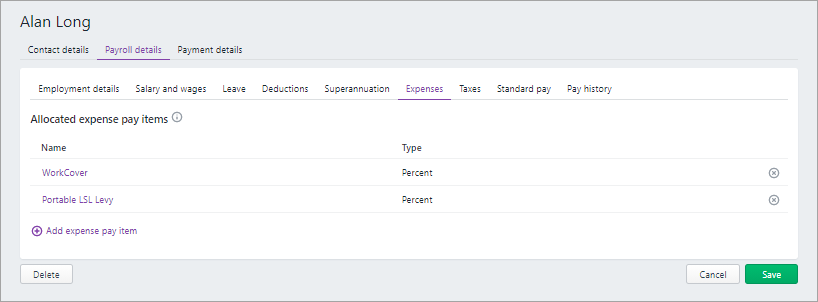
As the concept of Expense pay items didn't exist in old MYOB Essentials, you probably may not see any pay items listed in the Expenses tab.
See what's new when doing a pay run
We've made some improvements to employee pay cycles, which changes what employees appear when you do a pay run.
New pay cycle options
You have the new pay cycle options, Twice a month and Quarterly:
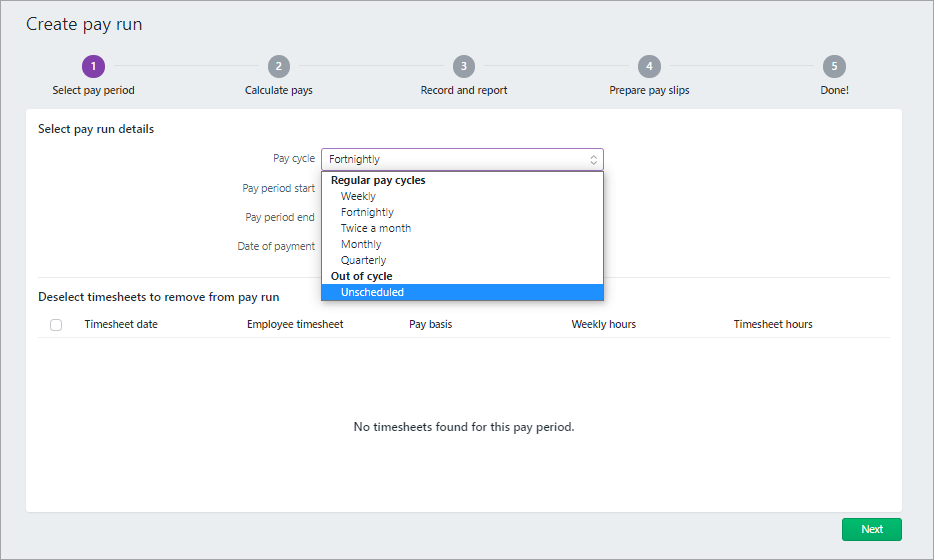
Employee pay cycle determines whether they appear in a pay
In old MYOB Essentials, you could pay any employee in any pay cycle. In your upgraded software, the pay cycle frequency set in the employee card (Payroll menu > Employees > Payroll detail tab) determines if they appear when you create a pay run:
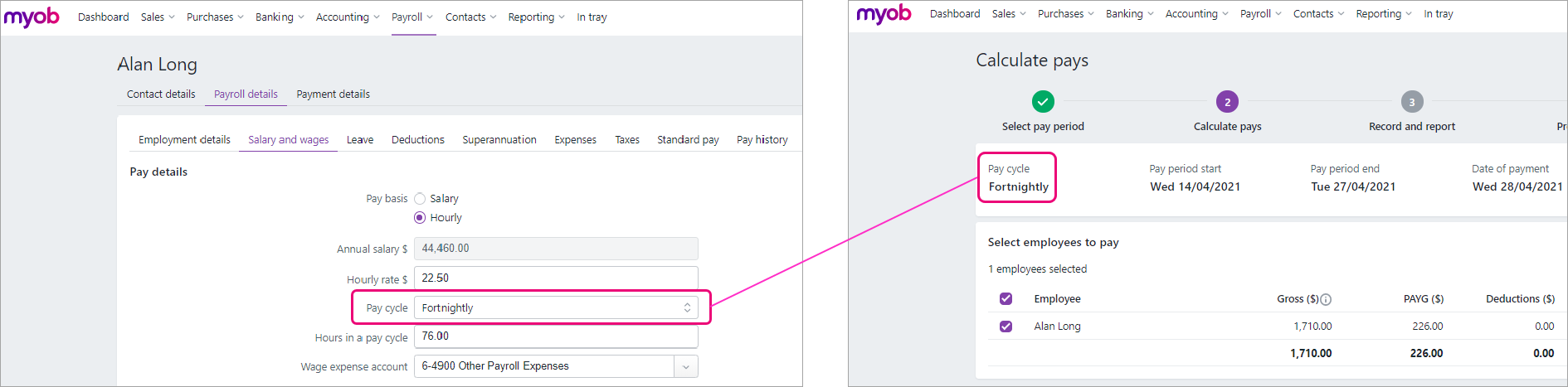
So, if you're doing a pay run and an employee isn't appearing, check what pay cycle has been chosen in the employee.
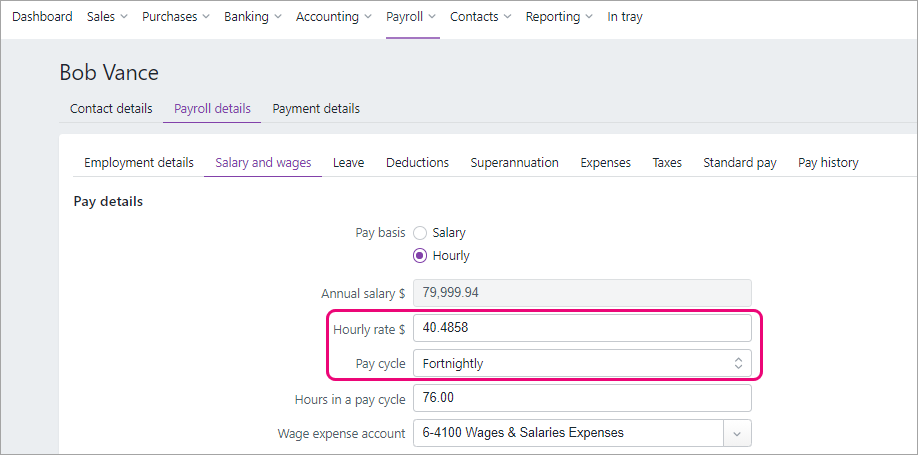
Hourly rate and pay cycle is based on the last pay before the upgrade
In each employee card (Payroll menu > Employees > Payroll detail tab), the Hourly rate and Pay cycle are based on their last recorded pay before the upgrade:
Paying employees electronically has changed
If you pay employees electronically using a bank file (ABA file), there are some changes you need to be aware of.
The banking details of your employees have been brought across in the upgrade
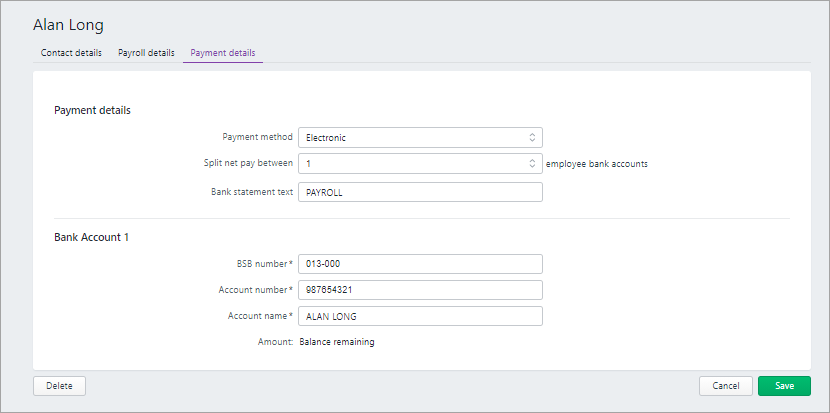
Any employees you previously paid with a bank file retain their electronic banking details after upgrading, so you don't need to set them up again. You can see these banking details in the Payment details tab of the employee:
Bank files are now processed via an electronic clearing account
Electronic payments are handled by an Electronic Clearing Account. This is a linked account. Linked accounts are similar to the system accounts in your old MYOB Essentials and work behind the scenes to make sure that the right accounts are used consistently and correctly. The Electronic Clearing Account handles your electronic payments.
You can view this account by going to the Accounting menu > Manage linked accounts > Payroll:
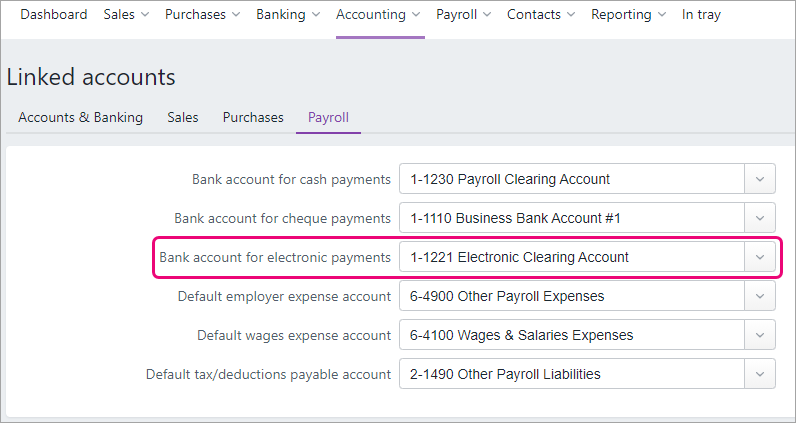
When you pay employees electronically the Electronic Clearing Account will be credited (previously the payment was processed directly to the bank account you selected in the payroll settings of your old MYOB Essentials). Once you have downloaded your bank file, the Electronic Clearing Account will be “cleared” and you will see the amount deducted from the bank account you are paying from.
Bank files are no longer generated immediately after processing a pay
After preparing pay slips in a pay run, you need to click Pay employee via electronic payments to open the Prepare electronic payments page.
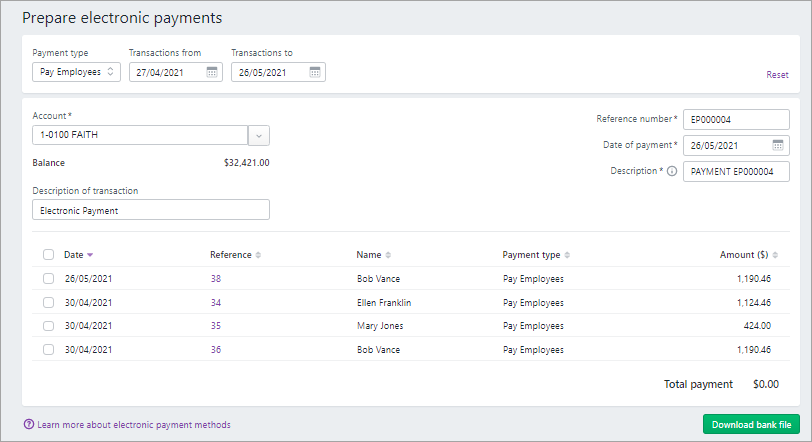
You can then select what payments to download a bank file for.
The Prepare electronic payments page also includes electronic supplier payments. To filter it for employee pays, choose Pay Employees in the Payment type list.
New direct payments option
As well as using bank files, you now have a new way of paying employees and suppliers directly from MYOB without having to use a bank file. For more information about this, see Paying suppliers and employees electronically.
Changes to deleting a pay
If you needed to change something in a recorded pay in your old MYOB Essentials, you deleted the pay then re-entered it. This deleted both the payment and the payslip and removed the pay from all payroll reports.
In the new MYOB Essentials, you can delete a pay if it hasn't yet been sent to the ATO via Single Touch Payroll reporting, or if it's been rejected. If it has been sent, you must reverse it instead. Reversing a pay ensures you're not deleting anything which has already been accepted by the ATO.
For more information on this, see Changing or deleting a pay.
Want to learn more about what's different in your new MYOB?
For more information on the upgrade of MYOB Essentials:
visit our website: small businesses | MYOB Partners
check out the free upgrade training course.
 Yes
Yes
 No
No
 Thanks for your feedback.