

You are viewing an old version of this page. View the current version.
Compare with Current View Page History
« Previous Version 19 Next »
https://help.myob.com/wiki/x/4YCIBQ
How satisfied are you with our online help?*
Just these help pages, not phone support or the product itself
Why did you give this rating?
Anything else you want to tell us about the help?
These days a password isn't enough to protect your online data. That's why we use two-factor authentication (2FA) as a second layer of protection. It involves using something only you have access to: either your email inbox or a mobile device.
This makes it harder for unauthorised people to get into your MYOB software.
How does it work?
You'll still use your email address and password to sign into your online MYOB software.
Then you'll need to enter an authentication code to verify that it's you.
There's two ways to get this code:
- via an authenticator app (recommended) on a mobile device (phone, tablet, etc.)—the code displays in the app
- via SMS—the code is sent to your mobile phone via text message
Which 2FA method is right for me?
Which 2FA method is best for you depends on what devices you use, and how you access your account.
We recommend that you use an authenticator app rather than SMS because codes from an authenticator app are available immediately and can be received even if your internet or mobile service is down.
Setting up 2FA
The first time you access your online MYOB software, you'll be guided through the 2FA setup.
Changed phones? Find out how to set up mobile app 2FA on your new phone.
If you don't already have an authenticator app, please download Authy (or another equivalent app) from your mobile's app store. Here's some popular apps:
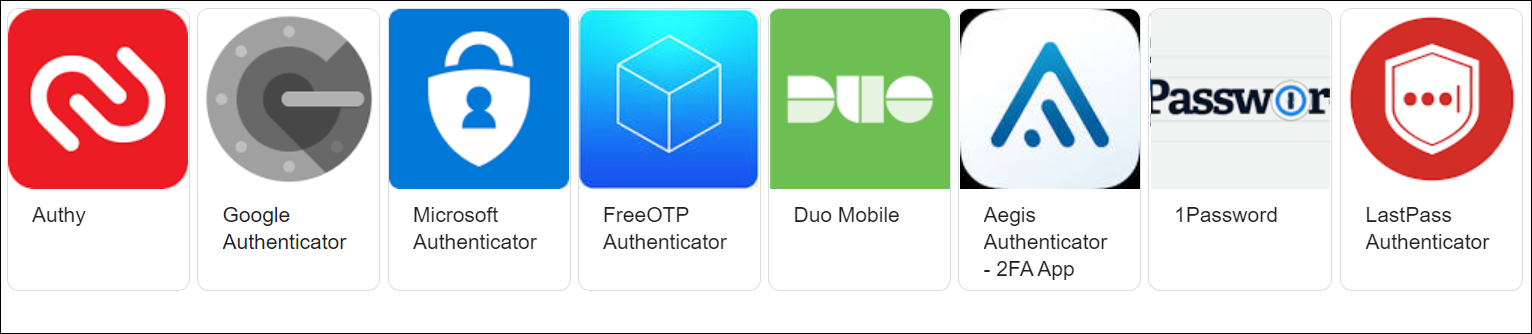
We recommend using 'Authy' as it offers the ability to backup your code in case you change phone in the future, so you can always access your MYOB account.
The following steps are based on the Authy app, but they should be similar if you're using another app.
- Follow your app's onscreen instructions to register, such as by using an email address or via SMS.
Tap Add account.
The app may offer two options when adding an account, such as Add an organisation or Other / Add a third-party service/account.
You can select either, but for faster setup we recommend selecting Other.Tap Scan QR code.
To allow the app to take pictures using your device, tap While using the app.
- Sign in to your MYOB account as normal, using your email address and password.
- In the message that appears asking you to add your preferred authentication method, click Authenticator app.
- On the Link authenticator app with MYOB message, scan the QR code that appears. If you can't scan the code:
- Click Can't scan the code?
- Click Copy code.
- In your app, go back to the Add account page.
- Tap Enter Code Manually.
- Paste the code into your app.
- Tap Save.
- Click Copy code and save your recovery code. You can use this code to log in when you don't have your phone.
- Select I've saved a copy of this code.
- Click Continue.
- Sign in to your MYOB account as normal, using your email address and password.
- In the message that appears asking you to add your preferred authentication method, click SMS.
- WHAT'S NEXT?
Signing in with 2FA
- Sign in to your MYOB account as normal, using your email address and password.
- A screen appears asking for an authentication code. Open your 2FA app and find the code.
It will look something like this:
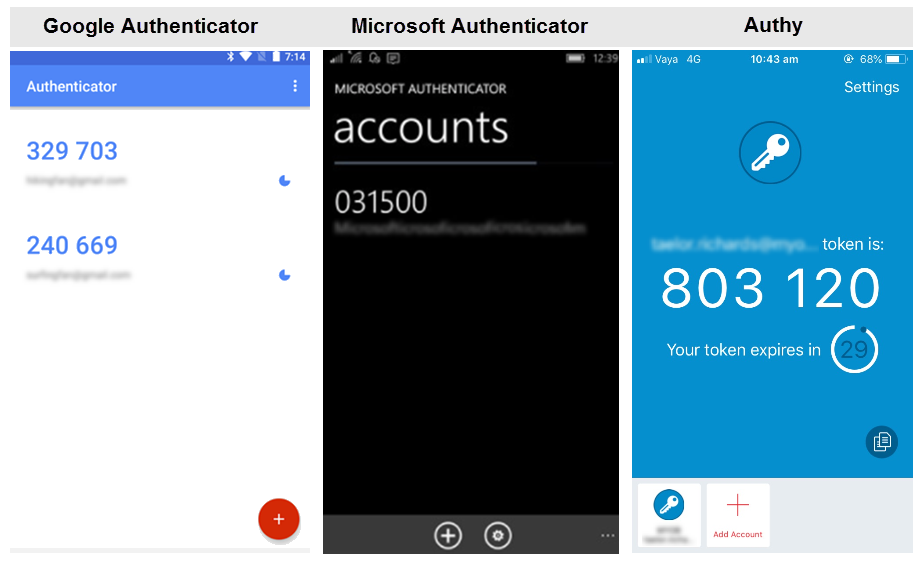
Copy the code into the two-factor authentication screen, then click Sign in and you're finished.
If you don't want to use 2FA every time you sign in, tick Trust this device for 30 days before you click Verify, and you'll only need to put in a 2FA code once every thirty days. If you or anyone else tries to sign in to your account from another computer or browser, an authentication code will still be required. For more information on how this setting works, see Trust this device for 30 days.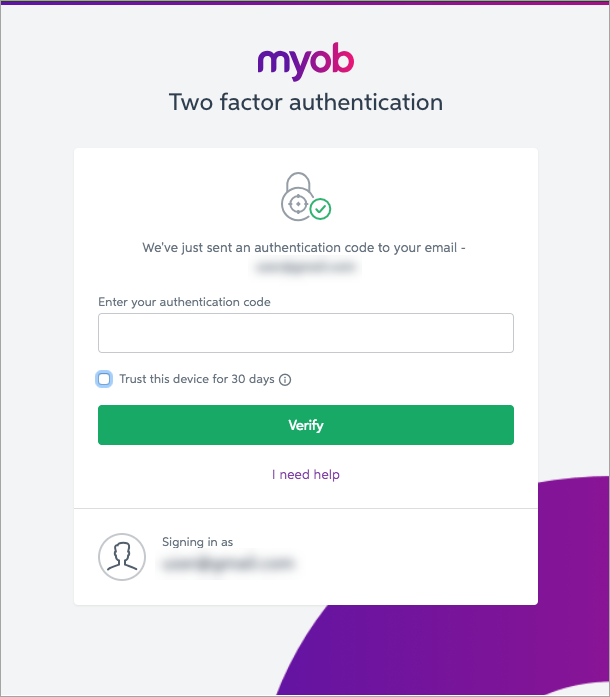
- Sign in to your MYOB account as normal, using your email address and password. When you click Sign in, a 6 digit code is sent to your mobile phone via SMS.
- Enter the 6 digit code and click Verify code.
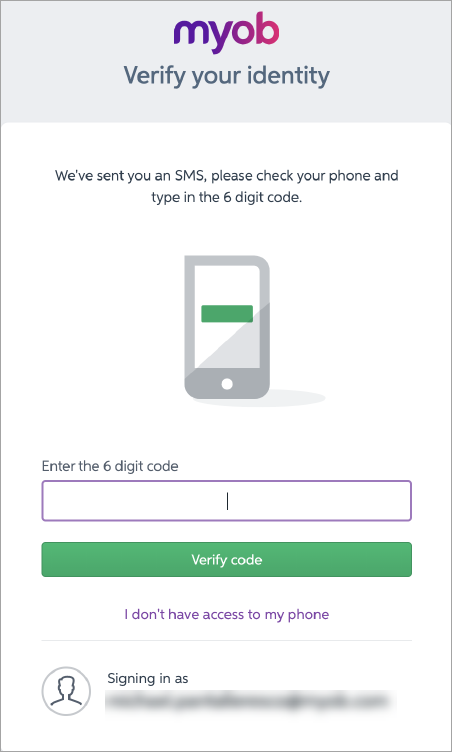
Don't have your phone?
Click I don't have access to my phone and follow the prompts to enter your backup code (this code was provided when you set up SMS 2FA).
If you don't have a backup code, call our support team:
- Australia - 1300 555 123 (7am - 7pm Mon-Fri, 9am - 5pm Sat-Sun Melbourne time)
- New Zealand - 0508 328 283 (9am - 9pm Mon-Fri, 11am - 7pm Sat-Sun New Zealand time)
Calling from overseas? Call +61 3 9045 4400
FAQs
2FA is unique to each user account. Multiple accounts can still access the same data (for example, a company file), but each user should have their own login and 2FA method.
We don't recommend sharing a single login between multiple people. Learn how to add a new user to AccountRight, MYOB Business or MYOB Essentials.
 Yes
Yes
 No
No
 Thanks for your feedback.