

- Created by AdrianC, last modified by RonT on Apr 19, 2021
You are viewing an old version of this page. View the current version.
Compare with Current View Page History
« Previous Version 10 Next »
https://help.myob.com/wiki/x/oQS0Aw
How satisfied are you with our online help?*
Just these help pages, not phone support or the product itself
Why did you give this rating?
Anything else you want to tell us about the help?
Once you're set up electronic payments, you can pay your suppliers and employees into their bank accounts. It's a two-stage process that starts in MYOB and ends in your payees' bank accounts.
How it works
- Record a payment transaction. No one receives any money yet—you'll process the actual payment later. When you enter the transaction details, you need to let MYOB know that you're going to process the payment electronically.
- Click the option to process employee payments electronically at the end of the pay run.
<add updated pic if available, or remove pic>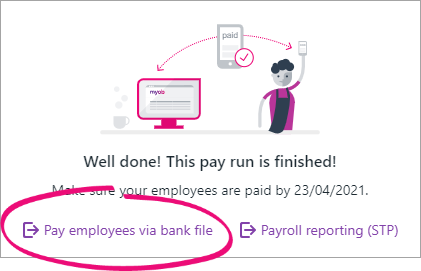
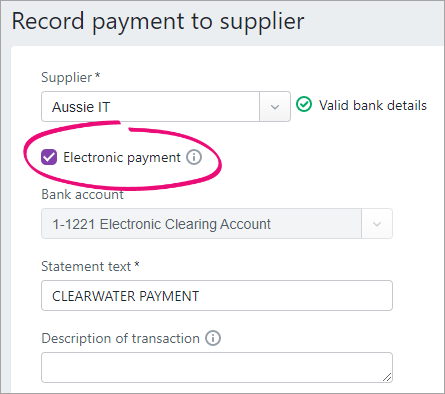
- Select the Electronic payment option when you're recording a supplier payment.
- Click the option to process employee payments electronically at the end of the pay run.
- Process the recorded payments "electronically' in MYOB. This initiates the actual payments into your suppliers' and employees' bank accounts. Depending on the electronic payment method you've set up, you can either:
- make a direct payment, or
- download a bank file for your bank to process.
Learn more about these two electronic payment methods
- Go to the Banking menu and choose Prepare electronic payments. All the payments you've recorded in MYOB that you've chosen to pay electronically will be listed.
- Optional:
- Choose a Payment type if you'd like to group the electronic payment by payment type—for example, to pay bills or employees only.
- Use the Transactions from and Transactions to fields to show transactions for a specific date range.
In the Account field, choose the MYOB account your payments will be paid from.
- Enter a Description of transaction. This is just the description of the transaction as it'll appear in MYOB, not on any bank statements.
Confirm the Reference number is correct. If not, enter a new number.
Changing the numbering
If you change the reference number, you’ll change the automatic numbering. For example, if you change the number to EP000081, the next time you create a bank file the new reference number will be EP000082.
Enter the Date of payment.
Future dates (bank files only)
If you'll be downloading a bank file to make your payment, you can future date the Date of payment providing it's within the current financial year. This is the date you want your bank to process the payment, but not all banks adhere to future dating bank files. Check with your bank for clarification. If you'll be making a direct payment, the payment will be processed based on when it's authorised—see the FAQs below for details.
Confirm the Description and change if required. This is the description that'll appear on your bank statement.
- Select the payments you want to pay electronically.
Choose how you want to process the electronic payment. Learn about these payment methods and how to get set up.
To process a direct payment - Click Direct payment.
- At the confirmation, click Record and submit.
The payments will now need to be authorised before they can be paid into your suppliers' and employees' bank accounts. Find out how to authorise electronic payments.
Something gone wrong? See Changing or fixing electronic payments or send an email to payments_support@myob.com
To download a bank file - Click Download bank file.
- At the confirmation, click Download bank file. The file will be saved in your Downloads folder.
Uploading bank files to your bank
You can now upload the bank file to your internet banking site. Most banks provide an online banking portal through which you can upload bank files. Check the help in your online banking software to learn more, or check with your bank for details. You can also search Google for your bank's instructions, e.g. search for "upload aba file ANZ" or "upload bank file westpac", etc.
Once you've uploaded the bank file to your bank, they will distribute the payments into your suppliers' bank accounts (after your bank's clearance period).
FAQs
When will my direct payments be disbursed?
| If the payment is authorised | At this time | Employee/supplier will receive the money (if they're with a major bank) | Employee/supplier will receive the money (if they're not with a major bank) |
|---|---|---|---|
| On a business day | Before 6:00pm | Next business day | Second business day after authorising the payment |
| On a business day | After 6:00pm | Second business day after authorising the payment | Third business day after authorising the payment |
| On a weekend | Anytime | Second business day after authorising the payment | Third business day after authorising the payment |
On a public holiday, special holiday, or bank holiday | Anytime | Second business day after authorising the payment | Third business day after authorising the payment |
Learn more about Authorising and reviewing direct payments
What are the fees for using direct payments?
The fees per use are:
Debit card (Mastercard only)
- 0.1% of the total payment value
- Example: if paying $10,000, the fee is $10
Credit card (Visa or Mastercard)
- 1.5% of the total payment value
- Example: if paying $10,000, the fee is $150
Can I pay a supplier electronically when I don't have a supplier bill?
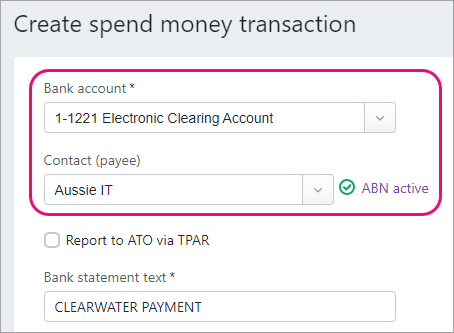
Yes. To pay a supplier when they haven't issued you a bill, record a spend money transaction instead. Choose your electronic clearing account as the Bank account and the supplier as the Contact, to indicate you'll process the actual payment later electronically.
 Yes
Yes
 No
No
 Thanks for your feedback.