

You are viewing an old version of this page. View the current version.
Compare with Current View Page History
« Previous Version 51 Next »
https://help.myob.com/wiki/x/jgHFBQ
How satisfied are you with our online help?*
Just these help pages, not phone support or the product itself
Why did you give this rating?
Anything else you want to tell us about the help?
MYOB Business Pro only
When a customer wants to buy goods or services from you, you can create a sales order for them. This will detail the selling price, quantity, and type of goods or services provided. Later, when your items become available in inventory, you can invoice the customer and ship them.
Why use sales orders?
Maintain good customer relations and never lose customer orders. You have a centralised record of your customer orders that you can pull up at any time, anywhere, so long as you have a web browser.
In a future release, you'll be able to easily convert a sales order to an invoice and we'll retain the original sales order, so you can see the whole history of the sale with the customer.
When you enter a sales order for inventoried items, they are are marked as committed to customers. This helps your purchasing department make informed inventory ordering decisions. The quantity that is committed to customers is indicated in the in the Reorder report and the Stock on hand report:
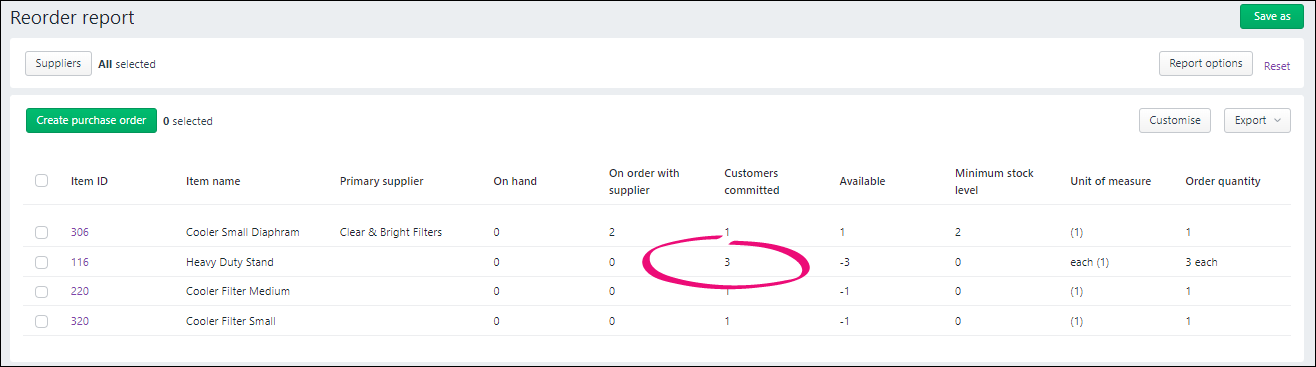
In a future release, you'll also be able to see number of items committed to customers, as well as stock-on-hand quantity, in the item itself.
When you combine sales orders with the other inventory tracking features in MYOB Business, like purchase orders, inventory reports and stock reordering, your business gets a clear view on how much of your inventory is committed to customers, how much is on-hand and how much on order.
You can use sales orders in whatever way suits your business.
For example, if you're a service-based business, you can create a sales order to book and itemise the service – handy if you're not sure exactly when you'll deliver the service.
Or, if you have a customer who orders very frequently, you may not want to create an invoice for them every time. You could use a sales order to keep track of their multiple orders, and then send an invoice at the end of the month.
Who should use sales orders?
Sales orders are beneficial for retailers, wholesalers, manufacturers and any other type of business that has (or should have) sales orders as a crucial part of their sales workflow.
Both goods-based and service-based businesses can use sales orders.
Sales orders are only available for MYOB Business Pro or AccountRight users accessing their company file in a web browser. If you are an AccountRight user, see the FAQ's below for information on what sales order features are available when access an AccountRight company file in a web browser.
Create a sales order
Go to the Sales menu > Create sales order.
Choose the Customer you're ordering for. The customer’s address details appear in the field below. If you've entered a shipping address when you created the customer, this will appear on PDF copies of the sales order.
If you want to:
Add a new customer:
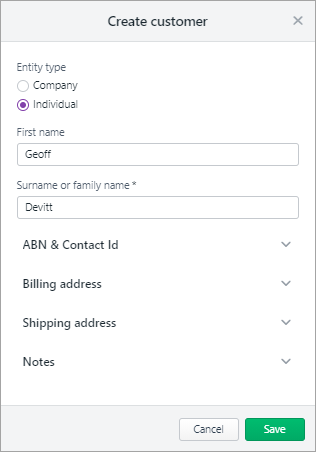
Click the Customer dropdown arrow and choose Create customer. Enter as much (or as little) info as you like and click Save. You can always go back later and fill in additional details.
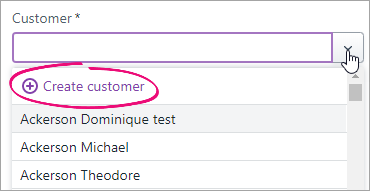
Add missing details to an existing customer:
Type the customer's name in the Customer field and hit Enter. Click the dropdown next for the information you want to add, such as the ABN or billing or shipping address, add the details and click Save.
- (Australia only) The status of the ABN you've entered in the customer's record will checked, and the status shown. Click the status to see more details.
If necessary, change the Sales order number. This number is automatically generated, based on the last number you used.
Changing the numbering
If you change the invoice number, you’ll change the automatic numbering. For example, if you change the number to 000081, the next time you create an invoice, the new invoice number will be 000082.
If you have one, enter the Customer PO Number.
Check the date in the Issue date field.
- Click the date in the Promised date field to enter the date you promise to deliver the items to the customer.
- Select an option from the Amounts are list.
- If you want the prices to include tax or GST, choose Tax inclusive. Note that this is the default tax preference.
- If you want the prices to exclude tax or GST, choose Tax exclusive.
Click Field layout and select the applicable option based on what you're ordering.
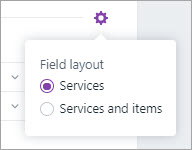
If you're ordering items:
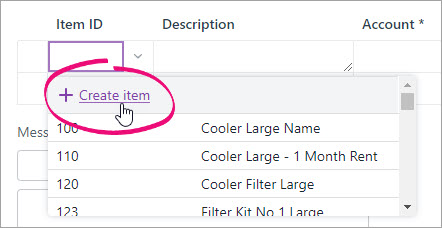
In the Item ID column, click the dropdown to choose an item or search for an item by entering all or part of the Item ID or Supplier item ID. As you type, matching items are shown.
Entering a new item?
Click the dropdown arrow in the Item ID column and choose + Create Item. Enter the item details and click Save. Learn more about Creating items.
When you choose an item:
the item's Description, Account for tracking sales, Unit selling price and Tax code appear automatically, based on what you entered when you created the item (you can edit these details if you want)
the total price of the items is calculated automatically in the Amount field.
If you see an information message that there are no inventory details for this item and you want to track its on-hand quantity, click Edit item and complete the inventory information for the item.
Enter the number of Units of this item you're selling. The calculated Amount is displayed.
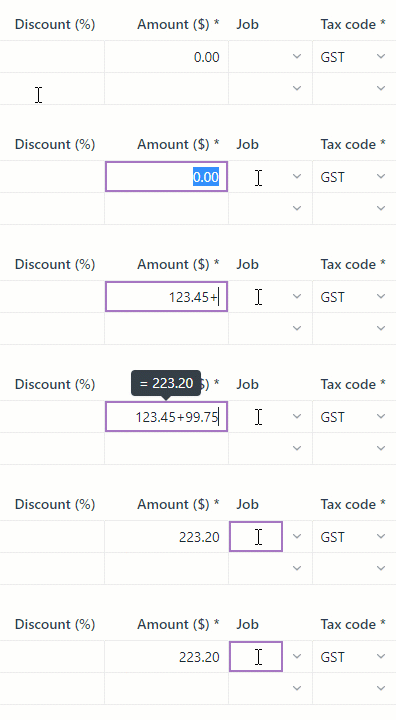
There's a built-in calculator in the No of units, Unit Price, Discount and Amount fields. Just enter a calculation in the field and tab out of it:
Repeat step 11 for each item you're ordering. Need to add or remove blank lines or line items?
- If you're selling services:
In the Description column, enter a description of the service you're providing.
- Choose the Account the income from this service will be allocated to. If you're not sure, check with your accounting advisor.
Enter the Amount of this service.
If required, change the Tax code. If you're not sure, check with your accounting advisor.
Repeat step 11 for each service you're selling. Need to add or remove blank lines or line items?
Enter any charges for Freight, and if required, change the default Tax/GST code. If you can't enter Freight, you'll be prompted to specify a linked account for freight. (What is a linked account?) The totals are calculated at the bottom of the sales order:
Subtotal—the total for the items added to the sales order
Tax—the amount of tax applied to the sales order
Total—the total amount of the sales order including the tax or GST amount
- (Optional)
- Choose a Job if the line item relates to a specific job. Tell me more about jobs.
If you want to add a note about the sales order, choose a Notes to customer and enter any additional text in the box below it (or edit an existing note). These notes will appear on the customer's sales order. For example, you could use this area to add additional details about payment. You can choose one of the notes that come with MYOB Business, edit an existing one or add your own reusable notes — see Notes to customer.
If you frequently use a note, select Save as default. This note will then appear automatically whenever you create a sales order (you can still choose a different note if you want).
Check that all the information in the sales order is correct.
If you want to print or download a PDF copy of the sales order, click View PDF.
AccountRight browser users – you can choose a different AccountRight sales order form before printing it.
The sales order appears as a PDF in a new tab where you can download it or print it.
Click Save.
Find a sales order
Go to the Sales menu and choose Sales orders. You can filter the list of displayed sales orders using the filters across the top and sort them by clicking a column heading.
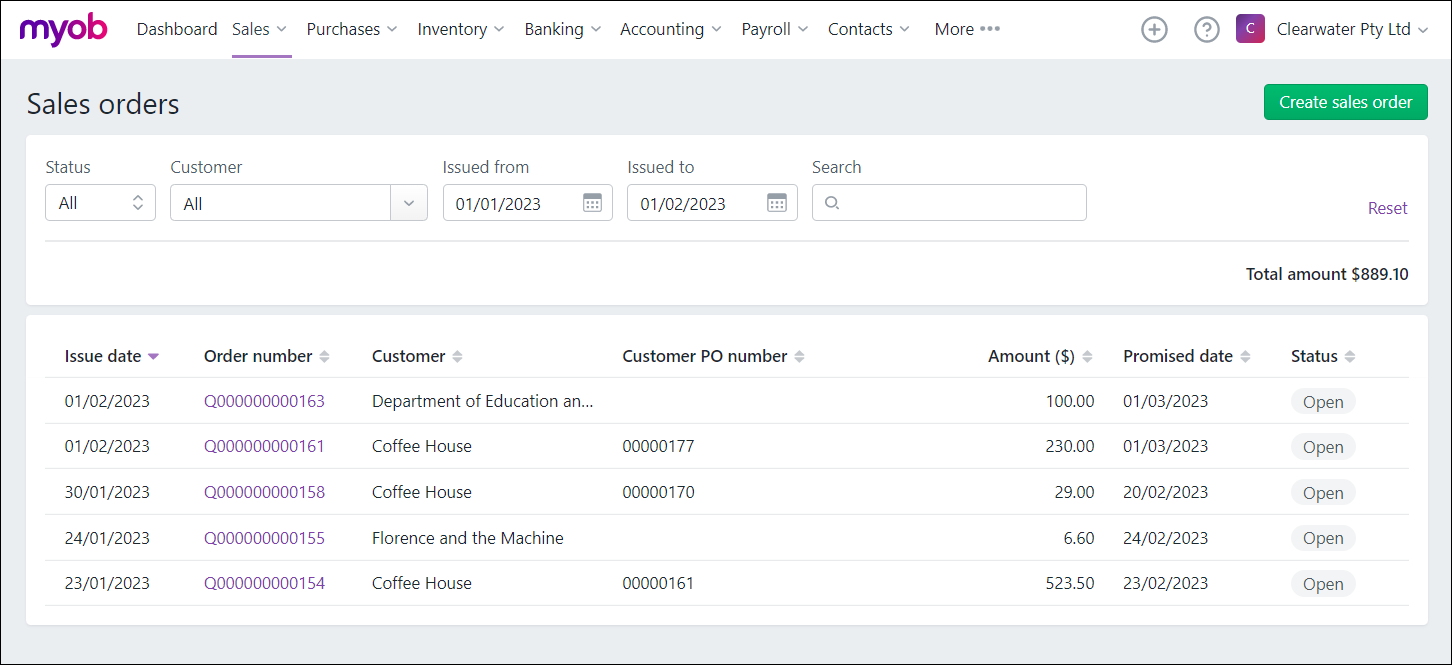 Click a purchase order number to view its details.
Change or delete a sales order
Need to change or fix something? Open the sales order and make your changes. You can change anything except the Customer.
If it's easier, you can delete the order and start again.
Change a sales order
- Go to the Sales menu and choose Sales orders.
- Filter the list of displayed sales orders using the filters across the top or sort them by clicking a column heading.
- Click a purchase order number to view its details.
Make your changes.
If you change an inventory item Order qty, the number of that item committed to customers is automatically updated in your Stock on hand report and Reorder report – see Inventory reports.
- Click Save.
Delete a sales order
- Go to the Sales menu and choose Sales orders.
- Filter the list of displayed sales orders using the filters across the top or sort them by clicking a column heading.
- Click a purchase order number to view its details.
Click Delete and then Delete again in the confirmation message that appears.
When you delete a sales order containing an inventory item, the number of that item committed to customers is automatically updated in your Stock on hand report and Reorder report – see Inventory reports.
Print or download a sales order
- Go to the Sales menu and choose Sales orders.
- Filter the list of displayed sales orders using the filters across the top or sort them by clicking a column heading.
- Click a purchase order number to view its details.
Click View PDF.
AccountRight browser users – you can choose a different AccountRight sales order form before printing it.
The sales order appears as a PDF in a new tab where you can download it, print it, or attach it to an email.
What's next?
We'll be delivering further features and improvements to sales orders throughout 2023, enabling you to:
- convert a sales order to an invoice
- email a sales order
- see your sales order activity
- apply a deposit to a sales order.
Keep track of all MYOB Business new features and improvements. Visit (and bookmark) the MYOB Business Release Notes.
FAQs
Who can enter sales orders?
Any user with the following role or permissions can enter purchase orders:
- Administrator
- Accountant/Bookkeeper
- Sales
You can prevent an ordinary MYOB Business file user entering purchase orders by deselecting the Sales role and permissions:
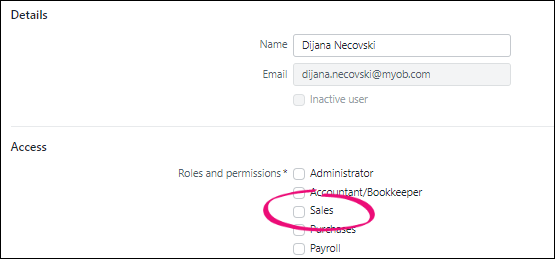
Find out more about user roles and permissions.
Can I email a sales order?
You can't yet email a sales order directly from MYOB Business – that feature will be available in a future release. However you can create a PDF of the sales order and attach it to an email – see 'Print or download a sales order', above.
What sales order features are available in AccountRight browser?
Many sales order features in AccountRight desktop are available when you when you access your company file in a web browser, but there are still some coming.
In the browser, you are not yet able to:
- convert a quote to a sales order
- convert a sales order to an invoice
- email a sales order
- put a deposit on a sales order.
These features are coming. In the meantime, if you need to do these tasks, you can do them in AccountRight desktop.
The following table summarises the sales order features available in AccountRight desktop versus AccountRight browser:
| Feature | AccountRight desktop | AccountRight browser |
|---|---|---|
| Convert quote to sales order |
| Coming soon |
| Email sales order |
| Coming soon |
| Apply terms to a sales order |
| |
| Print a sales order |
|
|
| Apply freight to a sales order |
|
|
| Create sales order for inventoried and non-inventoried items |
|
|
| Create sales order for service items |
|
|
| Create sales order for Items & Service layout |
| |
| Retain original sales order once converted to invoice |
| |
| See sales order activity |
| Coming soon |
| Apply a deposit to a sales order |
| Coming soon |

 Yes
Yes
 No
No
 Thanks for your feedback.