Child pages
  • Download your super records before upgrade

You are viewing an old version of this page. View the current version.

Compare with Current View Page History

« Previous Version 24 Next »


Close

How satisfied are you with our online help?*

Just these help pages, not phone support or the product itself

0
1
2
3
4
5
Very dissatisfied
Very satisfied

Why did you give this rating?

Anything else you want to tell us about the help?
If you've received an email or in-product message that your MYOB Essentials file (or if you're an MYOB Partner, your client's files) will be upgraded soon, we recommend you log into MYOB's super portal and download your contribution statements and payment receipts.

This is because:

The easiest way to download your super records is to do it before upgrading by logging into MYOB's super portal from your old MYOB Essentials.

However, you can still access MYOB's super portal after upgrading by visiting the super portal website, logging in with your super portal details and following the rest of the steps below.

We recommend downloading your contribution statements and payment receipts and saving them in a secure folder.

To download a contribution statement

To download a contribution statement

  1. Open MYOB Essentials and go to the Payroll menu > Pay superannuation.
  2. Click Go to MYOB's super portal and log in with your super portal login details (Forgotten your details?)
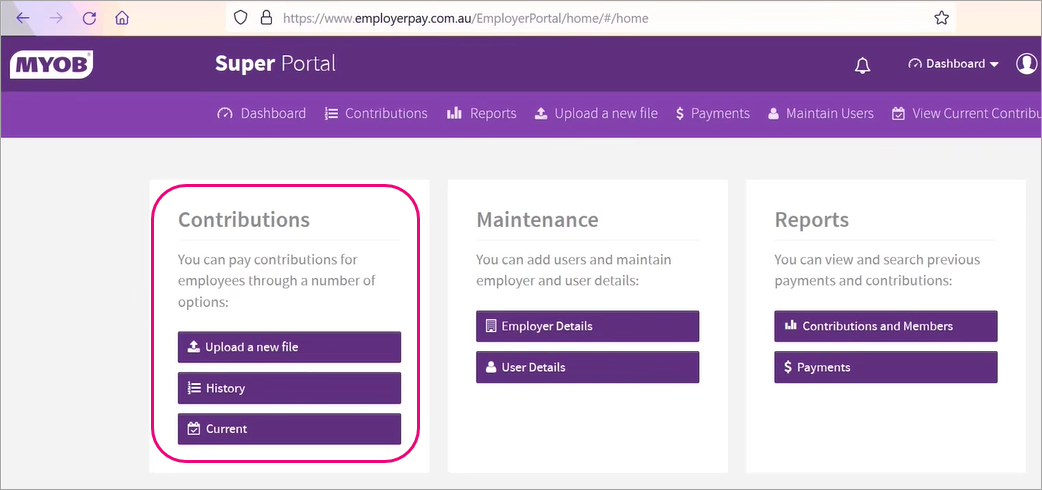
  3. Go to Dashboard > Contributions.
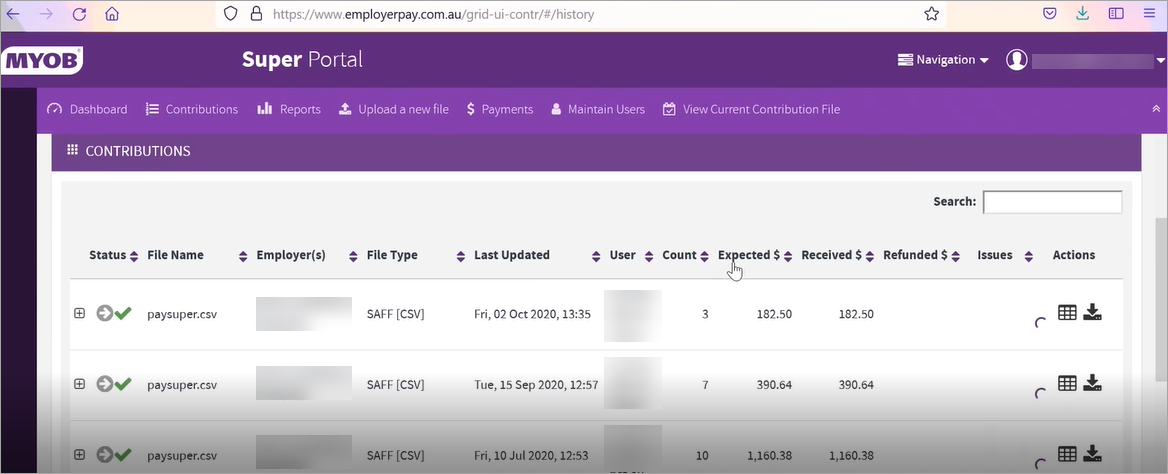
  4. Click History to show your contribution statements.

  5. Click the Download iconfor a contribution statement.

  6. Click Save File and choose a location to save the statement.

  7. Repeat from step 5 for all files you want to retain.

To download a payment receipt

To download a payment receipt

  1. Open MYOB Essentials and go to the Payroll menu > Pay superannuation.
  2. Click Go to MYOB's super portal and log in with your super portal login details (Forgotten your details?)
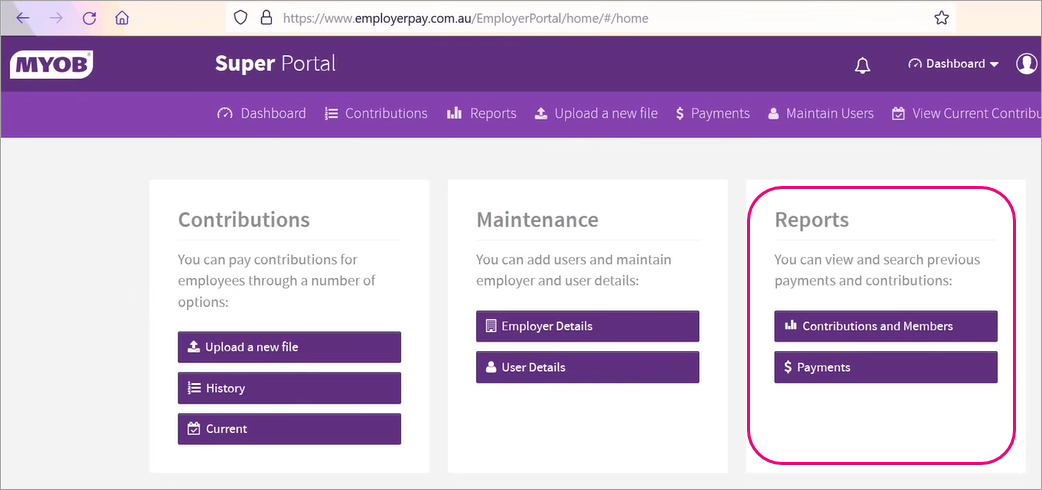
  3. Go to Dashboard > Reports.
  4. Click Payments.
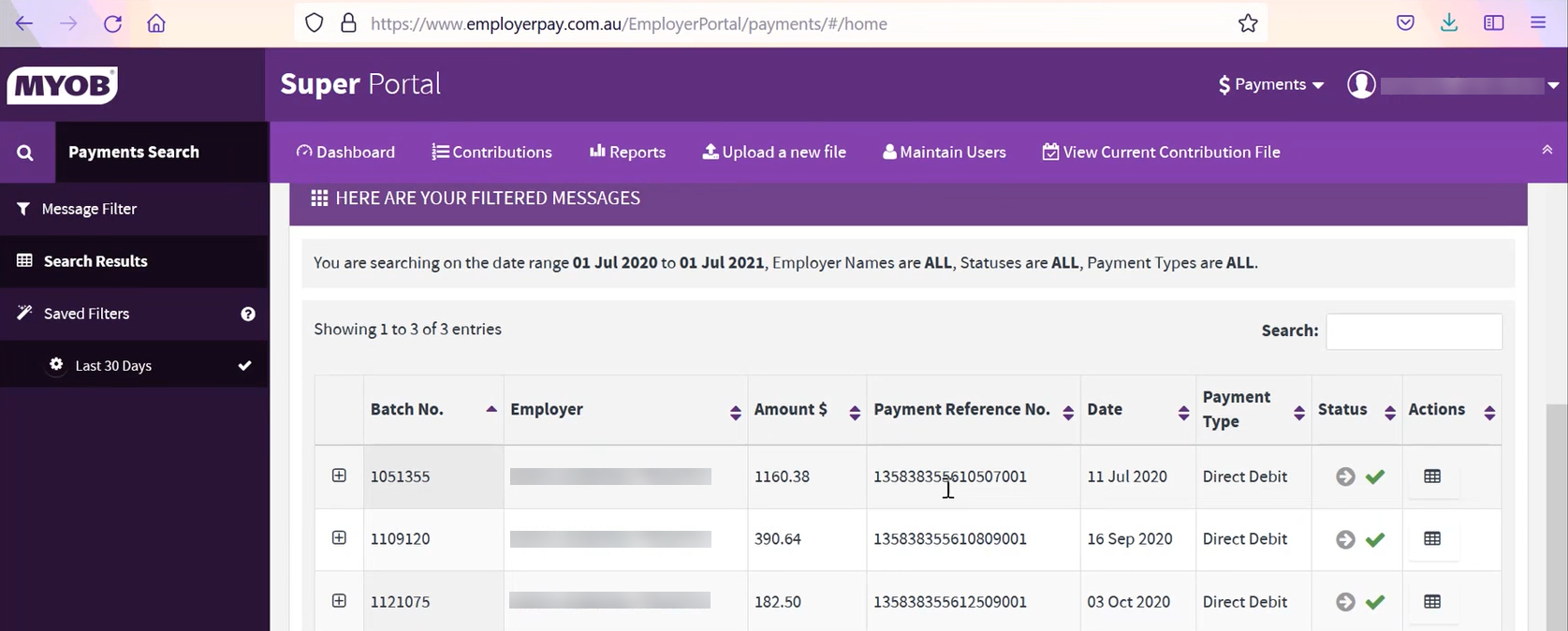
  5. Use the Date Filters to show the period you want to download payments for.
  6. Click Search to show your payments.
  7. Click the View source payment details icon for a payment.
  8. Click Receipt.
  9. Click Save File and choose a location to save the file.

  10. Click Go Back and repeat from step 5 for all files you want to retain.

How do I pay super after upgrading?

In the new MYOB Essentials, you can pay employee super using Pay Super. While you do need to change over to Pay Super, the good new is it's easier and quicker to use than MYOB's super portal. Pay Super is integrated with MYOB Essentials, so it's all managed in the one place. You no longer need to upload a contribution file when you want to pay employee – you just need to enter an SMS authorisation code to get your payment processed.

You'll be prompted to set up Pay Super in your new MYOB Essentials.

Want to learn more about what's different in your new MYOB?

For more information on the upgrade of MYOB Essentials: