

You are viewing an old version of this page. View the current version.
Compare with Current View Page History
Version 1 Next »
https://help.myob.com/wiki/x/iAimAw
How satisfied are you with our online help?*
Just these help pages, not phone support or the product itself
Why did you give this rating?
Anything else you want to tell us about the help?
Now that you've been upgraded to the new MYOB from MYOB Essentials, take a moment to confirm that everything is set up properly.
- Can other file users only access the parts of the file you want them to access?
- Is your bank reconciliation is up to date?
- Are all of your bank feed rules there?
- Are any credit card bank feeds linked to asset accounts? You should change them to liability accounts.
- Is your chart of accounts set up correctly?
Signing into your new MYOB
Sign in to your upgraded software at: app.myob.com
If you've previously bookmarked essentials.myob.com, you should update your bookmark.
Set up user access
Previously, standard users could access most processes in the business. Now, you can decide who sees what – for example, you can stop sales staff accessing the payroll area.
If the business has multiple file users, you might need to set up their level of access.
To view users, click the business name > Users.
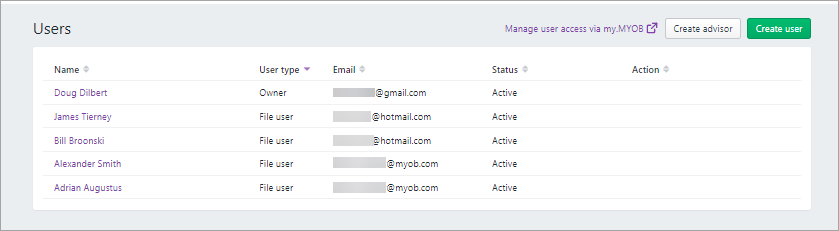
Click a user to check what roles and permissions they have.
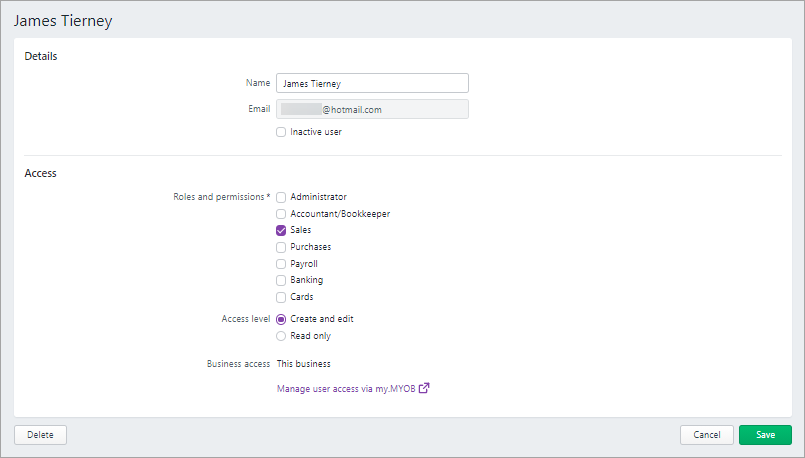
In the Access section:
- Select the access you want to give the user. Learn about access levels
- Select if the user can create and edit in the area they have access to or just view it
- Select which businesses the user can access – This business or (if you have multiple businesses) All businesses with this serial number.
- Click Save.
Other things you should know about user access
As you previously could, if you want to view and add or remove users click the business name and go to Users
You can also manage user access via my.myob (except for Advisors – you can only invite an Advisor from the Users page)
If you need to change the Owner user of the business, you'll need to contact us.
Check your bank reconciliation
Bank reconciliation in the upgraded business will be based on the last completed reconciliation in your old software. It's a good idea to verify that it's up to date.
To check that bank rec is up to date
Go to Banking > Reconcile accounts. On the Reconcile accounts page, the following fields are filled in for you based on the last completed reconciliation in your old software:
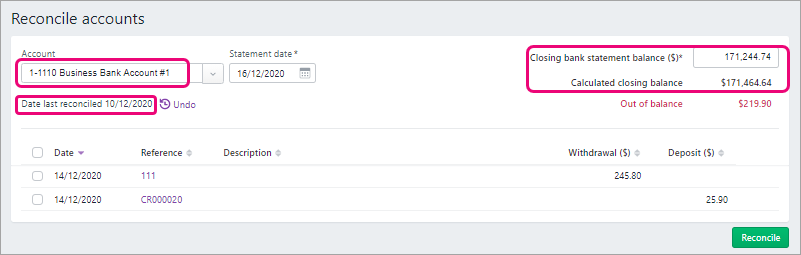
If the business uses bank feeds, check that all bank feed transactions have been received for the period you want to reconcile, and that they've been matched or allocated or entered into MYOB.
If something doesn't look quite right, it may be that there was a bank rec that was saved, but not completed, in your old software – only completed bank recs are migrated during the upgrade.
If that's the case, you will need to redo the bank rec.
For the steps on doing a bank rec in your new MYOB, see Reconciling your bank accounts.
Looking for the Bank reconciliation report? Go to the Reporting menu > Reports > Banking reconciliation.
Review your bank feed rules
If the business is set up with bank feeds and is using bank feed rules, you should confirm that they're all there. Also, if you have bank feeds for credit cards, you should check what account type they're linked to.
To check your bank feed rules
From the Banking menu, choose Bank rules to open the Bank rules page.
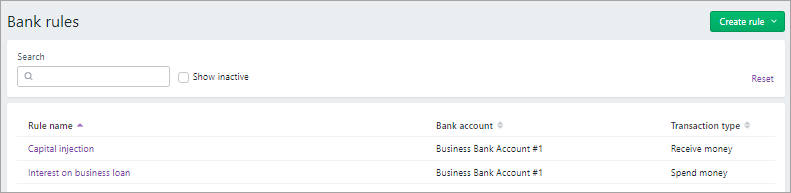
Check the list of rules. If you need to view or edit the setup of a rule, click its name.
What's different about bank feed rules
There's a lot more useful features in bank feed rules, but there's also a bit more we're still working on. Here's what you need to know:
- Rules with conditions Begins with or Ends with are not currently available – they'll be added soon. In the meantime, you may be able to create rules that behave similar to the old rules using the condition Contains.
- There are now more transaction type options. As well as Spend money and Receive money, you can create Bill and Invoice rules.
- You can now choose if the rule will apply to all bank accounts or to a specific bank account.
- You can assign a contact to the rule.
- And you can enter a description to automatically appear in transactions created from the rule.
See Creating rules.
In the new MYOB, you're not able to link credit card bank feeds to asset accounts.
If you had any credit card bank feeds linked to asset accounts in your old MYOB Essentials they will have been migrated in the upgrade.
These bank feeds will work for now in your new MYOB, but we can't guarantee that they will work in the future. If you do have a credit card bank feed linked to an asset account, you should change it to link to a liability (Credit Card type) account.
If you're not sure if there's any bank feeds set up this way, open MYOB, go to the Banking menu > Manage bank feeds and check the Linked account column.
Here's how to change the linked account on the bank feed:
- Check that you've allocated or matched all your bank transactions on the feed, including from any rules you've set up.
- Complete all reconciliations for your credit card bank feeds.
- Cancel the bank feed.
- Go to the Banking menu > Manage bank feeds.
Click the delete
 icon next to the bank feed you want to cancel.
In the confirmation window that appears, click Delete to cancel the bank feed.
- Re-apply for the bank feed.
- When the bank feed is ready, link it to a liability (Credit Card type) account (if necessary, set up a new liability account).
- Record a journal entry to transfer the balance of the asset account to the liability account. Speak to your accountant if you're not sure how to do this.
- If you had any rules that you allocated from the old bank feed, you may need to check the setup of these and edit them if necessary.
Look over the chart of accounts
Review the chart of accounts to make sure it's set up the way you like it – go to the Accounting menu > Chart of accounts.
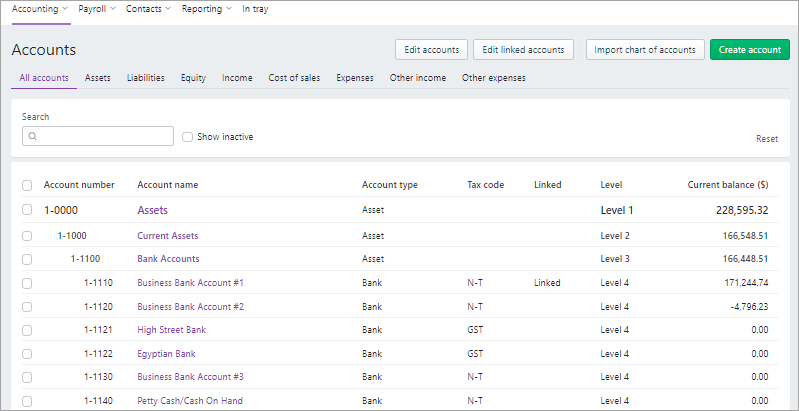
We've made it easier to tweak the chart of accounts if you need to, giving you the ability to edit and delete accounts in bulk.
Need to delete an account? If you have a duplicate account or account you don't need, you can delete it if:
- has never been used in a transaction
- has no journal entries
- has a zero balance
- is not a linked account
- is not linked to a pay item
Instead of deleting an account you can deactivate it.
For more information, see Adding, editing and deleting accounts.
Want to learn more about what's different in your new MYOB?
For more information on the upgrade of MYOB Essentials:
- visit our website: small businesses | MYOB Partners
- check out the free upgrade training course.

 Yes
Yes
 No
No
 Thanks for your feedback.