Page tree

You are viewing an old version of this page. View the current version.

Compare with Current View Page History

« Previous Version 16 Next »


Close

How satisfied are you with our online help?*

Just these help pages, not phone support or the product itself

0
1
2
3
4
5
Very dissatisfied
Very satisfied

Why did you give this rating?

Anything else you want to tell us about the help?
This information applies to AccountRight 2016 (Australia only).

Get paid faster by giving your customers more convenient ways to pay you.

If you only offer cheque or direct deposit as your payment options, you risk customers putting off paying their invoices until they find time to do it, or they may even forget.

MYOB PayDirect Online gives your customers easier and faster ways to pay you. They can pay you online using their VISA and MasterCard, and there are more payment options coming soon, like BPay.

MYOB PayDirect Online is only available if your file is online, and you’re using AccountRight’s built-in emailing feature to send invoices to your customers. Learn about the emailing feature.

Getting started

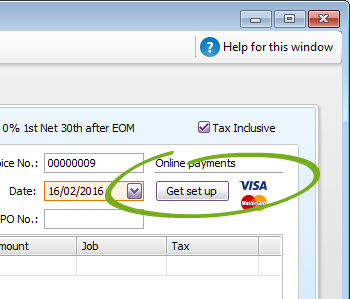
It’s easy to set up MYOB PayDirect Online. Just make sure you're the business owner, and then click the Get set up button in the Sales window.


If you’ve been using Microsoft Outlook to send emails, an assistant will appear to help you set up AccountRight’s own emailing feature and your payment options.

If you’re already using AccountRight to send emails, rather than Microsoft Outlook, you’ll be taken straight to the MYOB PayDirect Online website where you can log in with your MYOB account details and set up your payment options.

Sending an invoice

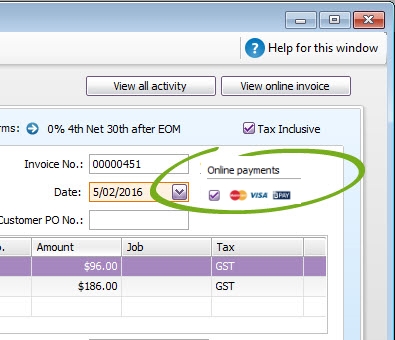
For each invoice you can choose whether to enable online payments for it or not.

  1. Create your invoice as you usually do, and also choose the payment methods you want to offer for the invoice (currently there’s only one option, but more are coming soon).
  2. Email the invoice to your customer.
  3. Your customer clicks the automatically generated link that’s in the email they receive, and their full invoice will appear online.
  4. They can click the Pay Now button to make their payment on the spot.

Handling the payment in your company file

When a customer makes a payment, the details will automatically be entered into your company file for you, and the invoice will be closed off.

Note that the individual payments you receive will be recorded in your Undeposited Funds account. You will need to clear the Undeposited Funds account regularly by preparing a bank deposit.

For example, say you receive three online payments on Monday. The payment details of each transaction will be listed in your Undeposited Funds account. MYOB will deposit the total of the three payments overnight into your bank account as one lump sum. So on Tuesday, you would prepare a bank deposit in your company file that includes the three payments, and that matches the deposit transaction that will appear on your bank feed and bank statements.

  FAQs


Can I still give customers discounts for early payment?

Yes. The online invoice will show your customers the amount due, and will take into account the credit terms to determine whether a discount applies if the invoice is paid in full.

Ensure that you've linked an account for early payment discounts in the Setup menu > Linked Accounts > Sales Accounts window.

 
From the community

Could not retrieve http://community.myob.com/myob/rss/search?q=email&filter=labels%2Clocation%2CsolvedThreads&location=forum-board%3AAccounting_Software_General&search_type=thread&solved=true - Page not found.