
Page tree

You are viewing an old version of this page. View the current version.

Compare with Current View Page History

« Previous Version 16 Next »


Close

How satisfied are you with our online help?*

Just these help pages, not phone support or the product itself

0
1
2
3
4
5
Very dissatisfied
Very satisfied

Why did you give this rating?

Anything else you want to tell us about the help?
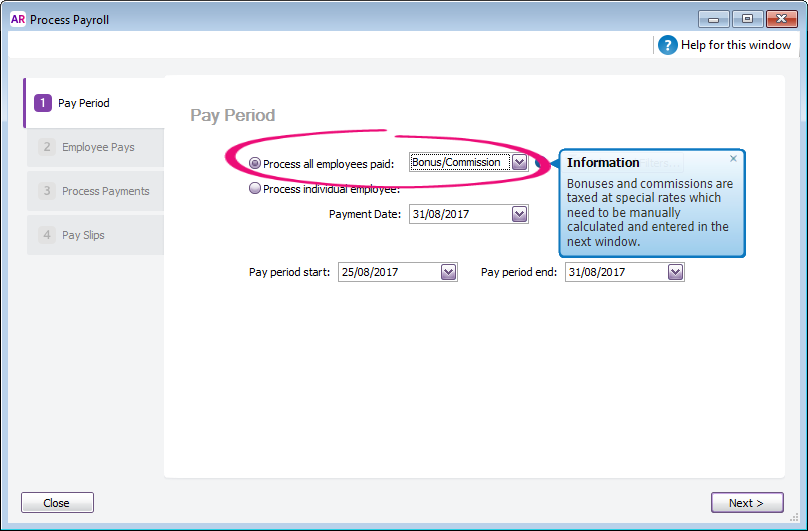
There's two ways you can pay an employee a one-off bonus or commission:

  • include the payment on one of their regular pays, or
  • process a separate pay just for the bonus or commission.

When paying a bonus or commission, AccountRight treats the total gross pay as the employee's regular wage and taxes it accordingly. This means you'll need to calculate and manually adjust the PAYG Withholding on the pay.

To include a bonus or commission on a regular pay

To include a bonus or commission on a regular pay 

  1. Start a pay run (Payroll > Process Payroll).
  2. Choose the employees you want to pay and confirm the Payment Date and Pay Period.
  3. Click the zoom arrow to review the employee's pay.
  4. If the Bonus or Commission wage category hasn't already been added to the employee:
    1. Click Add Payroll Category.
    2. Select the Bonus or Commission wage category.
    3. Click OK.
  5. Enter the payment in the Amount column against the Bonus or Comnmission wage category.
  6. Adjust the PAYG Wihholding value as required.
  7. Finalise the pay as normal.
To process a separate pay just for the bonus or commission

To process a separate pay just for the bonus or commission 

  1. Start a pay run (Payroll > Process Payroll).
  2. At the Process all employees paid field, select Bonus/Commission. Information is displayed about manually calculating and entering the tax for this payment.


  3. Click the zoom arrow to review the employee's pay.
  4. If the Bonus or Commission wage category hasn't already been added to the employee:
    1. Click Add Payroll Category.
    2. Select the Bonus or Commission wage category.
    3. Click OK.
  5. Enter the payment in the Amount column against the Bonus or Comnmission wage category.
  6. Adjust the PAYG Wihholding value as required.
  7. Finalise the pay as normal.


Related topics


