
Page tree

You are viewing an old version of this page. View the current version.

Compare with Current View Page History

« Previous Version 10 Next »


Close

How satisfied are you with our online help?*

Just these help pages, not phone support or the product itself

0
1
2
3
4
5
Very dissatisfied
Very satisfied

Why did you give this rating?

Anything else you want to tell us about the help?
AccountRight Plus and Premier 2020.2 onwards, Australia only

MYOB Excel uses up-to-date company file data so you can run reports without having to manually export data from your AccountRight online company file. Now all the data you need is ready for you to use. And the best part? This add-in is part of your MYOB subscription.

Setting up MYOB Excel

Here's what you need to know to get started.

First, you need to download MYOB Excel via the MYOB App Store or Microsoft App Store. Once that's done, use your MYOB log in details to gain access to your online company file data.

Using MYOB Excel

Ready to dive in? Let's do it.

To sign in to MYOB Team

To sign in to MYOB Excel

  1. Head to MYOB Excel.com blah blah on your desktop/ computer/ online wherever it is
  2. Sign in using your MYOB username and password.
  3. Choose a business file and click Submit. The MYOB data selection panel appears.
  4. Select whether you'd like to switch the Automatically refresh data on open option on or off.
    If you select:
    1. On: the data will automatically refresh
    2. Off: the data will need to be refreshed manually by clicking Refresh data at the bottom of the screen.
Select your data

Data selection

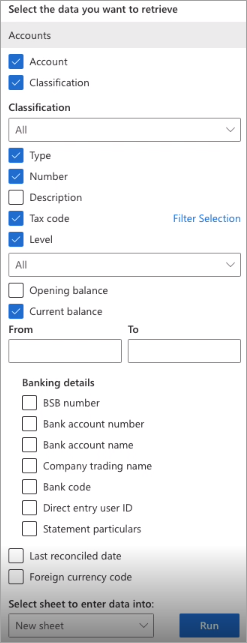
Once you've signed into the business file, you need to select which data you'd like to retrieve. You can select a number of preferences for each category, like Accounts, Journals and Sales data. Here's how:

  1. Select the preferences you require for the report you'd like to run. That could be the account type, tax code, and current balance which will be the column headings for the spreadsheet.
  2. Choose where you'd like the data to appear in the Select sheet to enter data into dropdown.
  3. Click Run. The data will now appear in columns, as selected, in your chosen spreadsheet ready for you to use.

When you're ready to run another report, just click Back and make a new selection.


