Page tree

You are viewing an old version of this page. View the current version.

Compare with Current View Page History

« Previous Version 14 Next »


Close

How satisfied are you with our online help?*

Just these help pages, not phone support or the product itself

0
1
2
3
4
5
Very dissatisfied
Very satisfied

Why did you give this rating?

Anything else you want to tell us about the help?
AccountRight Plus and Premier 2020.2 onwards, Australia only

MYOB for Excel uses up-to-date company file data so you can run reports without having to manually export data from your AccountRight online company file. Now all the data you need is ready for you to use. And the best part? MYOB for Excel is part of your MYOB subscription.

Setting up MYOB for Excel

Here's all you need to know to get started in MYOB for Excel.

To get started, download MYOB for Excel:

Once that's done, use your MYOB log in details to gain access to your online company file data.


Using MYOB for Excel

Ready to dive in? Let's do it.

Sign in to MYOB for Excel

Sign in to MYOB for Excel

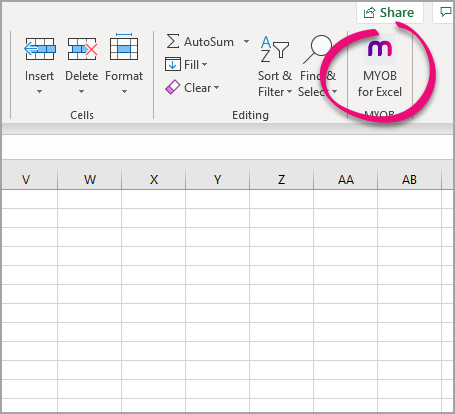
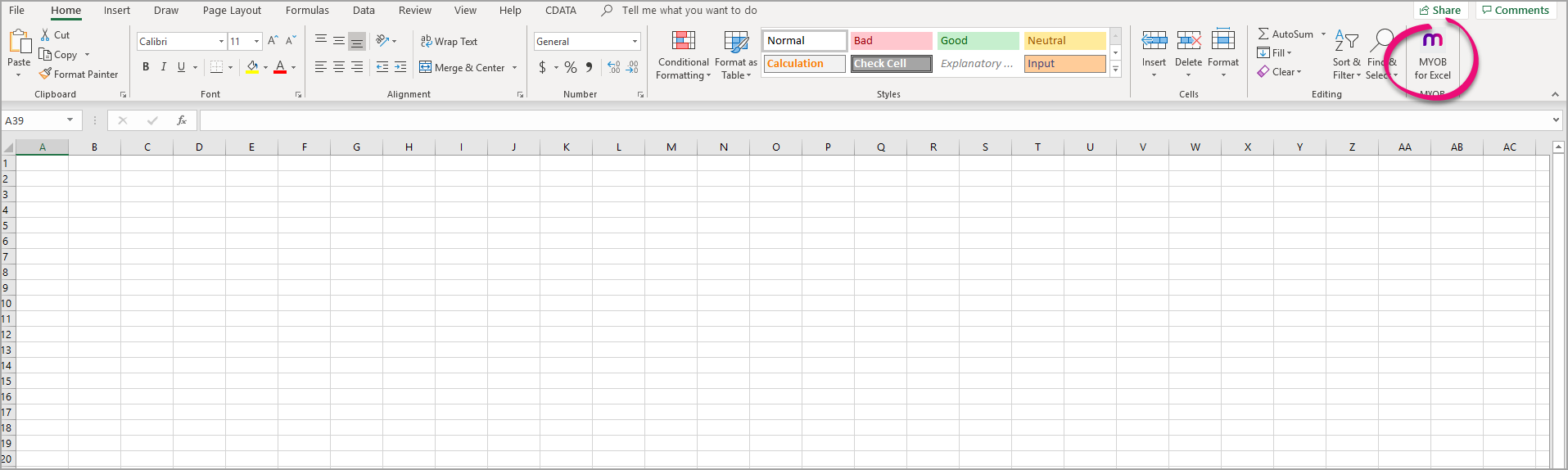
  1. Open a blank workbook in Excel and click the MYOB for Excel icon.


    (CONFIRM HOW USER WILL ACCESS PRODUCT FOR THE FIRST TIME. IS VIA EXCEL THE ONLY WAY TO ACCESS)
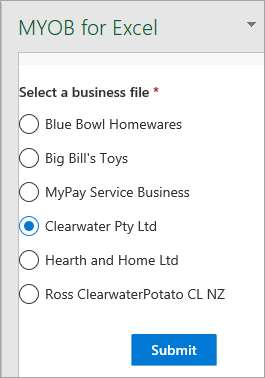
  2. When prompted, sign in to your MYOB account. The MYOB for Excel add-in opens, showing all of your online company files. CAN ALL FILE USERS, EVEN THOSE WITHOUT ADMIN ACCESS ETC USE MYOB FOR EXCEL? ANY LIMITATIONS?)
  3. Select the business file you'd like to use and click Submit. The MYOB data selection panel appears.
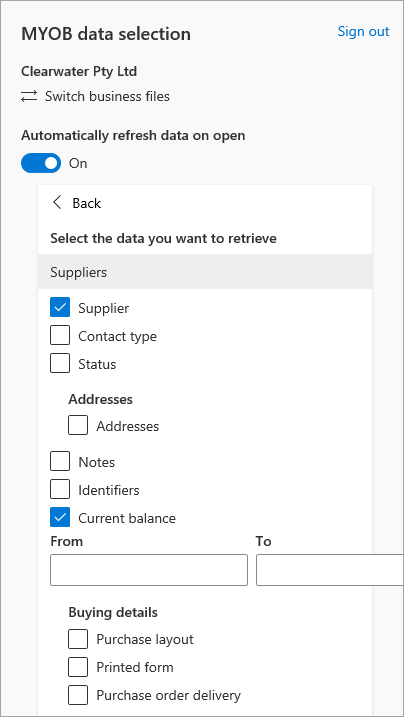
  4. Select whether you'd like to switch the Automatically refresh data on open option on or off.
    If you select:
    1. On: the data will automatically refresh.
    2. Off: the data will need to be refreshed manually by clicking the Refresh data button .
Select your data

Data selection

Once you've signed into the business file, you need to select which type of data you'd like to retrieve.

Here's how:

  1. Select the preferences you require for the report you'd like to run, such as the account type, tax code, and current balance. These will be displayed as the column headings in Excel. For example, if you'd like a list of all of your suppliers and their current balance go to Contacts > Suppliers > select Current balance.
  2. Once you've selected the relevant data you'd like to retrieve, click Run. The data will now appear in Excel.

If this is a report you'd like to access regularly, you can save it on your PC. Just make note of where you saved it so you can access it any time.

I want to say something about

Open the saved file 'Suppliers with current balance'. note: any changes made in your AR file will be reflected in the excel ssheet. if you selected 'refersh on open' the data will upload automatically.

or click refresh data